
Overview
CQ’s Field Audit Trail powered by Salesforce allows for administrators to maintain a comprehensive historical record of field changes and to ensure data integrity and compliance with industry standards.
Field Tracking can be setup by administrators for each CQ object as well as custom objects. Field Audit Trail Objects are enabled off the shelf for the main CQ Records associated with QualityQuest for CQ Life sciences Customers.
Prerequisites
Available in: All CQ Managed Objects and Custom Objects
Installed Package: CQ Core
User Profile Needed: System Administrator
Admin Permissions Needed: CQ Base User PSG and CQ Admin User PS
Instructions
-
Click the App Launcher.
-
Select the CQ Admin App.
-
Click the Field Audit Trail tab.
-
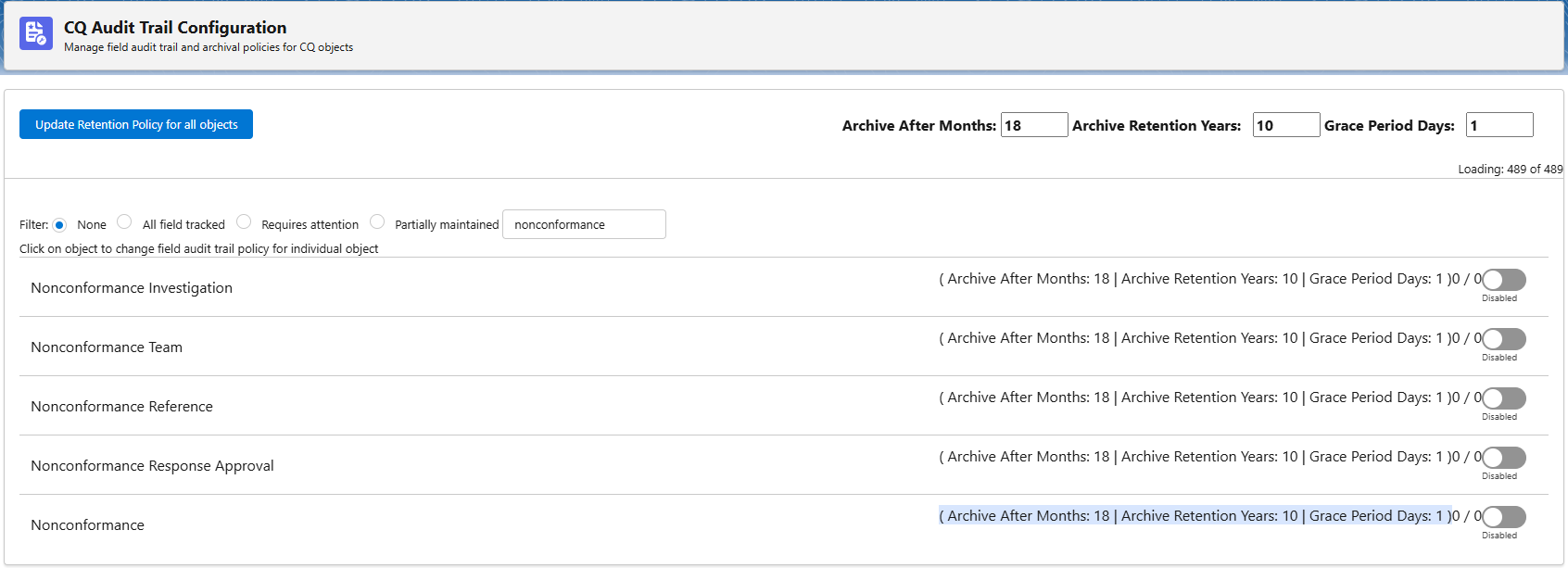
Search for Object (i.e., nonconformance).
-
Click the toggle for each applicable object to enable or disable the Audit Trail.
-
Select the Object and wait a few seconds for the fields to load.
-
Check fields to be tracked and uncheck fields for which no tracking is needed.
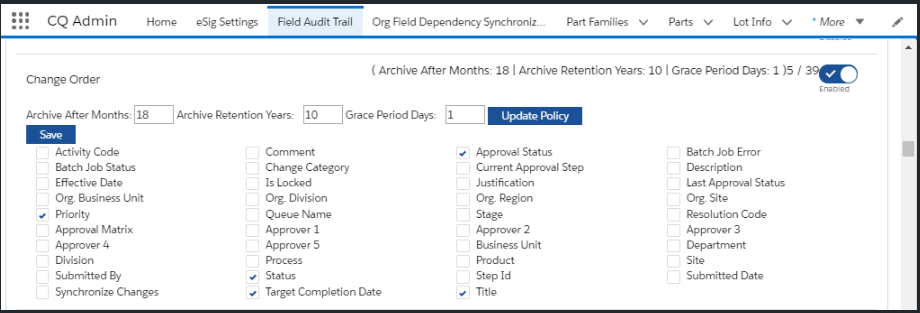
Enabled Objects displayed in green indicate that all fields within the object are tracked.

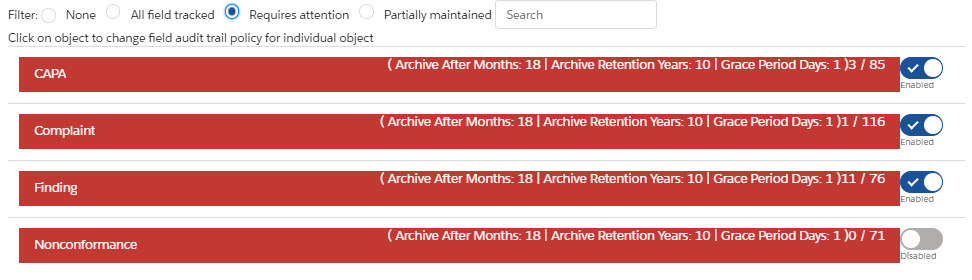
Enabled objects highlighted in red require attention because they have more than 60 fields being tracked. This exceeds the limit for customers who do not have CQ’s 21 CFR Part 11 package. Customers with the package can track up to 100 fields per object.
Troubleshooting
-
Contact your CQ representative to discuss options for Field Tracking needed beyond the maximum thresholds.
Additional Resources
CQ Resources
Salesforce Resources
Industry Resources