
Purpose
As a Record Owner, you complete a disposition to confirm the final decision for handling the nonconforming product or process. You review the disposition details, verify the decision, and update the record so the nonconformance can move toward closure.
Prerequisites
Installation Package: CQ Core, myCQ Extension, CQ Supplier Central, CQ Supplier Performance, CQ Ratings Framework, CQ Embedded Analytics, and CQ AI Extension
Product: QualityQuest and Platform Apps
Function: CQ Disposition Completion
User Profile: Standard User
For Permission Set Groups: CQ Base User PSG, CQ NC Task Assignee PSG
Steps
-
From the Home tab, click the View link for the NC record in the CQ Items section.
-
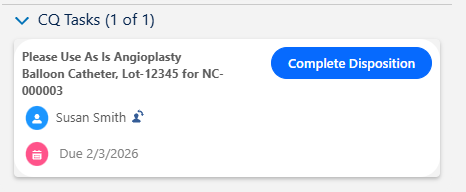
From Next Best Actions, click the Complete Disposition button.
-
Enter a Completed On date and Completed By.
-
Optionally, Drop/Upload Files associated with the Disposition.
-
Enter Comment and Password if needed, and click the Save button.
Example:
Expected Outcome
-
The Completed Disposition action is logged in the Nonconformance Record Activities section under the History tab.
-
All Dispositions Completed will have a new Status of Complete under the Disposition tab.
-
Once all Dispositions have been completed, the Next Best Actions will no longer contain Disposition activities; however, more Dispositions can be added as needed under the Disposition tab while the NC record is in the Disposition/Investigation Stage.
Additional Resources
ComplianceQuest
We Value Your Feedback
To provide feedback or suggestions to improve the help content on this page click here.