
Purpose
As a Work Record Owner or Permit Requestor, you specify the Equipment, Hazards, and Controls for the job after creating the permit. This defines what is used, what risks exist, and how those risks will be managed throughout the work process.
Prerequisites
-
Installation Packages: CQ Core - Summer 2026, CQ EHS Extension, CQ Forms
-
Product: SafetyQuest
-
Function: Work Record
-
User Profile: Standard User
-
Permissions: CQ Base User PSG and CQ EHS Base User PSG and CQ Permit Requester PSG or CQ Permit Approver PSG
Steps
-
Open the Work Record, and select the appropriate Permit in the Permits section.
-
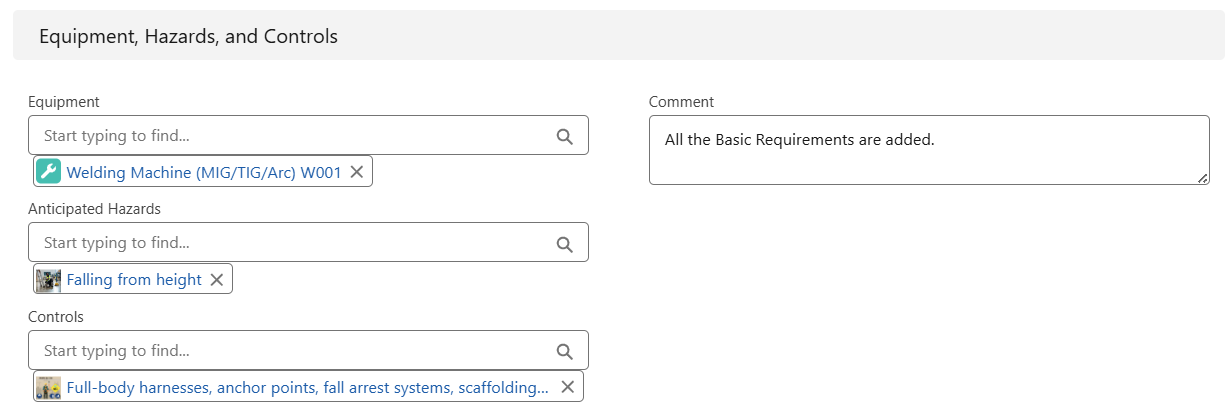
Select the Equipment (multiple Equipment can be selected) in the Equipment, Hazards, and Controls section on the Details tab of the Permit record.
-
Select the Anticipated Hazards (multiple Hazards can be selected), if applicable.
-
Select the Controls (multiple Controls can be selected), if applicable.
-
Select the Edit option from the Action Menu to enter a Comment, if applicable.
-
Click the Save button or Save & New for additional Permits.
Example
Expected Outcome
-
In the Work Record linked to the Permit, the Equipment, Anticipated Hazards, and Controls added to the Permit will be autopopulated in the Work Record as well.
Troubleshooting
-
Equipment not available in Equipment field
-
Hazards not available in Anticipated Hazards field
Optional Configurations
-
Equipments
Additional Resources
ComplianceQuest
-
Permit Review
We Value Your Feedback
To provide feedback or suggestions to improve the help content on this page click here.