
Overview
Document Owners can retire a Controlled Document directly from the document record in CQ without creating a formal Change Order. This method is ideal for quick expiration when a formal change process is not required.
By following this process, organizations maintain regulatory compliance, ensure accountability, and preserve a complete audit trail for all document retirement.
Prerequisites
Available in: Controlled Documents
Installed Package: CQ Core - Winter 2025
Optional Extension Packages: CQ Forms, CQ Laboratory Issues, CQ Process, and CQ EHS - Winter 2025
User Profile: Standard User
Permissions: CQ Base User PSG and CQ Document Owner PSG
Document Status: Draft, Pre-release, or Current
Instructions
-
From the Controlled Document record, Edit the Expiration Date to define the new date for expiration.
-
Click the Workflow tab to verify Approvers needed for Obsolescence Approval. See Defining Approvers for more information.
-
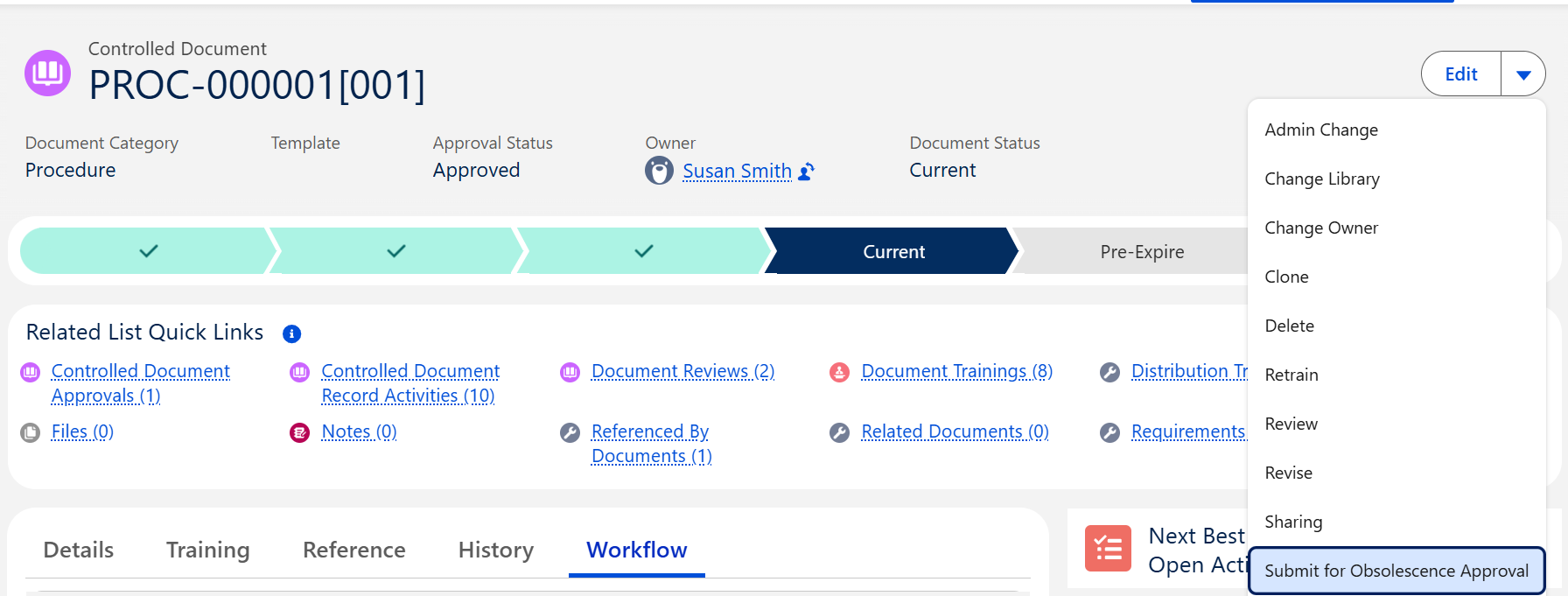
Select the Submit for Obsolescence Approval option from the Action Menu.

Results
-
The header of the record displays the current Approval Status.
-
The Workflow tab displays an Overall Approval Status of In Approval.
-
An email is sent to the Approver(s) based on Step notifying them that the record has been submitted approval.
-
An Approval Task is created and assigned to the Approver(s).
-
The Approval Task is now available on the Approver's Home page, CQ Items task list.
-
The Submitting Record for Approval activity is logged under the History tab.
Troubleshooting
-
Check back for new articles
Additional Resources
CQ Resources
-
Retiring Document via Change Order
-
Performing Document Reviews for Retirement
-
Viewing Obsolete Documents
Summer 2026