
Purpose
As a Document Owner, you can set Secondary Format to Auto to apply the predefined secondary formatting each time the document is generated. This option keeps the document’s formatting consistent without manual updates.
Prerequisites
Installation Package: CQ Core
Product: QualityQuest
Function: Controlled Documents, Template Documents, and Courses
User Profile: Standard User
Permissions: CQ Base User PSG and CQ Document Owner PSG
Record Status: Draft
Configurations: Enable Secondary Format
Steps
-
Open the Controlled Document record.
-
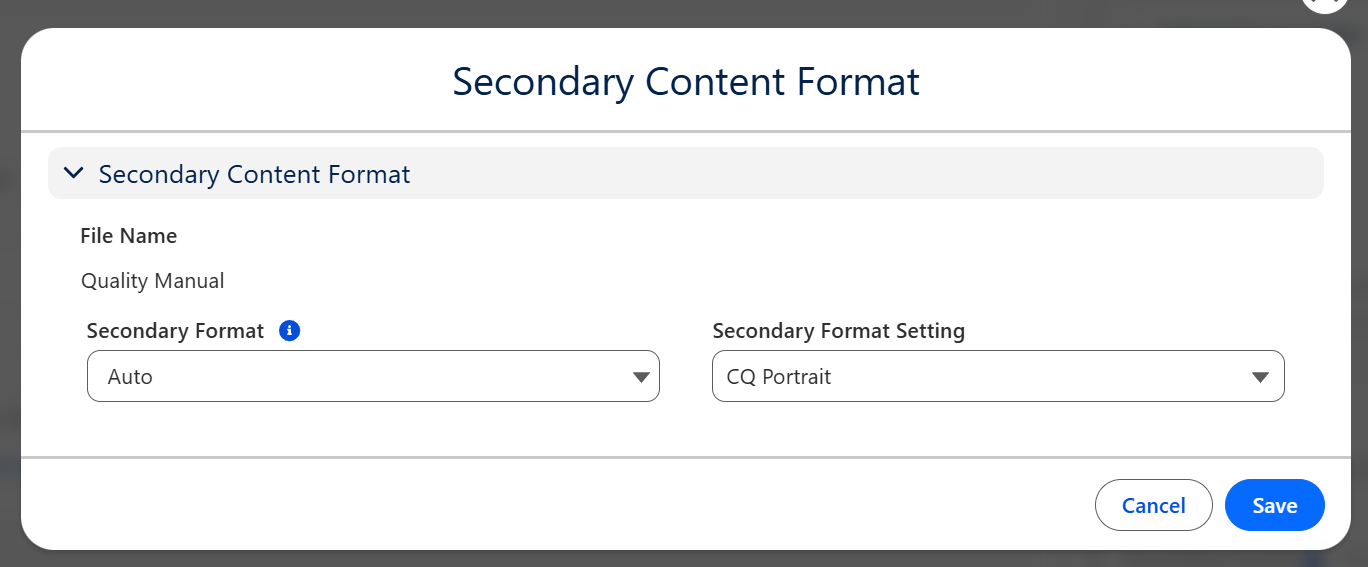
Click the Pencil for Secondary Format under the Content section.
-
Select Auto for Secondary Format.
-
Select CQ Portrait, CQ Landscape 11x17, or CQ Landscape for the Secondary Format Setting.
-
Click Save.
Example
Expected Outcome
-
Secondary Format displays as Auto.
-
The Controlled Document File will automatically render to PDF.
-
The Secondary File can be converted to PDF format up to a file size of 25MB for the sandbox and 100MB for the production instance.
-
When the Secondary Content has been generated successfully, a View.pdf link to the PDF will display, and the secondary content status will display as In Sync.
Additional Resources
ComplianceQuest
We Value Your Feedback
To provide feedback or suggestions to improve the help content on this page click here.