
Purpose
As a Document Owner, you can activate training requirements that are added to released documents so users receive assigned training. This step ensures the correct roles complete required training linked to a released document.
Prerequisites
Installation Package: CQ Core
Product: QualityQuest
Function: Controlled Documents, Template Documents
User Profile: Standard User
Permissions: CQ Base User PSG, CQ Document Owner PSG
Record Status: Current
Requirement Status: Inactive
Instructions
-
Open the Controlled Document record.
-
Open the Training tab.
-
Click Edit from the Quick Action for the Requirement.
-
Select Active and click Save.
Caution: After Activation, if any changes are needed, you must first Deactivate the Requirement.
Example
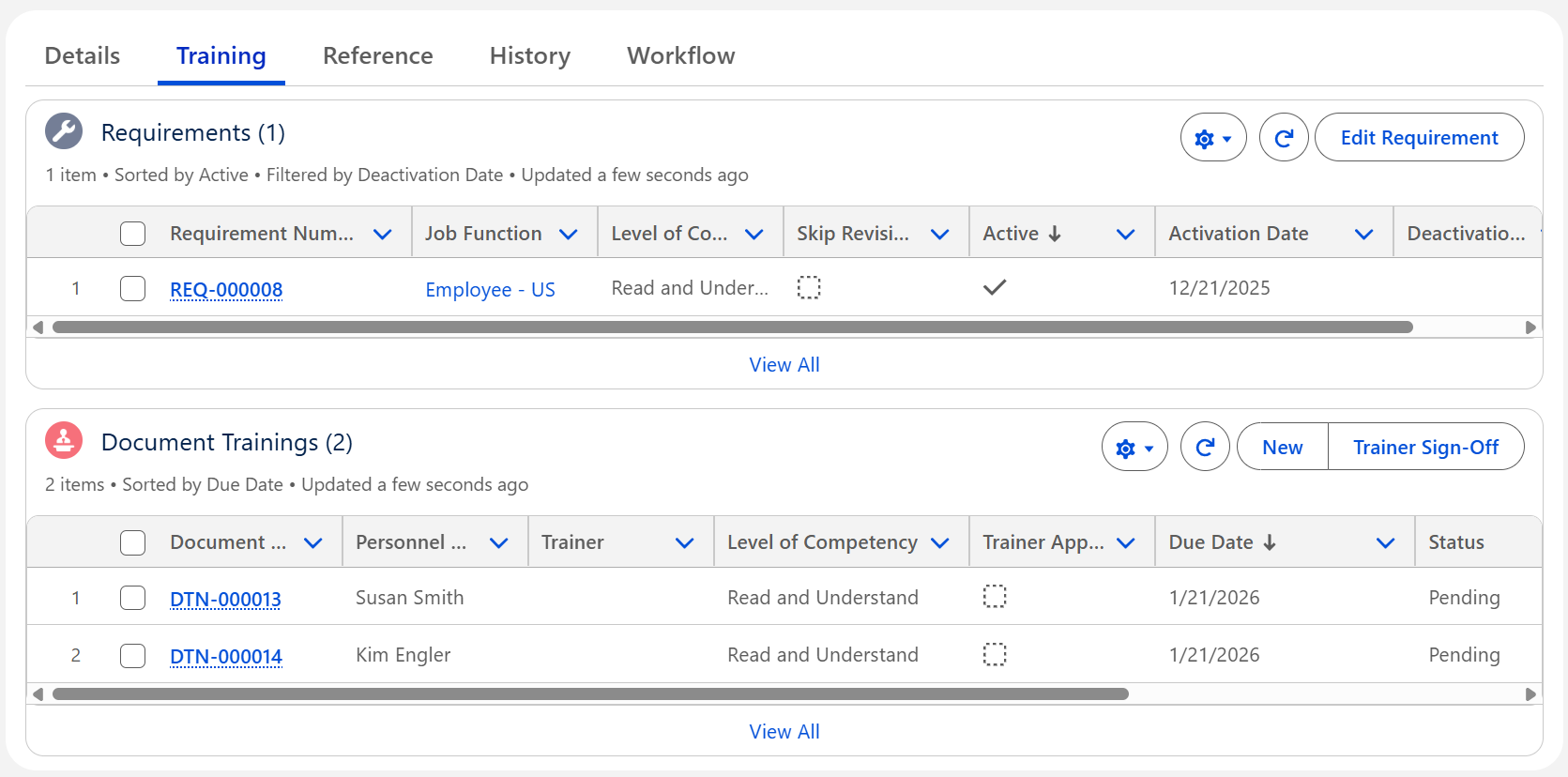
Expected Outcome
-
The Requirement now displays as Active.
-
A Document Training record has been created and assigned a unique number for each Personnel assigned to the Requirement via Job function.
-
The Status of Personnel Training under Document Trainings will specify:
-
Pending if training is need by Personnel
-
Overdue if training is overdue for Personnel
-
Current if training is complete for Personnel
-
NA if Personnel is no longer Active in the QMS
-
-
Email notification is sent to personnel requiring training.
Additional Resources
ComplianceQuest
-
Deactivating Training Requirements from Documents
-
Recording Document Training History
-
Signing off as Trainee for Document Training
-
Signing off as Trainer for Document Training
We Value Your Feedback
To provide feedback or suggestions to improve the help content on this page click here.