
Purpose
When a Planned Change is in the Plan Stage, then the Planned Change Owner must add Part Changes that will later be enforced by the Part Lifecycle applied to the Parts that are associated with the Change Order. This will allow the Part to move to the next Stage of the Part Lifecycle.
Likewise, when an Immediate Change is in the In Progress Stage, then the Immediate Change Owner must add Part Changes that will later be enforced by the Part Lifecycle applied to the Parts that are associated with the Change Order. This will allow the Part to move to the next Stage of the Part Lifecycle.
Prerequisites
Installation Package: CQ Core, CQ PLM Extension
Product: ProductQuest
Function: Standard Parts
User Profile: Standard User
Permissions: CQ Base User PSG and CQ PLM Creator PSG and CQ Design Owner PSG
Steps
-
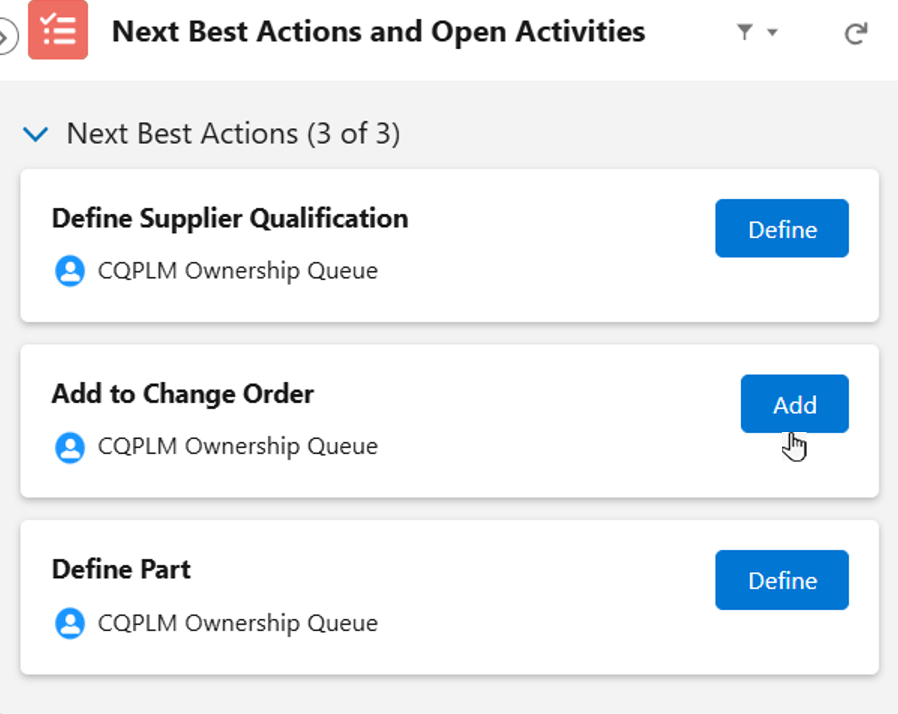
From the Part record, under Next Best Actions and Open Activities, in the Add to Change Order section, click the Add button. The Part Change: Revision section appears.
The Part Change functionality included in the Planned Change/Immediate Change Order is displayed only if the CQ PLM extension is installed.

-
From the Part Change: Revision section, click the New Part Revision button.
-
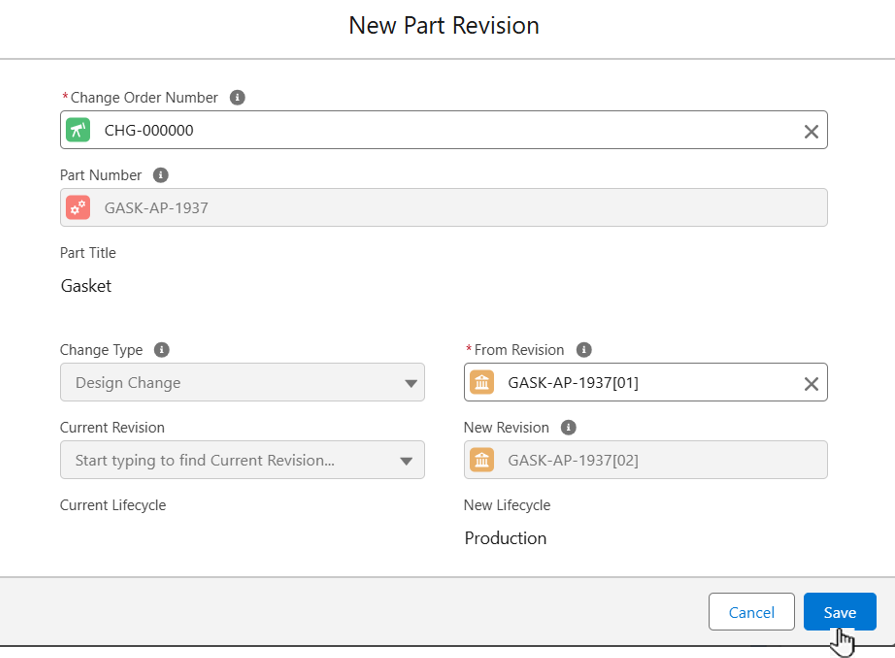
Select the Change Order Number. The Change Order number associated with this change.
-
Part Number is a read-only field that defaults to the Part Number of the open Part record.
-
Part Title is a read-only field that defaults to the Title of the open Part record.
-
Change Type is a read-only field that defaults to Design Change.
-
Current Revision is a read-only field (not used at this time).
-
Current Lifecycle is a read-only field (not used at this time).
-
Select the From Revision. (The From Revision is a revision that the User has taken as foundation for the New Revision.)
-
New Revision is a read-only field that defaults to the Part Revision that will be Approved and/or Released in the Change Order.
-
New Lifecycle is a read-only field that defaults to the Lifecycle of the Part Revision that will be Approved and/or Released in the Change Order.
-
Click the Save button or Save & New for additional Part Changes.

-
In addition, Adding Part Change: Revision (One Part at a Time) can also be performed via Planned Change/Immediate Change Record, Changes tab, Part Change: Revision section by clicking the New Part Revision button.
-
If new revision of a Part with Status "Draft" and Lifecycle "Obsolete" exists then
-
It can be added to Part Change: Revision, only if other revisions of the Part are in Superseded or in Released statuses.
-
It cannot be added to Part Change: Revision, if other revisions of the Part are in other than superseded or Released statuses.
-
-
A Part/Part Revision which is set to Obsolete Status and Lifecycle Name as Obsolete is not listed in the selectable parts list when added to Change Order via Planned Change/Immediate Change Record, Changes tab, Part Change: Revision section by clicking the New Part Revision button.
Expected Outcome
-
The Part Changes are added.
Troubleshooting
-
Check back for new articles
Optional Configurations
-
NA
Additional Resources
ComplianceQuest
-
Adding Part Change: Revision (Multiple Parts at a Time)
-
Adding Disposition Assessments
We Value Your Feedback
To provide feedback or suggestions to improve the help content on this page click here.