
Purpose
As an Approver, you can review a CAPA Implementation to confirm the completed actions meet requirements. This approval verifies the implementation is complete and ready for the next stage in the CAPA process.
Prerequisites
Installation Packages: CQ Core, CQ EHS Extension, CQ Forms
Product: SafetyQuest
Function: Work Record
User Profile: Standard User
Permissions: CQ Base User PSG, CQ EHS Base User PSG, and CQ Permit Approver PSG
Work Record: Permits must be submitted through Work Record
Record Status: In Review
Steps
-
Open the Email notification or a Home tab notification.
-
Click Approve/Reject to open the CAPA.
-
Click Approve or Reject in the Next Best Actions section.
-
Provide Comment and Password, if required.
-
Click Approve or Reject.
Expected Outcome
-
The approval decision is recorded on the Workflow tab.
-
If approved, the Observation Stage is Pending Change Order and Status is Complete.
-
If rejected, the Observation Stage is Rejected and Status is Closed.
-
The Approval activity appears in the Record Activities section on the History tab.
Additional Resources
ComplianceQuest
We Value Your Feedback
To provide feedback or suggestions to improve the help content on this page click here.
Remove after referencing for finishing content above.
Completing Approval for CAPA Implementations
For Permission Set Groups: CQ Base User PSG, CQ CAPA Approver PSG
Once the Implementation is submitted for Approval, the assigned Approver can access the record to review and Approve.
-
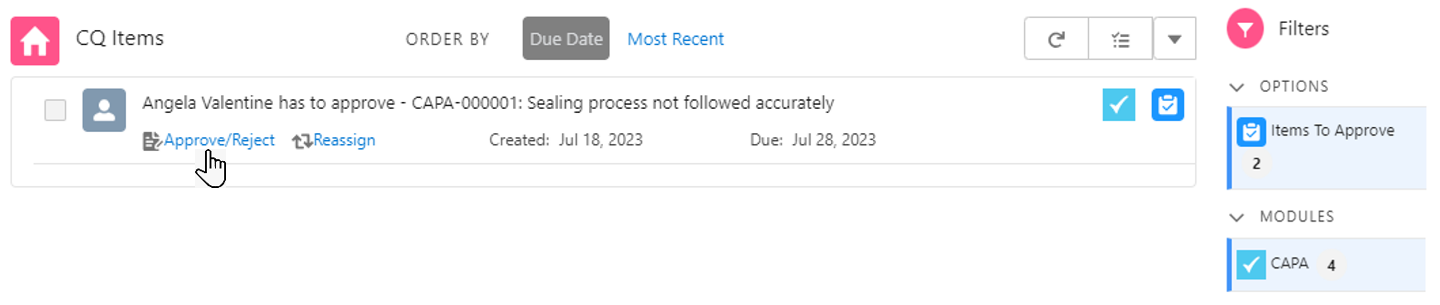
From the Home tab select the Approve/Reject link for the CAPA to review for Approval.
-
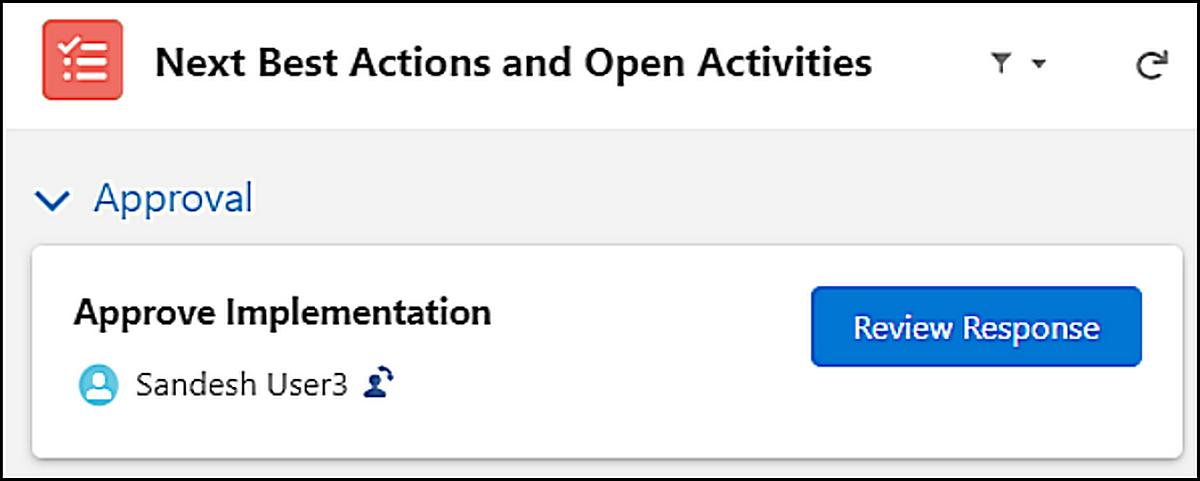
From Next Best Actions, click the Review Response button as needed.
-
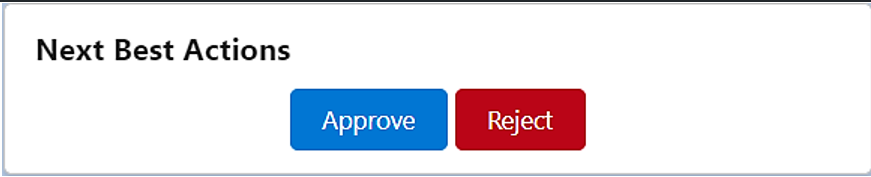
From Next Best Actions, click the Approve or Reject button as needed.
-
Follow the steps to complete the Approval. See Completing Approvals for more information on how to complete Approvals for CQ records.
If multiple Actions are submitted for the Implementation Approval, the Partially Approve button can be used to select from the list which Actions are to be approved and which are to be rejected.
-
To approve some of the Actions in the list, keep the Reject toggle unchecked as No and optionally enter a Remark regarding the approval.
-
To reject some of the Actions in the list, check the Reject toggle to Yes and enter a Remark regarding the rejection.
Results
Implementation Approved
-
An email is sent to the CAPA Owner notifying that the Response was Approved and a link is provided to access the record.
-
The Response record moves to an Approved Approval Status, a Completed Status, and a Closed Stage.
-
The approved Action(s) move to a Complete Status.
-
The CAPA record moves to the Verification Stage and Complete Status.
-
If Effectiveness Review Required? is not checked, the Perform Closure task is created and assigned to the CAPA Owner.
-
In that case, an email is sent to the CAPA Owner notifying that the CAPA record has been Completed and Closure needs to be performed and a link is provided to access the record.
-
If Effectiveness Review Required? is checked, then the Verify Effectiveness Review task is created and assigned to the CAPA Owner.
-
In that case, an email is sent to the CAPA Owner notifying that the CAPA record has been Completed and the Effectiveness Review needs to be performed and a link is provided to access the record.
-
Approving CAPA Response and Complete the record activity is logged in the CAPA Record Activities under the History tab.
Implementation Partially Approved
-
An email is sent to the CAPA Owner notifying that the Response was Partially Approved and a link is provided to access the record.
-
The Response record moves to a Partially Approved Approval Status, a Completed Status, and a Closed Stage.
-
The approved Action(s) move to a Complete Status and the rejected Action(s) revert back to an Open Status and an In Progress Stage.
-
An email is sent to the CAPA Task Assignee(s) notifying that Action task(s) need to be completed and a link is provided to access the record.
-
In the CAPA record, under Next Best Actions and Open Activities, in the Please Complete CAPA Action section, the Complete Action button is enabled for the rejected Action(s) so they can be reviewed, updated according to the rejection Remark, and completed. See How to Complete an Action.
-
The CAPA record remains in an Open Status and Implement Stage.
-
Rejecting CAPA Response activity is logged in the CAPA Record Activities under the History tab.
Implementation Rejected
-
The Implementation approval routing has now been stopped.
-
An email is sent to the CAPA Owner notifying that the Response was Rejected and a link is provided to access the record.
-
The Response record moves to a Rejected Approval Status, a Completed Status, and a Closed Stage.
-
The rejected Action(s) record(s) revert back to an Open Status and an In Progress Stage.
-
An email is sent to the CAPA Task Assignee(s) notifying that Action task(s) need to be completed and a link is provided to access the record.
-
In the CAPA record, under Next Best Actions and Open Activities, in the Please complete CAPA Action section(s), the Complete Action button is enabled. See How to Complete an Action.
-
The CAPA record remains in an Open Status and Implement Stage.
-
Rejecting CAPA Response activity is logged in the CAPA Record Activities section under the History tab.