
Purpose
As a Record Owner, you draft a regulatory report by entering the information required for external reporting. You review the complaint details, complete the draft fields, and prepare the report so it is ready for verification and submission.
Prerequisites
Installation Package: CQ Core, CQ Regulatory Reports Extension, CQ AS2 Gateway Extension, myCQ Extension, and CQ AI Extension
Product: QualityQuest and Platform Apps
Function: CQ Regulatory Report Drafting
User Profile: Standard User
Permissions: CQ Base User PSG, CQ Complaint Regulatory Owner PSG
Steps
-
From the Complaint record, under Next Best Actions and Open Activities, click the Goto Record button.
-
From the Regulatory Report details page, select the Edit option from the Action Menu to enable field editing.
-
Update information as needed.
-
Based on the Regulatory Body, the appropriate Reporting Default value needs to be selected.
-
If the Regulatory Body is selected as EMA, values for the Numerator and Denominator fields need to be selected.
-
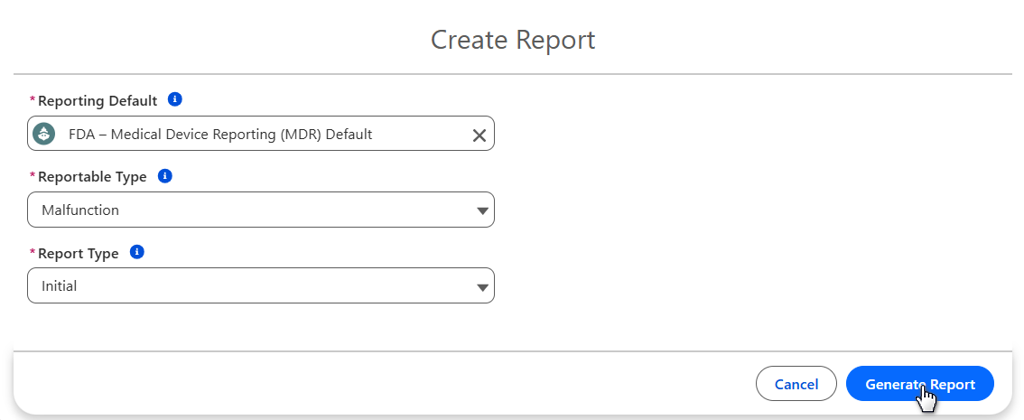
From the Action Menu, click the Create Report button.
-
Select Reporting Default, Reportable Type, and Report Type.
-
Click the Generate Report button.
-
Enter values in all the required and necessary fields and save the report. If required, open and edit the generated Report using an appropriate PDF editor.
For the Regulatory Body FDA, on the generated MedWatch template, click on the Click for more info link to know information about all the fields available on the FDA MedWatch template.
Reporting Defaults typically will need to be verified in CQ and configured by the CQ Administrator in order to provide additional information about the Regulatory Body prior to generating the Regulatory Report by the CQ User. Reporting Defaults consist of Auto Numbers that can be used to enforce a standard Numbering Format needed for each Report upon Submission. Regulatory Body and Reporting Site information are used in the Reporting Defaults. This combination streamlines the process of transferring data from Reporting Defaults to Regulatory Reports, ensuring a comprehensive and efficient reporting mechanism within CQ Complaints.
For FDA:
-
'F1. For Use By' field on the MedWatch Template is populated based on the value of the Reporting Site inside the Reporting Default:
-
If the Reporting Site inside the Reporting Default has a value selected as ‘User Facility/Importer', then 'F1. For Use By' is autopopulated as 'Importer’.
-
If the Reporting Site inside the Reporting Default has a value selected as ‘Importer', then 'F1. For Use By' is autopopulated as 'Importer’.
-
If the Reporting Site inside the Reporting Default has a value selected as ‘User Facility,' then 'F1. For Use By' is autopopulated as 'User Facility’.
-
If the Reporting Site inside the Reporting Default has a value selected as ‘Manufacturing Site' or ‘Reporting Site,' then 'F1. For Use By' is displayed blank.
-
-
Field length for ‘H9. If action reported to FDA under...’ field inside MedWatch template has been increased from 24 characters to 50 characters.
Example:
Expected Outcome
-
The Regulatory Report is created.
-
The Regulatory Report Assignee receives notifications via Email, Bell icon, and the CQ Home page to complete the Regulatory Report task.
-
Under the Regulatory Report page, on the Related tab, the generated Report is listed under the respective section: Medwatch, Canada Reports, or General Reports.
When a review is not required
-
For Complaint Regulatory Reports (MedWatch, Health Canada, or MIR) where Review is not required, the User can access the task via the Home Page or Complaint Record, complete the required fields in the respective Regulatory template, and continue to create a submission record using ‘Create Submission'. This action sets the Ready Date and leaves the Last Review Date blank.
Additional Resources
ComplianceQuest
We Value Your Feedback
To provide feedback or suggestions to improve the help content on this page click here.