
Overview
Once Action Plans have been assigned within an Investigation, CAPA, Nonconformance, Audit Finding, or any other CQ record, assignees can access their tasks directly in ComplianceQuest to carry out the required actions. As soon as a user is designated as the owner of an Action Plan, the task becomes visible in their Action Plan queue, providing a centralized place to review all responsibilities, due dates, and expectations.
In this step, assignees can open their assigned Action Plans to review the task description, understand the corrective or preventive actions required, and begin documenting progress. CQ allows users to update task status, add comments, upload evidence, record completion details, and communicate with record owners as needed. This ensures that each action is executed in alignment with the root cause, proposed actions, and resolution strategy defined earlier in the process.
By giving assignees direct access to their Action Plan tasks, ComplianceQuest supports accountability and traceability across the quality system. It ensures that assigned actions are visible, trackable, and completed in a timely manner ultimately helping the organization close investigations efficiently, demonstrate compliance, and maintain a strong continuous improvement culture.
Prerequisites
Available in: Audit Findings, CAPAs, Complaints, Nonconformances, Safety Incidents, Safety Observations, Meetings, FMEAs, Laboratory Errors, and Suspect Results.
Installed Package: CQ Core, Lab OOS, EHS - Winter 2025
User Profile: Standard User
Permissions: CQ Base User PSG, CQ Record Owner PSG and/or Task Assignee PSG
Next Best Action: Complete
Instructions
-
From the Home tab, click the View link for the Action to Complete.

-
From the Action record, click the Complete button under Next Best Actions or from the Action menu.
Action menu
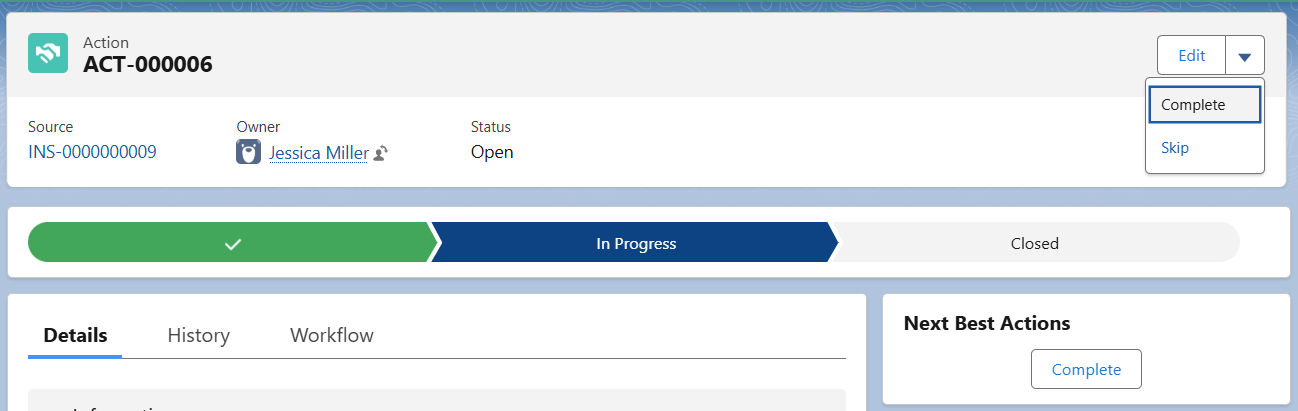
Next Best Actions

-
Enter or select the Completion Date.
-
Optionally, enter a Sign-off Comment.
-
Verification Required By (displayed only if Verification Required is selected as Yes when Action was created) is a read-only field that defaults to the User selected to verify the Action once it is completed.
-
Verified Date (displayed only if Verification Required is selected as Yes when Action was created) is a read-only field that will be autopopulated once the Action is verified.
-
Verified Comments (displayed only if Verification Required is selected as Yes when Action created) is a read-only field that will be autopopulated once the Action is verified.
-
Optionally, Drop/Upload Files related to the completion of the Action (photos, documents supporting the actions taken, etc.).
-
Enter Comment and Password if required for eSignature Policies.
-
Click the Save button.
Results
No Verification Required
-
The Action moves to the Complete Status and Closed Stage.
-
The Action Assignee remains the Owner of the record.
-
In the Action record, Completion Date and Sign-off Comment autopopulates in the Implementation section of the Details tab.
Verification Required
-
The Action moves to the Ready Status and remains In Progress Stage.
-
The User selected in Verification Required By field for the Action is now the Owner of the record.
-
The Verify and Reject buttons are available in the Next Best Actions section for the Verification Required By User.
-
In the Action record, Completion Date and Sign-off Comment autopopulates in the Implementation section of the Details tab.
Troubleshooting
-
Check back for new articles
Additional Resources
CQ Resources
-
Adding Action Plans
Summer 2026