
Purpose
An Alternate Part that is released through a Change Order can be Obsoleted.
Prerequisites
Installation Package: CQ Core, CQ PLM Extension
Product: ProductQuest
Function: Standard Parts
User Profile: Standard User
Permissions: CQ Base User PSG and CQ PLM Creator PSG and CQ Design Owner PSG
Steps

-
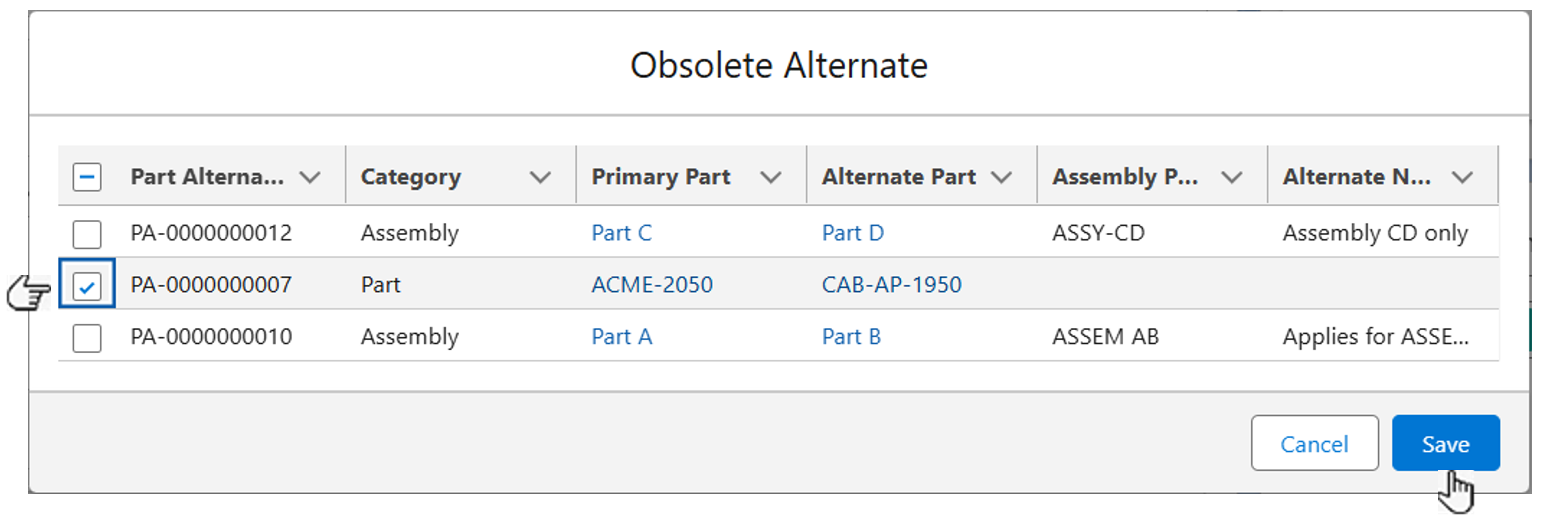
From the Planned Change Order record, Changes tab, Part Change: Alternates section, click the Obsolete Alternate button. A Obsolete Alternate modal window appears. Alternatively, from the Immediate Change Order record, Changes tab, Part Change: Alternates section, click the Obsolete Alternate button. A Obsolete Alternate modal appears.
-
Check the checkbox on the left side of the Part which needs to be obsoleted under the Part Alternate column.Then, click the Save button.
-
A Released Alternate Part can only be designated as Obsolete via a Change Order.
-
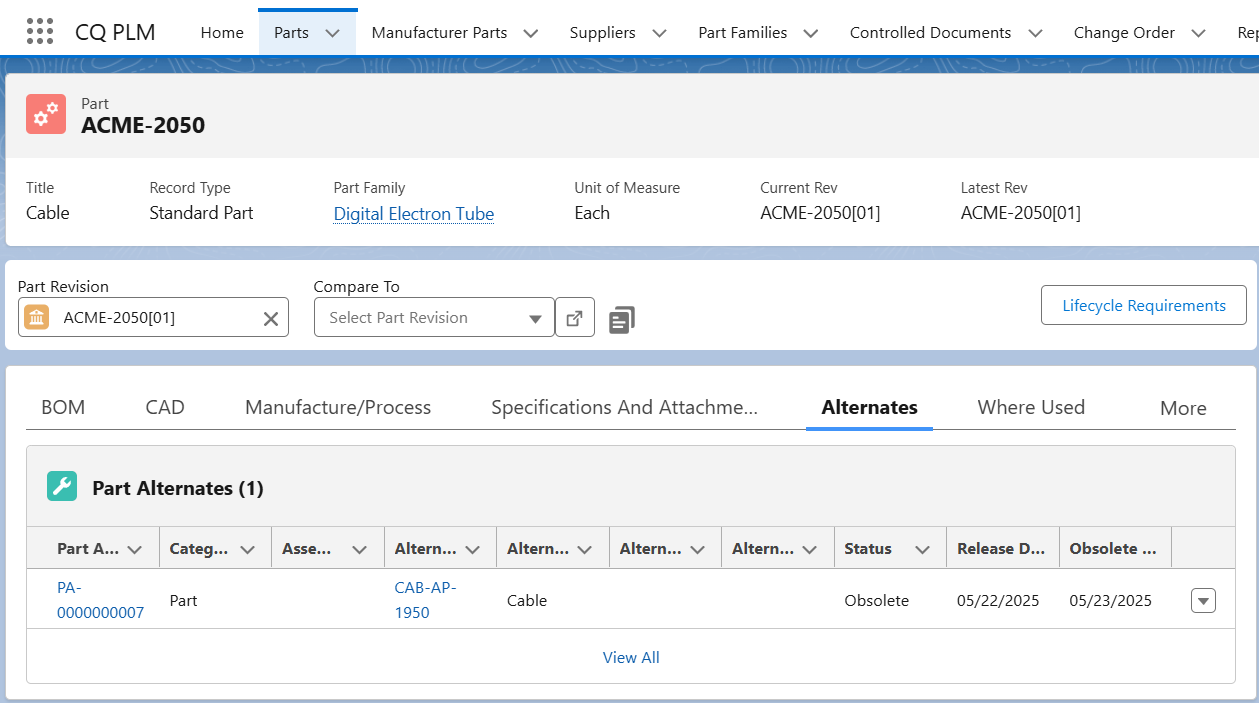
Designating a Part Alternate as Obsolete does not remove Alternate Part from the record. Instead, it updates the Status to Obsolete while keeping all associated data intact.

Expected Outcome
-
The selected Part Numbers are added to the Change Order.
-
The Alternate Change Type is set to Obsolete in the Part Change: Alternates table.
-
Obsolete Alternate Part can be removed from the Change Order by clicking the Delete option available at the end of the row.
-
Obsolete Alternate Part can be edited by clicking the Edit option available at the end of the row.
-
In the Part record, Alternates tab, Part Alternates section, Status updates to Obsolete, and the Obsolete Date is populated.
Troubleshooting
-
Check back for new articles
Optional Configurations
-
NA
Additional Resources
ComplianceQuest
-
NA
We Value Your Feedback
To provide feedback or suggestions to improve the help content on this page click here.