
Purpose
As a Part Creator, you can use the Configuring BOM View feature to organize large volumes of Part data in a structured display by customizing how columns appear in the BOM table.
Using Java Script Object Notation (JSON), you can configure the BOM Table View to change Column Titles and adjust the Order of Columns from the Default View. This approach allows you to present complex BOM data in a format that supports quicker review and reduces manual errors.
Prerequisites
Installation Package: CQ Core, CQ PLM Extension
Product: ProductQuest
Function: Parts
User Profile: Standard User
Permissions: CQ Base User PSG and CQ PLM Creator PSG
Steps
-
Open the Part record.
-
Click Configure BOM View in the Action Menu.
-
Specify this information:
-
Enter BOM Table View Name
Specify new name in the Enter BOM Table View Name -
JSON Text for view
Specify the JSON code.
-
-
Click Save & Apply.
-
Specify the new name in the BOM Table View. A new BOM View appears.
Example
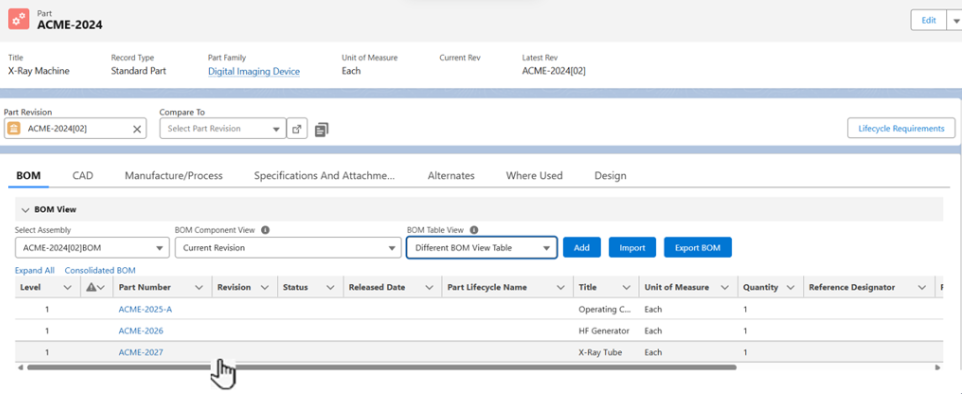
Expected Outcome
-
A new BOM View different from the Default View is configured.
Additional Resources
ComplianceQuest
-
Editing BOM View
-
Deleting BOM View
We Value Your Feedback
To provide feedback or suggestions to improve the help content on this page click here.