
Overview
Document Administrators can schedule periodic review intervals for each Controlled Document type in CQ based on company-wide policies. Setting these intervals ensures that documents are reviewed regularly to maintain accuracy, relevance, and compliance.
In addition, Document Owners have the flexibility to adjust periodic review intervals for individual documents as needed. This capability allows organizations to apply standard review practices while accommodating unique requirements for specific documents.
By following this process, organizations can ensure consistent document governance and reduce the risk of outdated or invalid information being used.
Prerequisites
Available in: Controlled Documents
Installed Package: CQ Core - Winter 2025
Optional Extension Packages: CQ Forms, CQ Laboratory Issues, CQ Process, and CQ EHS - Winter 2025
User Profile: Standard User
Permissions: CQ Base User PSG and CQ Document Owner PSG
Document Status: Draft, Pre-release, or Current
Instructions
Important Considerations
-
Document Owners should first verify if Periodic Review intervals can be changed based on the organizations policies for controlled documents in the QMS.
-
CQ also recommends not using the pencil icon to modify the Review Interval and instead use the Review Action to justify the reason for changing the interval.
-
See CQ End User Guide - Template Documents for more information on setting Review Intervals by unique Template Document.
-
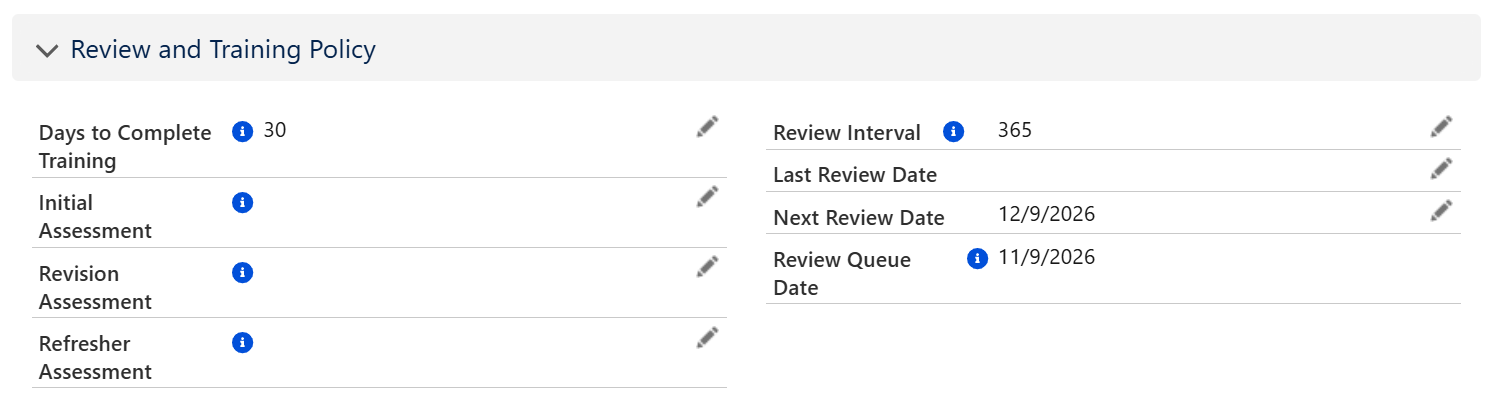
From the Controlled Document record, verify the Review Policy under the Details tab.
-
Select the Review option from the Action Menu.
-
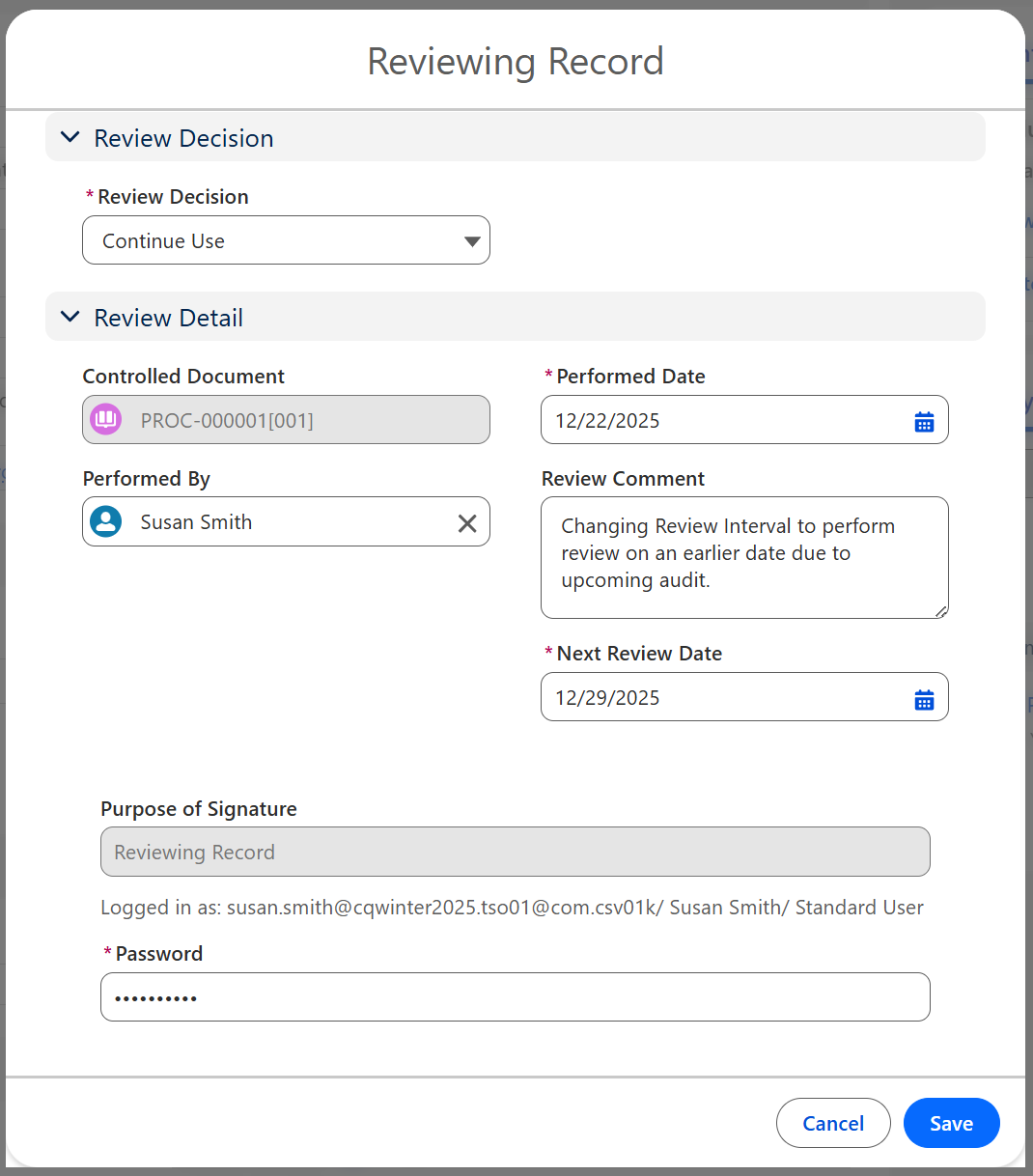
Be sure to select Continue Use from the Review Decision.
-
Enter Next Review Date, Review Comment, and any other relevant information.
-
Click the Save button.
-
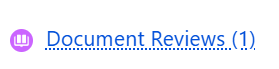
Verify new Target Review Date under Document Reviews.
Related List Quick Links

Results
-
The Review is saved and listed under the Document Reviews Quick Link.
-
The new Target Review Date is also displayed under the Training and Review Policy section under the Details tab.
-
If the Review Interval is set to less than 30 days, then the task will be generated, and the Review button will be displayed after 24 hours under Next Best Actions to perform the Review task.
Troubleshooting
-
Check back for new articles
Additional Resources
CQ Resources
-
Performing Document Reviews for Continue Use
-
Performing Document Reviews for New Revision
-
Performing Document Reviews for Retirement
Summer 2026