
Overview
As an investigation progresses and the analysis tools such as 5 Why, Fishbone, or Fault Tree Analysis help uncover underlying issues, CQ allows Investigators to formally document Root Causes directly within the Investigation record. Adding Root Causes is a key step in transforming investigative findings into actionable insights, ensuring that the true drivers of the event are clearly understood, evidence‑based, and captured in a consistent, traceable format.
In CQ, Investigators can select predefined Root Cause categories or enter detailed cause statements that reflect the specific product, process, or system failure being evaluated. This structured approach ensures that the investigation moves beyond surface‑level symptoms and accurately identifies the fundamental factors that contributed to the issue. Each documented Root Cause can be linked to supporting data, analysis results, and recommended actions, creating a complete chain of logic from the problem to its underlying cause.
Prerequisites
Available in: Audit Findings, CAPAs, Complaints, Nonconformances, Safety Incidents, Safety Observations
Installed Package: CQ Core, EHS - Winter 2025
User Profile: Standard User
Permissions: CQ Base User PSG, CQ Record Owner PSG and/or Task Assignee PSG
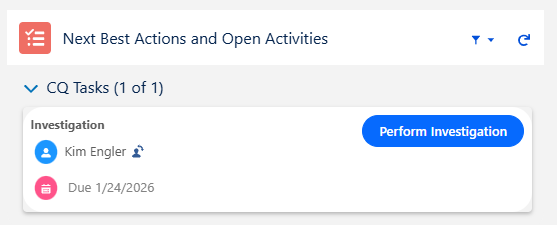
Next Best Action: Perform Investigation
Instructions
-
From the CQ record, click the Perform Investigation button.
-
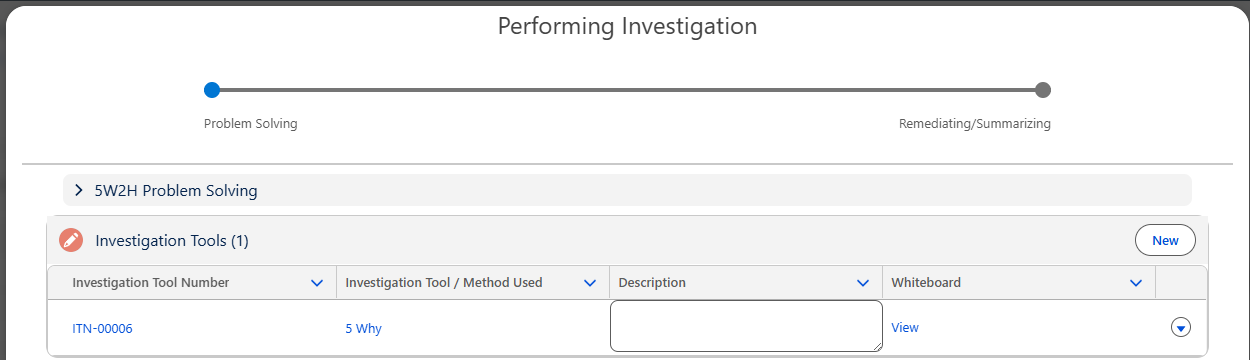
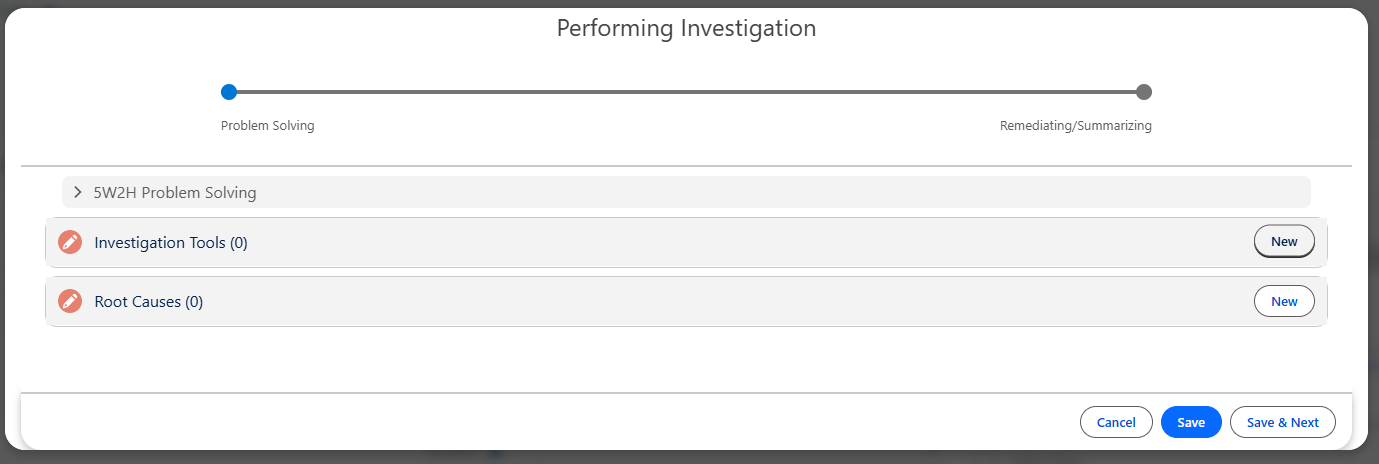
From the Performing Investigation Form, click the View link under the Whiteboard column; if 5 Why Investigation Tool is not used, click the New button under the Root Cause section.
Adding Root Cause using 5 Why
Adding Root Cause using any other Investigation Tools
-
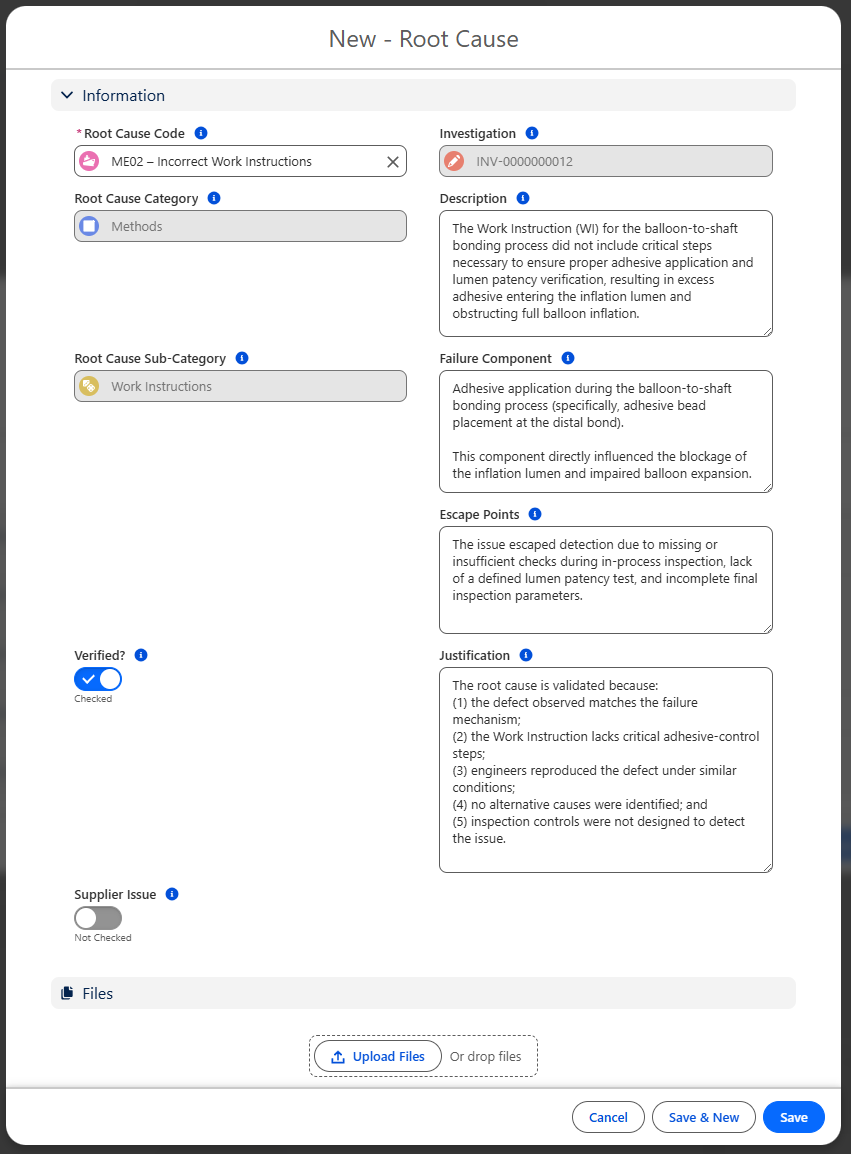
Select the pre-defined Root Cause Code which will autopopulate the Root Cause Category and Sub-Category.
See your CQ Administrator to create pre-defined Root Causes.
-
Enter other information as needed:
-
Description - enter a detailed Description of the Root Cause.
-
Failure Component - enter information to indicate where specifically on the component the failure occurred.
-
Escape Points - ff tracked, enter the point in the process where the root cause could have been identified, but was not.
-
Verified - select if this root cause has been verified as a legitimate cause.
-
Justification - explain justification for how the root cause was verified as a legitimate cause
-
-
Supplier Issue - select if this was a Supplier Issue.
-
Sub Supplier Name - enter Supplier who caused the Issue.
-
-
Click the Save button or Save & New to add more Root Causes.

Results
-
The Root Cause(s) now display under the Root Causes section of the Investigation Form.
-
The Root Cause(s) can also be viewed under the Investigation tabs and links under each Audit Finding, CAPA, Complaint, Nonconformance, and Safety records.
Troubleshooting
-
Check back for new articles
Additional Resources
CQ Resources
-
Adding Action Plans to Investigations
-
Completing 5 Why Investigations
-
Performing Audit Finding Investigations
-
Performing CAPA Investigations
-
Performing Complaint Investigations
-
Performing Nonconformance Investigations
-
Performing Safety Incident Investigations
-
Performing Safety Observation Investigations
Summer 2026