
Overview
System Elements define the product’s hierarchical building blocks used throughout Design Controls. In the Design File, they provide the context for downstream analysis and documentation by referencing the specific element under design (the focus element) and its position in the system hierarchy. When used in Design FMEAs, selecting a Focus Element can automatically populate the Next Higher Level if a parent relationship exists, helping teams maintain clarity of scope and consistent traceability. System Elements are referenced directly in the Design File and are leveraged by Design FMEA records to anchor risk analysis to the defined product structure, alongside other Design File components such as RTM, Product Risk, FMEAs, Control Plans, DHF, and DMR.
Prerequisites
Available in: CQ Design
Installed Package(s): CQ Core, CQ Design Extension & CQ Process Extension - Winter 2025
Optional Extension Packages: myCQ & CQ PLM- Winter 2025
User Profile: Standard User
Permissions: CQ Base User PSG, CQ Design Owner PSG, and CQ Design Team Member PSG
Pre-requisite
Due to Salesforce platform limitations, the “+New System Element” lookup dropdown is no longer available as of Winter '25.
For best practice System Elements must first be setup via the System Elements tab in the system by Design Owners in order to be later linked to Design File. See System Element for Instructions on creating System Elements.
Instructions
-
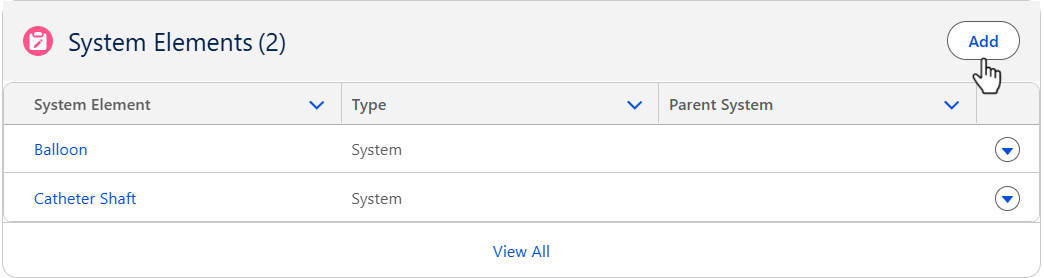
From the Design File record, Development tab, System Elements section, click the Add button.
-
Select System Element associated with the Design File record.
-
Click the Save button or Save & New for additional System Elements.
Results
System Elements
-
The System Elements are added to the Design File record.
-
Edit and Delete options are available from the drop-down arrow at the end of each System Element row.
-
Click View All to see all System Elements.
Troubleshooting
-
Check back for new articles