
Audience
Standard User
Purpose
-
Part Families and Parts within a Design File is to standardize how product items and materials are organized and governed, linking every Part to a logical family to streamline planning, scheduling, and tooling flow while reducing setup and production costs.
-
This structure enables controlled, permissioned or ERP‑driven part creation; ensures each Part can be consistently referenced across CQ records (e.g., CAPA, Change Order, Complaints, Inspection, Nonconformance); and preserves end‑to‑end traceability, regulatory compliance, and efficient product lifecycle management from design through manufacturing and support.
Prerequisites
Installed Package(s): CQ Core, CQ Design Extension & CQ Process Extension
Optional Extension Packages: myCQ & CQ PLM
Product: CQ Design
Function: Organization
Permissions: CQ Base User PSG, CQ Design Owner PSG, and CQ Design Team Member PSG
A Part Family & Part must exist before a user can add a Part Family or Part to the system. Part Families and Parts make up the Products that can be associated with CQ records and are managed by CQ Administrators. Please see your CQ Administrator if no Part Families or Parts are listed under the Design File record.
Instructions
Part Family
-
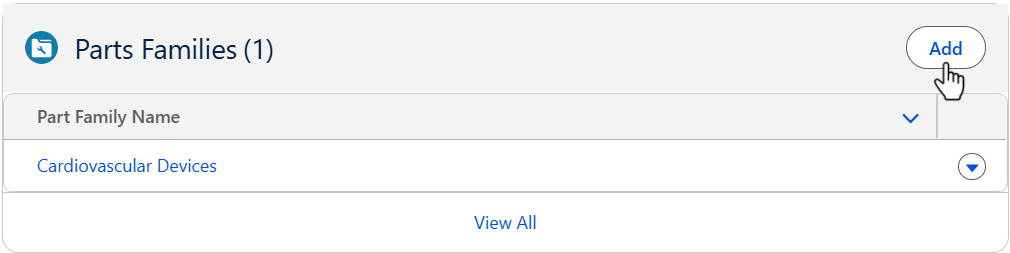
From the Design File record, Product tab, Parts Families section, click the Add button.
-
Select the Part Family.
-
Click the Save button or Save & New for additional Part Families.
Parts
-
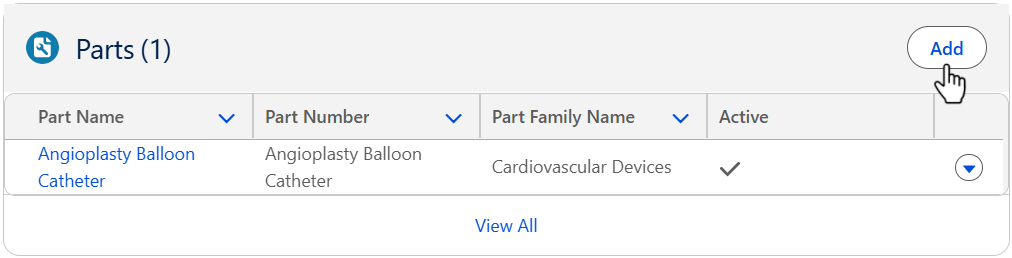
From the Design File record, Product tab, Parts section, click the Add button.
-
Select the Part.
-
Click the Save button or Save & New for additional Parts.
Expected Outcome
Parts Families
-
The Parts Families are added in the Design File record.
-
Edit and Delete options are available from the drop-down arrow at the end of each Part Family row.
-
Click View All to see all Part Families.
Parts
-
The Parts are added in the Design File record.
-
Edit and Delete options are available from the drop-down arrow at the end of each Part row.
-
Click View All to see all Parts.
Next Steps
Troubleshooting
-
Nothing to select (empty picklists): If no Part Families or Parts appear under the Design File, it’s typically because they haven’t been set up or exposed by your CQ Admin yet.
Additional Resources
ComplianceQuest