
Purpose
As a Record Owner, you view Complaint DPOs to check any distribution, processing, or disposition information recorded for the complaint. You review the available entries to understand details that may support assessment or investigation.
Prerequisites
Installation Package: CQ Core, CQ Regulatory Reports Extension, CQ AS2 Gateway Extension, myCQ Extension, and CQ AI Extension
Product: QualityQuest and Platform Apps
Function: CQ Complaint DPO Access
User Profile: Standard User
Permissions: CQ Base User PSG, CQ Complaint Owner PSG, and CQ EA Permission
Steps
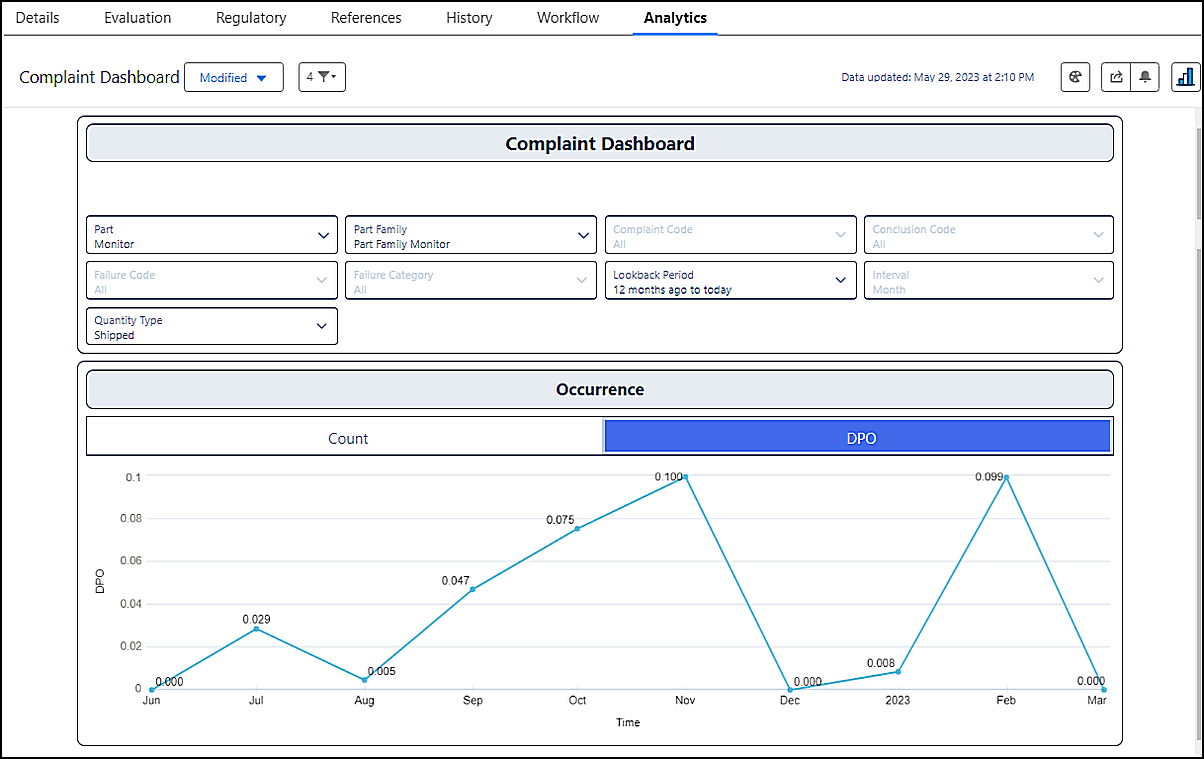
The DPO (Defects per opportunity) option, if selected, will help the Users to see the trend of Production data vs time. So, the DPO will show the Defects Identified (Numerator) / Total (Count or Units) Shipped.
-
From the Complaint record, click the Analytics tab.
-
Select the Part, i.e., (All or any Part available). Click the Apply button.
-
Select the Part Family, i.e., (All or any Part Family available). Click the Apply button.
-
Complaint Code (read-only field).
-
Conclusion Code (read-only field).
-
Failure Code (read-only field).
-
Failure Category (read-only field).
-
Select the Lookback Period (i.e., All or Custom).
-
Interval (read-only field).
-
Quantity Type (autopopulated as Shipped, leave as is).
Example:
Expected Outcome
-
In the DPO sub-section under the Occurrence section, the DPO (Defect Per Opportunity) value is shown for the selected Part and Part Family with the Time Interval of Month in the line graph format.
-
Horizontal line displays the Time of occurrence, whereas the vertical line shows the DPO (Defect Per Opportunity) of that respective time.
-
DPO (Defect Per Opportunity) is displayed based on Monthly intervals.
-
DPO (Defect Per Opportunity) value is always less than 1.
Additional Resources
ComplianceQuest
We Value Your Feedback
To provide feedback or suggestions to improve the help content on this page click here.