
Purpose
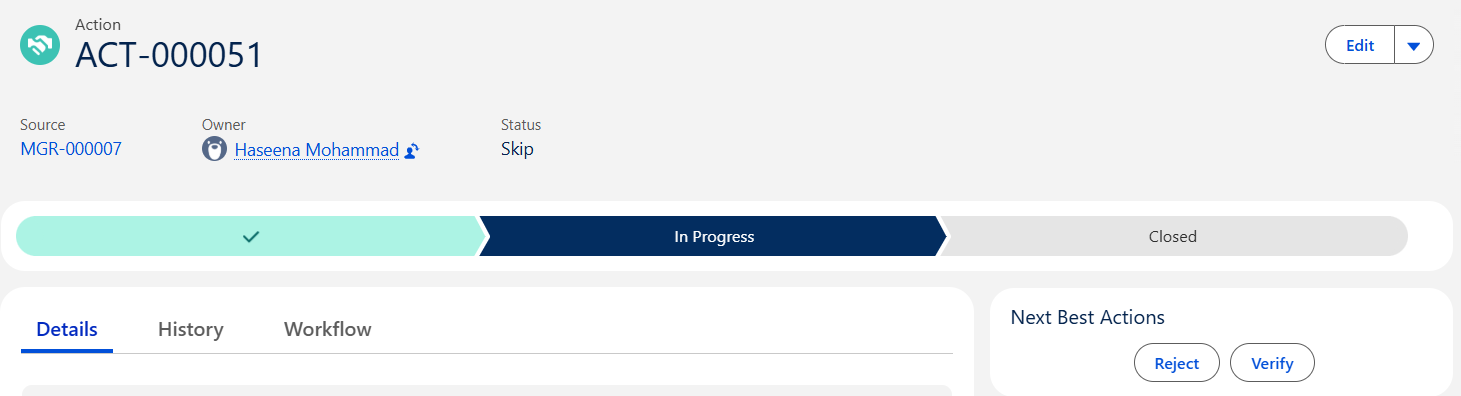
Use Skip when a Meeting Action is no longer applicable or shouldn’t be executed. While Meeting Action is skipped, and Verification Required is Off, the Action moves to Skipped status and Closed stage. If Verification Required is On the Action moves to Skip status and remains In Progress ownership passes to the verifier, who can Verify or Reject.
Prerequisites
Installation Package: CQ Core, CQ Management Review Dashboard Extension
User Profile: Standard User
Product: QualityQuest
Function: Meeting Action Due Date Extension Request
Permissions: CQ Base User PSG and CQ Management Review Meeting Owner PSG
Next Best Action: Complete, Request Extension
Action Menu: Complete, Request Extension & Skip
Steps
-
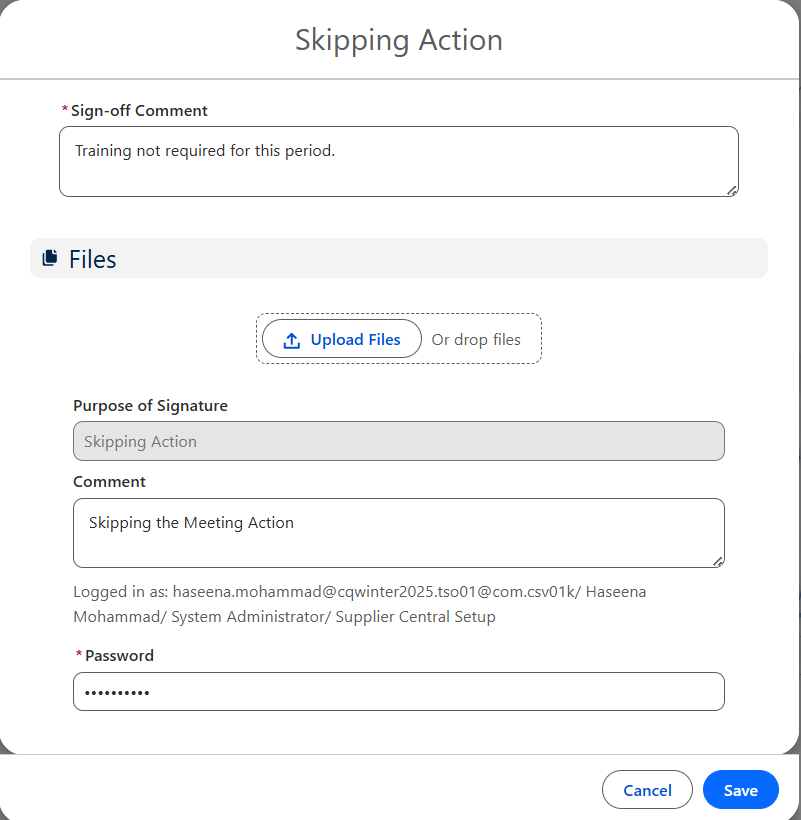
From the Action record, select the Skip option from the Action Menu.

-
Enter the Sign-off Comment.
-
Optionally, Drop/Upload Files related to the Action.
-
If eSig is enabled, Purpose of Signature will display.
-
Optionally, enter a Comment. (Off-the-shelf, this field is not required but can be configured to be required using eSig Settings.)
-
If eSig is enabled, enter your Password. (User Name can also be configured to display and/or be required using eSig Settings.)
-
Click the Save button.
Example
Verification Off

Verification On
Expected Outcome
-
No Verification Required
-
The Action moves to the Skipped Status and Closed Stage.
-
The Action Assignee remains the Owner of the record.
Verification Required
-
The Action moves to the Skip Status and remains In Progress Stage.
-
The User set in Verification Required By for the Action is now the Owner of the record.
-
The Verify and Reject buttons are available in the Next Best Actions section for the Verification Required By User.
-
Troubleshooting
-
Checkback for new articles
Optional Configurations (CQ Admin Functionality)
-
-
Action Verification: require a verification step after completion (off by default; can be enabled).
-
Additional Resources
ComplianceQuest