
Purpose
The Change Owner must now indicate which Dispositions actions are applicable as part of the product lifecycle management, Change Order process. This process plays a crucial role in guiding actions for approved Part Numbers based on their unique Part Number and Location combination. Disposition Assessment ensures that each approved part is assigned the appropriate action i.e. Use as is, Scrap, Return to Vendor (RTV), or Rework based on its specific characteristics.
When implementing Engineering Change Orders (ECOs), an essential aspect to manage is the Disposition of the affected Products. Disposition process ensures that the products impacted by the change are handled in a manner that maintains compliance with regulatory standards and quality requirements. Effective product disposition strategies are critical for minimizing waste, reducing costs, and ensuring that only products meeting the updated specifications reach the market. Implementing effective disposition strategies for affected products is a complex but essential activity of managing ECOs. It requires careful planning, risk assessment, and coordination across multiple departments and external partners. By following a structured approach to product disposition, organizations can ensure that their products continue to meet quality standards and regulatory requirements, even in the face of changes. This not only supports compliance but also reinforces the company's commitment to product quality and customer safety. In short, Disposition Assessment refers to the decisions and actions taken regarding products that are affected by an ECO. The main options include:
-
Rework: Modifying the affected products to meet the new requirements specified in the ECO.
-
Return: Sending back products to suppliers or vendors if the changes make them unsuitable for use.
-
Scrap: Safely disposing of products that cannot be reworked or returned and are deemed unsalvageable.
-
Use As Is: Determining that the product can still meet its intended use without modification, despite the changes.
-
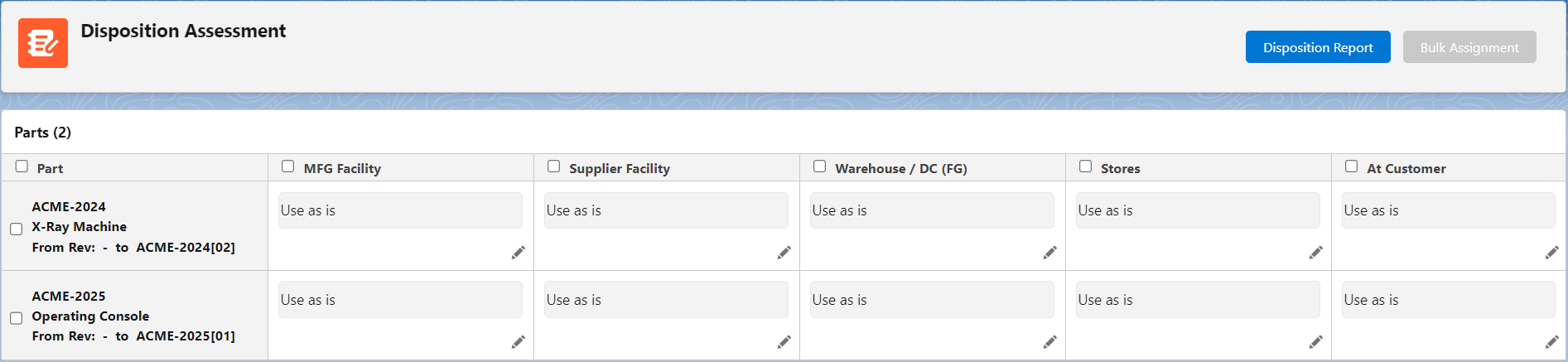
The combination of Part and Locations are automatically generated.
-
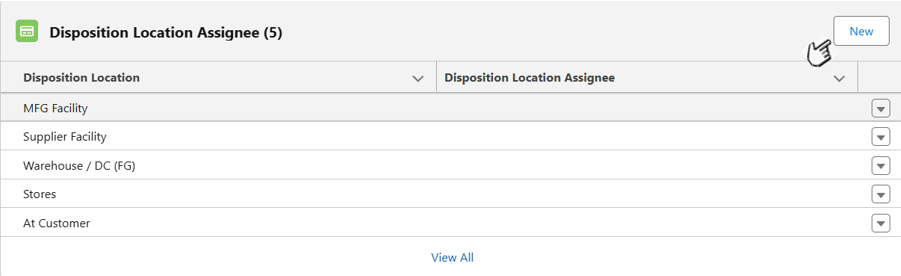
Locations can be found in the workflow tab and are predefined by the system; however, they can be edited, added, or deleted until the Change Order is not in the Approval process or already Approved.
-
Users can modify individual Disposition Actions by clicking the pencil icon.
-
Users can also perform bulk Edits to Parts and their respective Locations by selecting the Part column and the corresponding Location or Locations.
-
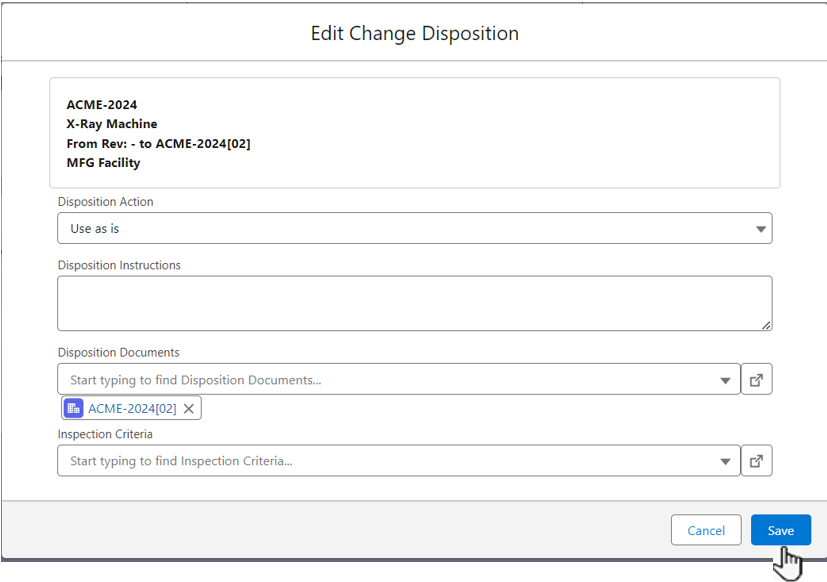
While editing the Disposition Assessment, Users can add Controlled Documents and Disposition Instructions to support Disposition activities.
Prerequisites
Installation Package: CQ Core, CQ PLM Extension
Product: ProductQuest
Function: Standard Parts
User Profile: Standard User
Permissions: CQ Base User PSG and CQ PLM Creator PSG and CQ Design Owner PSG
Steps
Option 1- via Changes tab, Part Change: Revision section

-
From the Planned Change record, Changes tab, Part Change: Revision section, click the Disposition Assessment button. Alternatively, from the Immediate Change record, Changes tab, Part Change: Revision section, click the Disposition Assessment button
-
Check off Facilities which apply to the Part Dispositions. The checked facilities will later display in the Change Order as Tasks once the Parts are approved in the Change Order.
-
From the Planned Change/Immediate Change record, Changes tab, Part Change: Revision section, Disposition Assessment sub section, click the pencil icon at the end of any field to enable field editing of Change Dispositions for each Part and Facility.
Option 2 - via Workflow tab, Disposition Location Assignee section
For the Planned Change
-
The New button in the Disposition Location Assignee section is visible only when the Planned Change Order Stage = Draft, Triage, Impact Assessment, or Plan and,
the Planned Change Order Status = Draft or Open.
-
When the New button in the Disposition Location Assignee section is visible, only then the Disposition Location Assignee can be added, edited, or deleted.
-
When the Planned Change Order is in the Approval process = Impact Assessment Approval, Plan Approval, or Implementation Approval, then the Disposition Location Assignee cannot be added, edited, or deleted (because the New button is not visible).
For the Immediate Change
-
The New button in the Disposition Location Assignee section is visible only when the Immediate Change Order is in the In Progress Stage and in the Open Status.
-
When the New button in the Disposition Location Assignee section is visible, only then the Disposition Location Assignee can be added, edited, or deleted.
-
When the Immediate Change Order is in the Complete Status, then the Disposition Location Assignee cannot be added, edited, or deleted (because the New button is not visible).
-
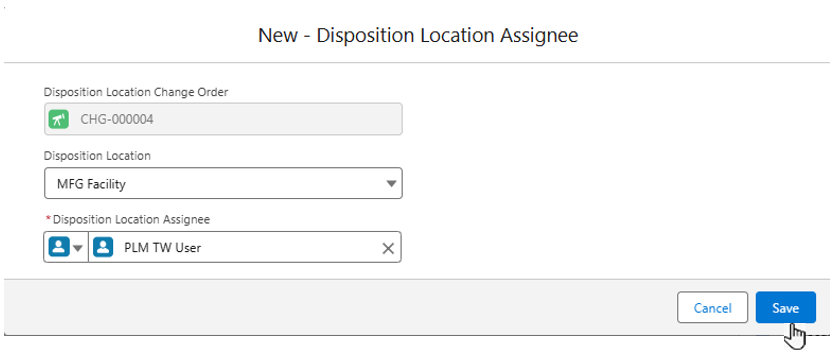
From the Planned Change record, Workflow tab, Disposition Location Assignee section, click the New button. Alternatively, from the Immediate Change record, Workflow tab, Disposition Location Assignee section, click the New button.
-
Disposition Location Change Order is a read-only field that defaults to the record Number of open Planned Change record.
-
Optionally, select Disposition Location: MFG Facility, Supplier Facility, Warehouse/DC (FG), Stores, or At Customer.
-
Select Disposition Location Assignee.
-
Click the Save button.

Expected Outcome
-
The Disposition Assessment is updated.
Troubleshooting
-
Check back for new articles
Optional Configurations
-
NA
Additional Resources
ComplianceQuest
-
Completing Disposition Tasks
We Value Your Feedback
To provide feedback or suggestions to improve the help content on this page click here.