
Overview
Document Owners can pick up and perform scheduled periodic reviews for Controlled Documents in CQ. Periodic reviews are essential for ensuring that documents remain accurate, relevant, and compliant with organizational and regulatory requirements.
During the review process, if the document is determined to be no longer effective and is no longer needed, the Document Owner will assign a decision of Retire. This action removes the document from active use, helping maintain a clean and compliant document repository.
Prerequisites
Available in: Controlled Documents
Installed Package: CQ Core - Winter 2025
Optional Extension Packages: CQ Forms, CQ Laboratory Issues, CQ Process, and CQ EHS - Winter 2025
User Profile: Standard User
Permissions: CQ Base User PSG and CQ Document Owner PSG
Document Status: Draft, Pre-release, or Current
Instructions
-
From the Controlled Document record, select the Review option from the Action Menu.
-
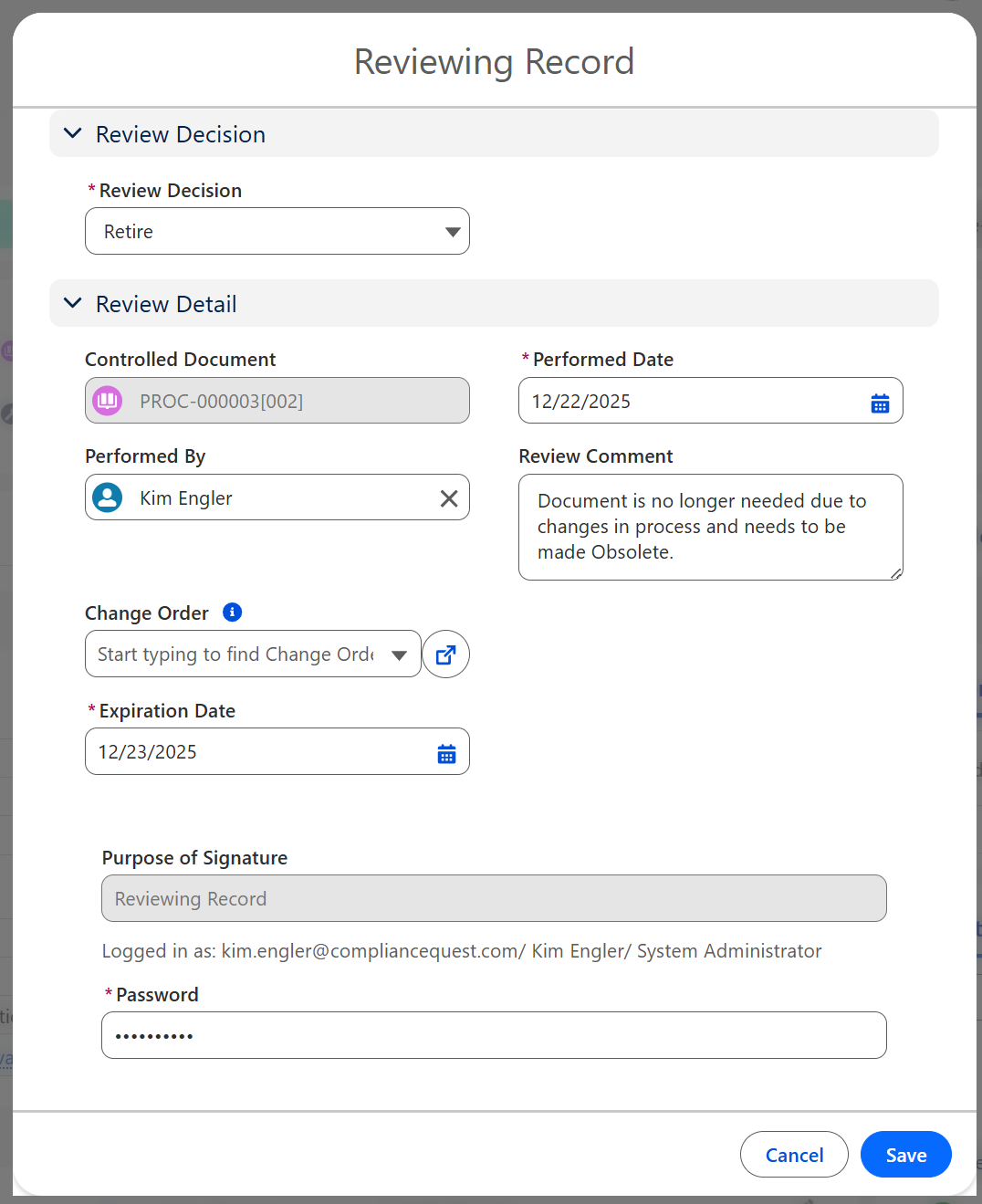
Select Retire from the Review Decision.
-
Enter Performed Date. If applicable, enter or select an alternate Performed Date.
-
If needed, select the Reviewer in the Performed By field. Defaults to the User performing the review.
-
Enter a Review Comment (recommended).
-
Select an existing Change Order to link if an open Change Order exists for this Document.
-
Enter an Expiration Date. This date will automatically move the Document from the Pre-expire Status to Obsolete.
-
Enter Comment and Password if required for eSignature Policies.
-
Click the Save button.
Related List Quick Links


Results
-
The Controlled Document record is routed for obsolescence approval and remains in the Current Document Status and Current Stage with an Approval Status of Obsolescence Approval.
-
An email is sent to the Controlled Document Approvers notifying them that the Controlled Document has been submitted for Obsolescence Approval, and a link is provided for access to the record.
-
In the Controlled Document record, Workflow tab, Approval History section, the Obsolescence Approval Step 1 Overall Status is listed as Pending.
-
The Controlled Document approval task is now available in the CQ Items section of the Approver's Home tab.
-
In the Controlled Document record, Related List Quick Links section, Document Reviews Related List Quick Link, the Review activity is listed and can be viewed by selecting the Document Review Number link.
-
Reviewing Record activity is logged in the Controlled Document Record Activities section under the History tab.
-
Under Next Best Actions and Open Activities, in the Document Obsolescence Approval section, the Approve and Reject buttons are enabled for the Approver. The Owner of the task is the approver. Due Date and Change Owner icons are available for the task.
-
See Completing Approval for Document Obsolescence for next steps.
Troubleshooting
-
Check back for new articles
Additional Resources
CQ Resources
-
Completing Approval for Document Obsolescence
-
Performing Document Reviews for Continue Use
-
Performing Document Reviews for New Revision
Summer 2026