
Purpose
As a Part Ceator, you can delete a BOM Table View that was created using Configure BOM View and is no longer needed .
This helps keep the set of available views current and prevents users from working with outdated configurations.
Prerequisites
Installation Package: CQ Core, CQ PLM Extension
Product: ProductQuest
Function: Parts
User Profile: Standard User
Permissions: CQ Base User PSG and CQ PLM Creator PSG
Steps
-
Open the Part record.
-
Click Configure BOM View in the Action Menu.
-
Specify this information:
-
BOM Table View Name
Specify the name in the BOM Table View Name. -
Enter BOM Table View Name
Enter BOM Table View Name is set to the name in the BOM Table View Name. -
JSON Text for view
Edit the column name (say “Revision”) in front of the syntax “ColumnHeader“ with a new name (say “Old Revision”) in the JSON Text for view.
-
-
Click Save & Apply.
Example
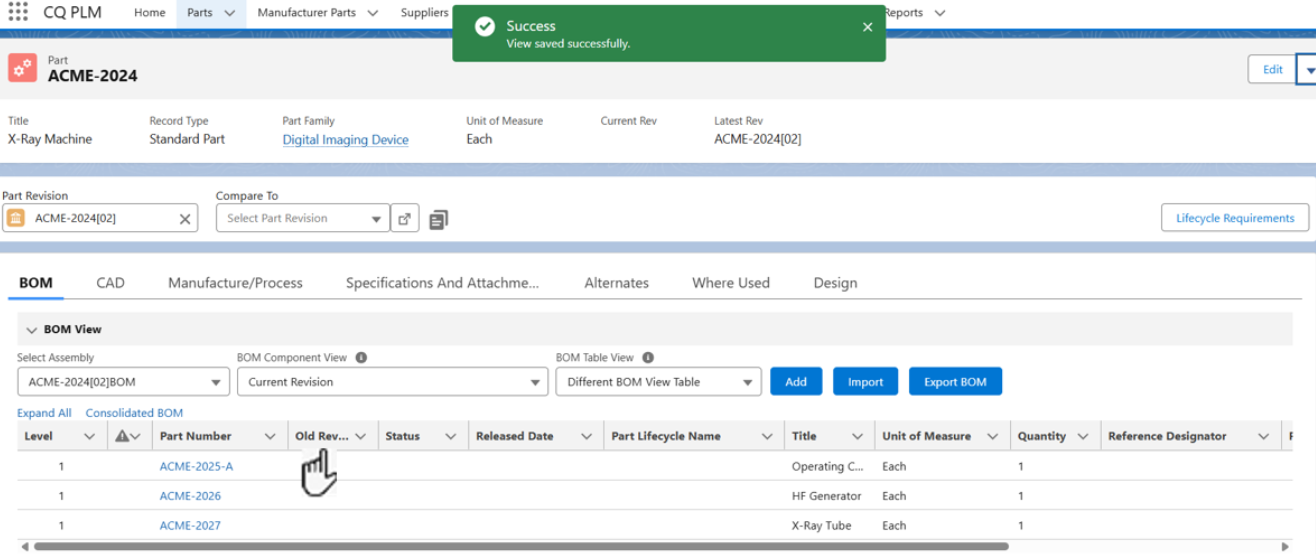
Expected Outcome
-
The BOM View table is modified.
Additional Resources
ComplianceQuest
-
Configuring BOM View
We Value Your Feedback
To provide feedback or suggestions to improve the help content on this page click here.