
Purpose
To establish an approved Operation Definition Controlled Document that provides standardized instructions for executing an Operation. This task is performed by the Process Owner or Document Owner from the Operation record.
Prerequisites
-
Installation Package: CQ Core, CQ Forms, CQ Process
-
Product: QualityQuest
-
Function: Operation Definition
-
User Profile: Standard User
-
Permissions: CQ Base User PSG and CQ Document Owner PSG
Steps
-
From the Operation record, select the Create Operation Definition option from the Action Menu. (Create Operation Definition pop-up will be displayed.)
-
Select the Language in which the Instruction will be written. Instructions can be added in other languages after checking in the Operation Definition.
The Language is the Primary Authoring Language (PAL) used to create and manage content within a Operation Definition. The system uses PAL as the default language for core content and supports other languages as translations, allowing users from different regions to view and interact with the content in their preferred language.
-
Click Next to create the Operation Definition. (Instruction Editor page will be opened in a new tab.)
-
The Language field is Read-Only and is pre-filled with the user's preferred language in which the Instruction will be written (e.g., English), and Users can translate the instruction into other languages during the Check In process.
-
The Title field is auto-populated (e.g., OD-XXXXX [001]) and represents the title of the Instruction. It can be edited manually by the User if needed.
-
Enter the Instruction. (This is a Rich Text field that allows text formatting, Step numbers (recommended), bullets, links, and/or images.)
To embed diagrams created using the CQ Diagram Editor directly into the Instruction Editor as PNG images, refer to the Embedding Diagrams into the Instruction Editor section.
-
Optionally, enter a Video URL. See Uploading Video URLs to Operation Instructions below.
Details are saved automatically as changes are made.
-
Click the Check In button to close the Instruction Editor. (Check In Controlled Document pop-up will be displayed.)
-
Optionally, select the languages to translate the Operation Instructions. Include a Comment, then click the Check In button to close current tab. (A User is automatically redirected to the Operation details page.)
Once the Primary Authoring Language (PAL) is defined during Operation Definition creation, it remains unchanged throughout the check-in process. On the check-in screen, the PAL is displayed with a check mark and is read-only, helping ensure consistency by preventing any modifications.
-
The Operation record to populate the Operation Definition field with a link to the newly created Operation Definition Controlled Document.
Example
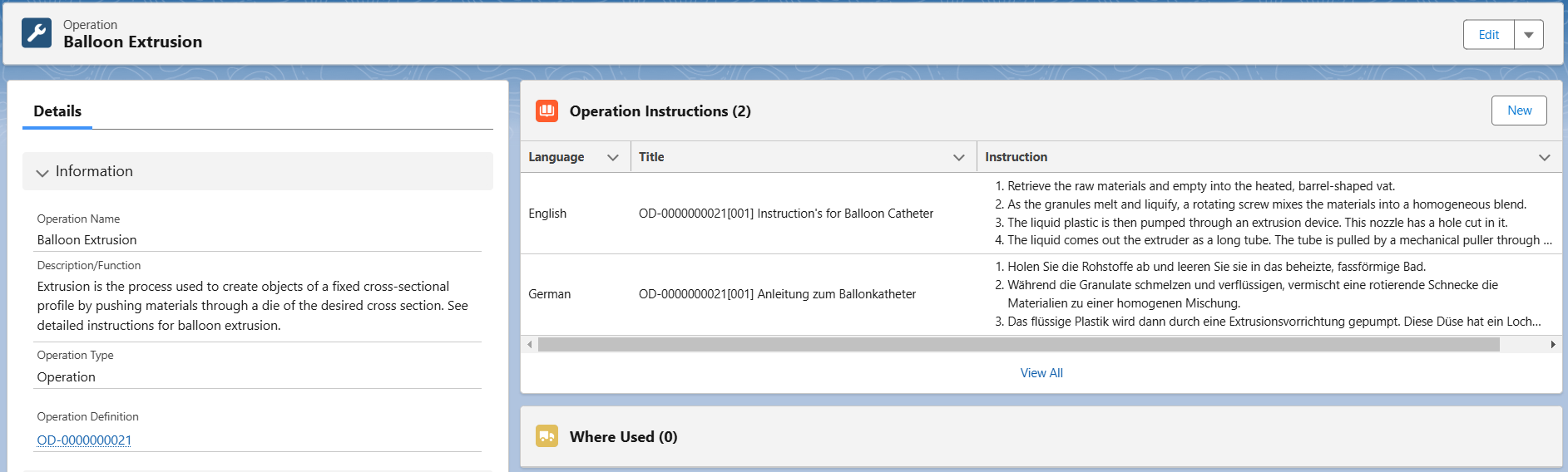
Expected Outcome
-
The Operation Definition Controlled Document is created and linked to the Operation record.
-
The Operation Instruction content is saved.
-
The Controlled Document is available for submission into the approval workflow.
Additional Resources
ComplianceQuest
-
Uploading Video URLs to Operation Instructions
-
Viewing the Full Content of Operation Instructions
-
Accessing Operation Definitions
We Value Your Feedback
To provide feedback or suggestions to improve the help content on this page click here.