
Purpose
As a Part Creator, you can add Part Numbers, Quantities, and Reference Designators in the BOM to define the materials needed for product assembly.
Prerequisites
Installation Package: CQ Core, CQ PLM Extension
User Profile: Standard User
Product: ProductQuest
Function: Parts
Permissions: CQ Base User PSG, CQ PLM Creator PSG, CQ Design Owner PSG
Steps
-
Open the Part record.
-
Select the Part Revision in the Part Revision field.
-
Click Add in the BOM View section on the BOM tab.
-
Specify this information:
-
Part Number
Select the part number. -
Find Number
Specify the find number, if applicable. -
Quantity
Specify the quantity. -
Reference Designator
Specify the Reference Designator, if applicable. -
BOM Notes
Provide BOM Notes.
-
-
Click Save. To add another Part, click Save & New.
Example
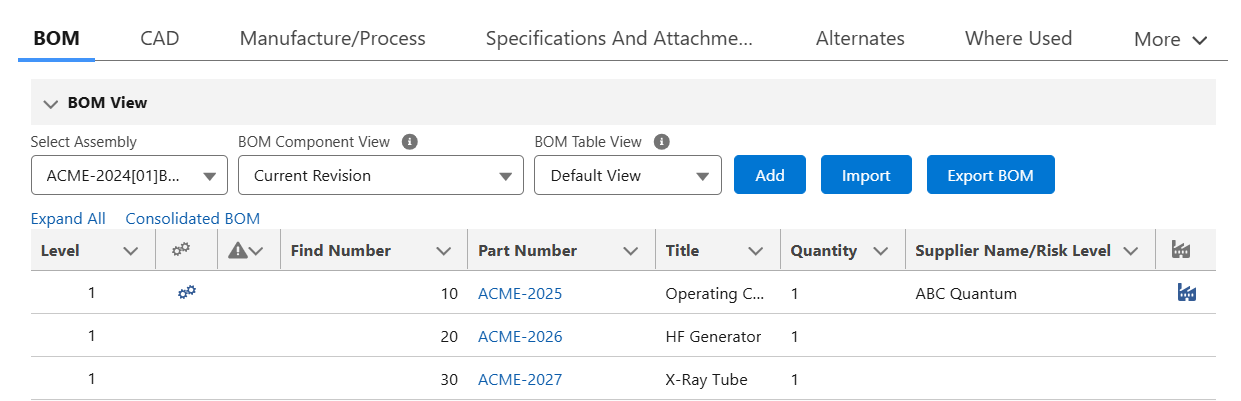
Expected Outcome
-
Part is added in the BOM.
-
In BOM Component View
-
If Current Revision is selected, then Revision and Part Lifecycle Name is not displayed.
-
If Latest Revision is selected, then Revision and Part Lifecycle Name is displayed.
-
-
The Level is set to 1 for all added Parts.
Additional Resources
ComplianceQuest
-
Adding Manufacturer Part
We Value Your Feedback
To provide feedback or suggestions to improve the help content on this page click here.