
Purpose
As a Safety Reporter, you can record a safety-related observation that occurred during work. This task captures the details so the observation can be submitted for review and evaluated by the responsible role.
Prerequisites
-
Installation Package: CQ Core - Summer 2026, CQ EHS Extension
-
Product: SafetyQuest
-
Function: Observations
-
User Profile: Standard User
-
Permissions: CQ Base User PSG and CQ EHS Base User PSG and CQ Safety Observation Basic User PSG or CQ Safety Observation User PSG or CQ Safety Observation Manager PSG
-
Configurations: CQ Locations
Steps
-
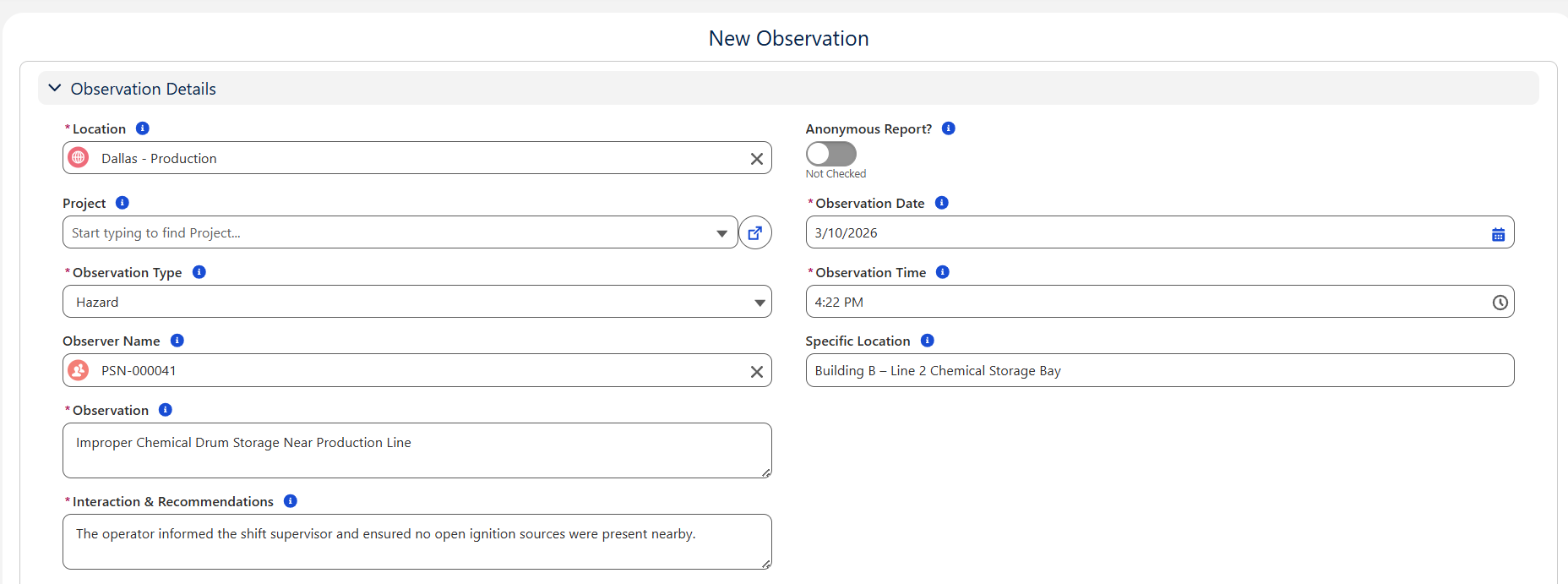
Open the CQ Safety Observation App, Observations tab, click the New button.
-
Select Record Type: Observation. Then click Next.
-
Location autopopulates from the User creating the Safety Observation. If not using Personnel for Users in CQ, select a Location.
-
Select the Project number, if required.
-
Select a Observation Type.
-
Search and select an Observer Name. Required if the User is not recognized as Personnel in CQ.
-
Enter the Observation details.
-
Enter the Interaction & Recommendations if an interaction occurred or suggestions were offered to address the issue.
-
Select the Anonymous Report? if the User wishes to remain anonymous.
-
Observation Date autopopulates the current date based on the Time Zone set in the user’s Locale Settings. Enter an alternate date if needed.
-
Observation Time autopopulates the current time based on the Time Zone set in the user’s Locale Settings. Enter an alternate time if needed.
-
Enter the Specific Location details where the Observation occurred, if needed.
-
Drop/Upload Files related to the Observation (photos, documents supporting the actions taken, etc.), if needed.
-
Click the Next button.
Example
Expected Outcome
-
The Observation record is created and assigned a unique number.
-
The Owner of the Observation record defaults to the User who created it.
-
The Observation record is in a Draft Status and Draft Stage.
-
The Submit button is available in the Next Best Actions section.
Additional Resources
ComplianceQuest
-
Submitting Observations
We Value Your Feedback
To provide feedback or suggestions to improve the help content on this page click here.