
Purpose
As a Record Owner, you add a Decision Tree task when the complaint requires guided questions for evaluation. You select the Decision Tree task type, enter the needed details, and assign the task to the appropriate user so the assessment can continue.
Prerequisites
Installation Package: CQ Core, CQ Regulatory Reports Extension, CQ AS2 Gateway Extension, myCQ Extension, and CQ AI Extension
Product: QualityQuest and Platform Apps
Function: CQ Decision Tree Complaint Step Addition
User Profile: Standard User
Permissions: CQ Base User PSG, CQ Complaint Creator PSG
Configurations: CQ Tasks
Adding Ad Hoc Complaint Steps
Steps
-
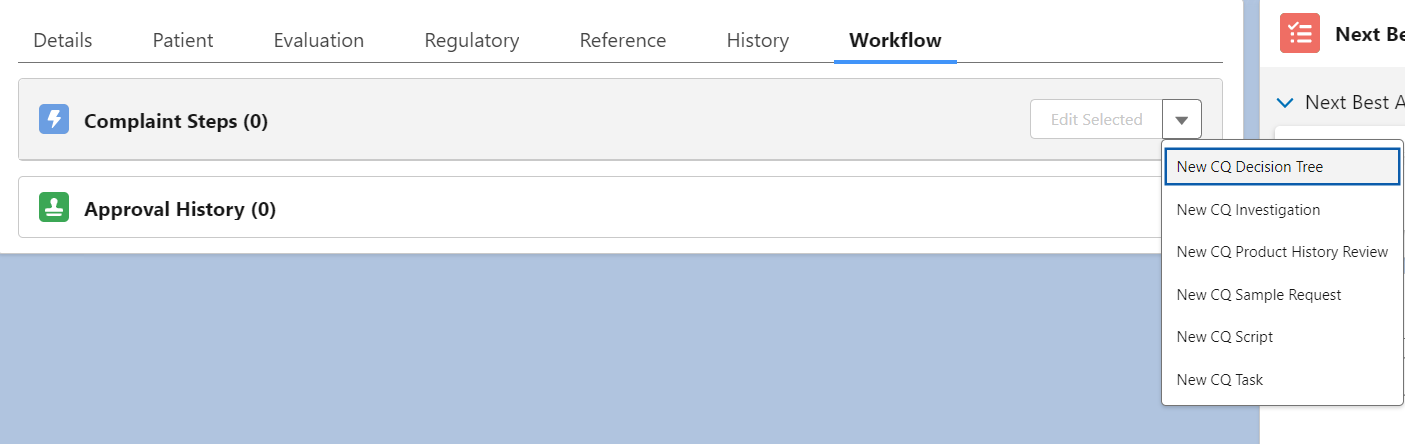
From the Complaint record, Workflow tab, click the drop-down arrow under the Complaint Steps related list.
-
Select any one option: New CQ Task, New CQ Script, New CQ Sample Request, New CQ Product History Review, New CQ Investigation, or New CQ Decision Tree.
-
Complaint defaults to open record number, leave as is.
-
Select (if applicable) the Task Template to use the Task which is already created by an Admin. (This will copy Name, Step, Allowed Days, Due Date, and Description of the selected Task.)
-
Optionally, enter the Allowed Days. (Allowed Days is autopopulated if the Task is selected.)
-
Enter the Step number indicating the order in which the CQ Task will be performed by the Assignee.
If the Level 0 step is assigned, then it is represented as an anytime task and will get activated when the lowest-level CQ Task gets activated.
-
Optionally, check Review Required if a Review is required for the Complaint Step and select a Reviewer (Only active users with review permission for Complaint Workflow steps, along with the admin user, are displayed in the Reviewer field.) for the step. (Applicable on CQ Task Type PHR, Investigation, Task, Regulatory Report)
-
If Review Required is unchecked for Task types Task, PHR, Investigation, and Regulatory Workflow Step, only the Completion Date is captured in Complaint Step details page when the Assignee signs off; if Review Required is checked for Task types Task, PHR, Investigation, and Regulatory Workflow Step and the result is Approved, both Last Review Date and Completion Date are captured; if Rework is assigned first, Last Review Date is captured at Rework, and both dates are captured after final Approval.
-
If Review Required is unchecked, the workflow step is completed automatically as soon as the Assignee responds.
-
Enter the Name. (Name is auto-populated if the Task is selected.)
-
Optionally, enter or select the Job Function to specify a role within the company from which Approvers may be selected.
Job Functions represent roles within a company (such as a particular department, title, skill, or certification) that can be assigned to Personnel who are qualified to complete tasks related to that role.
-
Select the Assignee/Queue by searching the User name or Queue name.
-
Optionally, enter the Description for the Task. (Description is autopopulated if the Task is selected and contains a Description.)
-
Optionally, enter an Assignee Comment.
-
Click the Save button or Save & New for additional Complaint Steps.
Example:
Expected Outcome
-
The Complaint Step is added to the Complaint record in a Draft Status.
-
Assignee/Queue is displayed for the respective Complaint Step in the Assignee/Queue column.
-
Edit and Delete options are available from the drop-down arrow at the end of each Complaint Step row.
Updating the Transferred CQ Tasks
Any CQ Task with “Review Required” enabled or disabled in the CQ Task Library must be transferred exactly as it is to the Complaint record when the record is created and submitted (moved to “Triage” stage).
-
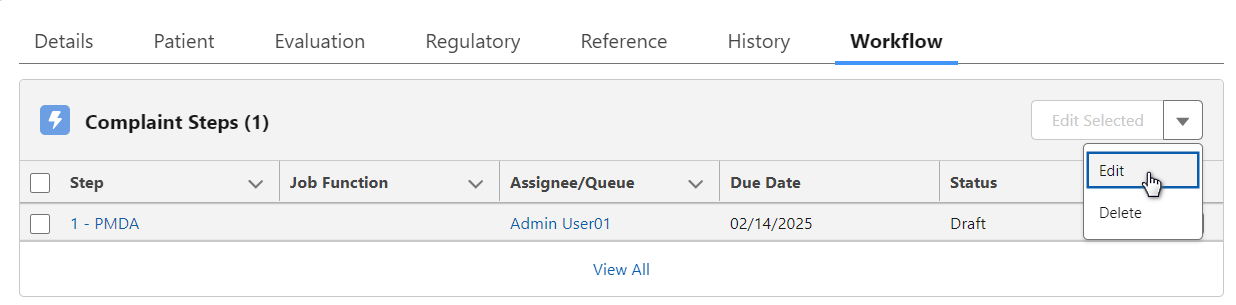
From the Complaint record, Workflow tab, select the Edit option from the drop-down arrow at the end of the Complaint Steps row.
-
Update information as needed.
-
Click the Save button or Save & New for additional Complaint Steps.
-
Alternatively, check the top Step checkbox to select all the Complaint Steps.
-
Click the Edit Selected button, which is available after selecting Complaints Steps.
-
Edit information as needed.
-
Scroll down to continue to the next Complaints Step(s).
-
Click the Save button.
Example:
Expected Outcome
-
The Complaint Step record is updated as needed.
-
If Audit Trail is enabled, field changes are logged in the History Section.
-
For Complaint WF steps of type Task, PHR, and Investigation, when 'Review Required' is checked, the 'Reviewer' field must be mandatory during step creation or update.
-
For Complaint WF steps of type Task, PHR, and Investigation, when 'Review Required' is unchecked, the 'Reviewer' field must be read-only.
-
For Complaint WF steps of type Task, PHR, and Investigation, if 'Review Required' is checked and the 'Reviewer' field is left blank, the system must show a validation message and prevent saving.
-
If Review Required is selected for a Decision Tree workflow step, the system will display a Warning during Save since Review is not supported for this step type in the current release.
Additional Resources
ComplianceQuest
We Value Your Feedback
To provide feedback or suggestions to improve the help content on this page click here.