
Escalating CAPAs
For Permission Set Groups: CQ Base User PSG, CQ NC Owner PSG
The NC Owner must now Escalate the Nonconformance to a CAPA where the Investigation will be carried out
-
From the NC record, select the Escalate CAPA option from the Action Menu.
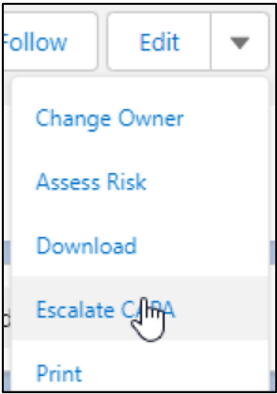
-
From the Escalate to CAPA window, select either the New CAPA option or the Link CAPA option.
-
Follow the steps to Link or Create the New CAPA.
-
Click the Save button.
If Enable Root Cause in NC is disabled and if Root Causes are added in Nonconformance record, then it is compulsory to perform Promote NC Investigation to CAPA, while Escalating CAPA. User won’t be able to perform submit investigation from Nonconformance record in this case.
Results
New CAPA (Promote NC Investigation to CAPA)
-
A new CAPA record is created and is in the Investigate Stage. The NC is automatically linked to the CAPA record under the CAPA Details tab in Source NC field.
-
The Stage of the NC will move to Verification (if Dispositions are Complete/Not Required) and the CAPA record is linked to the NC under the Investigation tab.
-
The following information has now transferred to the new CAPA record from the NC: CAPA Type = NC Type, Title, Description, Product/Process, Account, and External Contact (for Supplier or Customer NC Types).
-
All information added in the CAPA record for Investigation (i.e., Investigation Summary, Investigation Tools, Root Causes, and Action Plans) will automatically populate to the Investigation tab of the NC once the Perform Investigation action is completed in the CAPA.
-
Once the Investigation is Approved in the CAPA record, the NC record will move to the Verification Stage.
-
The Actions tab of the NC record will only display any Correction Actions created if the Investigation will take place via the NC, not the CAPA record. See Completing Actions.
-
Once the CAPA is Closed, the NC record will automatically close. See CQ End User Guide - CAPA.
-
Escalated New CAPA is available under Related CAPAs section under Reference tab.
-
The Promoting NC Investigation to CAPA is logged in the Nonconformance Record Activities section under the History tab.
New CAPA
-
A new CAPA record is created and is in the Draft Stage. The NC number is autopopulated in External Reference Number field to the CAPA record under the CAPA Details tab.
-
Escalated New CAPA is available under Related CAPAs section under Reference tab.
-
The Creating CAPA is logged in the Nonconformance Record Activities section under the History tab.
Linked CAPA
-
The selected CAPA is now linked to the NC record and can be viewed from the Reference tab as seen above.
-
Escalated Linked CAPA is available under Related CAPAs section under Reference tab.
-
The Linking CAPA is logged in the Nonconformance Record Activities section under the History tab.