
As a Part Creator, you can view progress of Part Import process to confirm that Parts are uploading satisfactorily and to identify any issues during the Import process.
Prerequisites
Installation Package: CQ Core, CQ PLM Extension
Product: ProductQuest
Function: Standard Parts
User Profile: Standard User
Permissions: CQ Base User PSG and CQ PLM Creator PSG
Part Import Status: Executing, Complete
Steps
-
Click Click to view progress from Part Import to open the Record Transaction Detail record.
-
Check that the Status displays Executing and review the counts for Total Records, Total Processed Records, and Total Records with Errors.
-
Confirm that the Status displays Complete in Record Transaction Detail record.
-
Refresh or reopen the Parts tab to verify imported Parts, Part Revisions, Part Assemblies, and Primary Controlled Documents.
Note: After you upload the file, the Background Job processes each row and reports the results on the Import New Parts page as follows:
-
X Parts were Imported
-
Y Parts were Not Imported
-
The page provides a link to the Part Import Error File <yyyymmddhhmmss>.csv that describes duplication error in the Error column.
Example
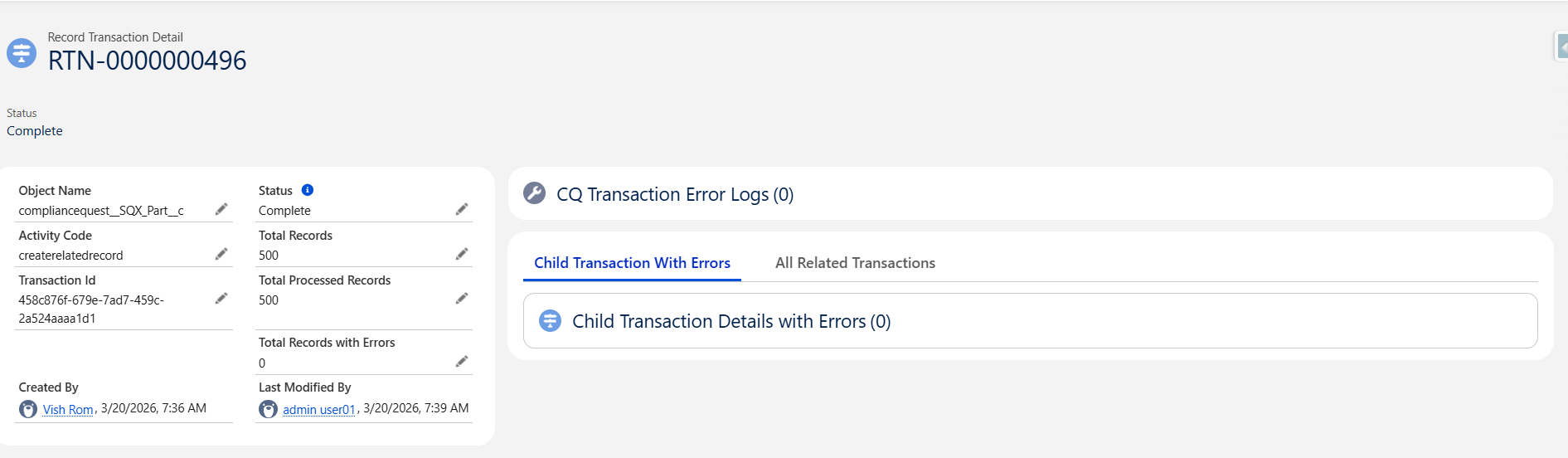
Expected Outcome
-
Part Import progress is visible in the Record Transaction Detail record.
-
Part Import Error File <yyyymmddhhmmss>.csv is generated in case of duplication Error.
-
The Status is changed to Error in the Record Transaction Detail record, if the background job fails. The Errors are listed in the CQ Transaction Error Logs section.
Troubleshooting
Additional Resources
ComplianceQuest
We Value Your Feedback
To provide feedback or suggestions to improve the help content on this page click here.