
Purpose
As a Record Owner, you perform a complaint investigation to document the work done to evaluate the issue. You review the available information, record investigation activities, and update the findings to reflect the current investigation status.
Prerequisites
Installation Package: CQ Core, CQ Regulatory Reports Extension, CQ AS2 Gateway Extension, myCQ Extension, and CQ AI Extension
Product: QualityQuest and Platform Apps
Function: CQ Complaint Investigation
User Profile: Standard User
Permissions: CQ Base User PSG, CQ Complaint Non DT Task Assignee PSG
Configurations: CQ Tasks
Steps
-
From the Home tab, select the View link for the Investigation Task.
-
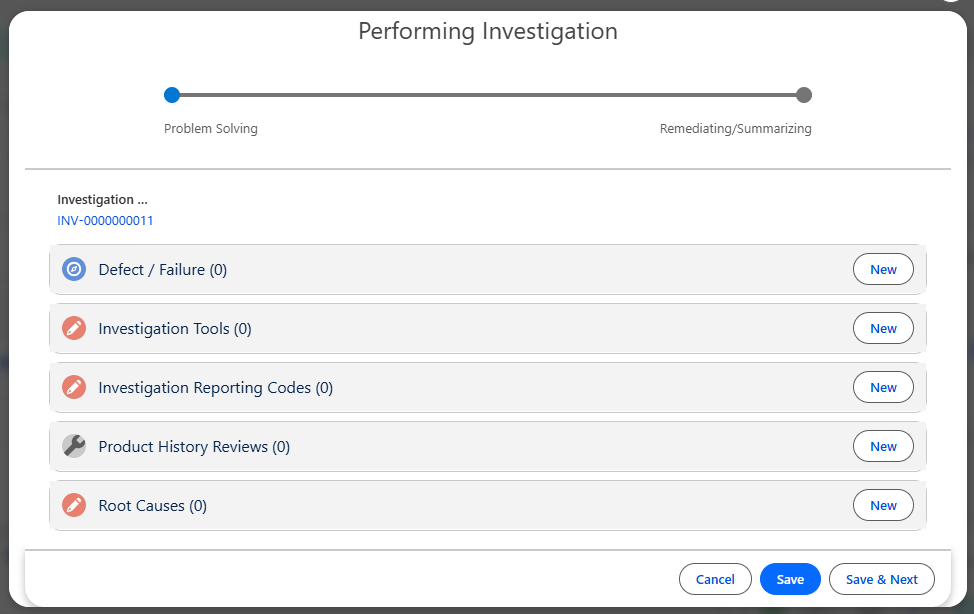
From the Complaint record, under Next Best Actions, click the Perform Investigation button.
-
Add Defect/Failures as needed. See Adding Product Defects/Failures below for more information.
-
Add Investigation Tools to be used to conduct the Investigation. See Linking Investigation Tools for more information.
-
Add Investigation Reporting Codes as needed. See Adding Investigation Reporting Codes below for more information.
-
Add Product History Reviews as needed. See Adding Product History Reviews below for more information.
-
Add Root Cause(s). See Adding Root Causes to Investigations for more information.
-
Click the Save & Next button.
-
From the Performing Investigation window, Actions Plans section, click the New button.
-
Add Action Plan(s). See Adding Action Plans to Investigations for more information.
-
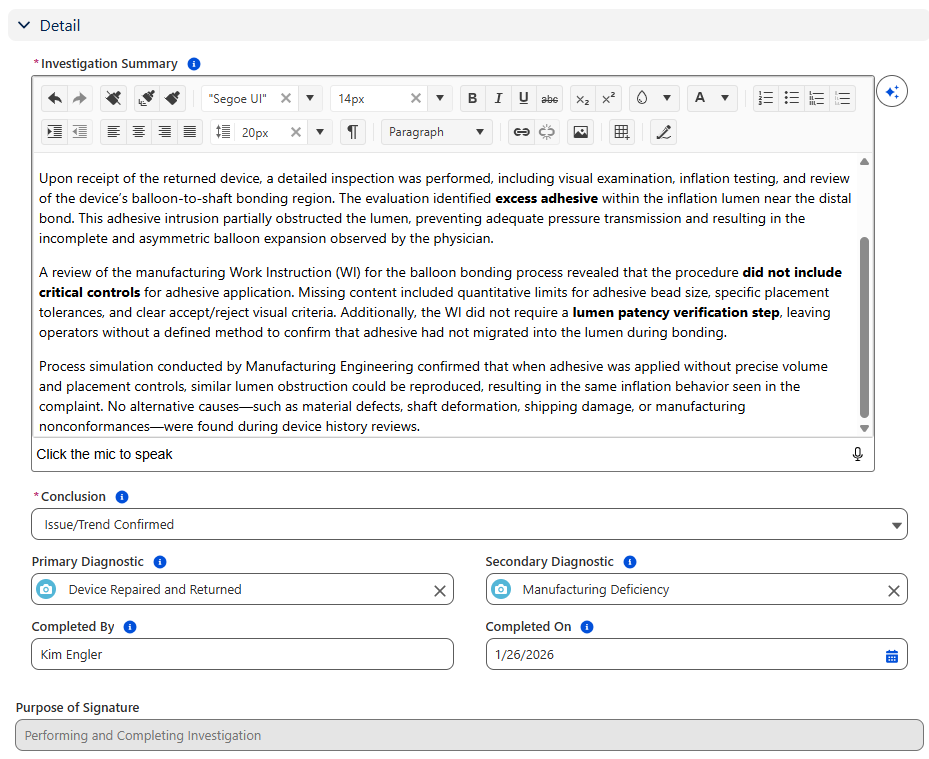
Enter Investigation Summary.
-
Select the Conclusion of the Complaint Investigation.
-
Select Primary and/or Secondary Diagnostics.
-
Enter Completed By and Complete On Date information.
-
Enter Comment and Password if needed, and click the Save button.
Example:


Expected Outcome
-
Once the Investigation is signed off, the Status of the Complaint Step will display as Complete.
Additional Resources
ComplianceQuest
We Value Your Feedback
To provide feedback or suggestions to improve the help content on this page click here.