
Purpose
As a Record Owner, you use CQ AI to find related QMS records that are similar to the complaint. You review the suggested records to identify past events that may provide context for assessment or investigation.
Prerequisites
Installation Package: CQ Core, CQ Regulatory Reports Extension, CQ AS2 Gateway Extension, myCQ Extension, and CQ AI Extension
Product: QualityQuest and Platform Apps
Function: CQ AI Related QMS Record Discovery
User Profile: Standard User
Permissions: CQ Base User PSG, CQ Complaint Non DT Task Assignee PSG
Configurations: CQ Tasks
Steps
-
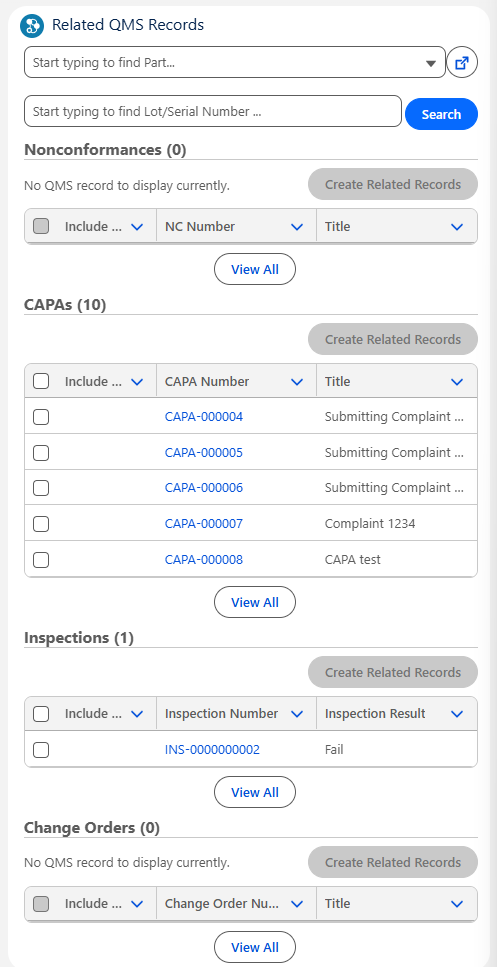
From the Product History Review record, Related QMS Records section, review related QMS Records.
-
If needed, view Recommendations and Similar Records that share common data to triage the Complaint using CQ AI.
-
Nonconformance Records are displayed when the Lot Number and Impacted Part match the Lot Number and Impacted Part in the Nonconformance record. Records are displayed, regardless of their Status.
-
CAPA Records are displayed based on the Associated Product of the CAPA. All CAPA records are displayed, regardless of their Status.
-
Inspection Records are displayed when the Part and Lot Number match the Inspection record. Only Inspections with Inspection Results marked as "Fail" are displayed, regardless of their Status.
-
Change Order Records are displayed based on the Associated Product. Only Change Orders with an Effective Date earlier than the Manufacturing Date in the Complaint record are displayed, regardless of their Status.
-
See CQ End User Guide - Similarity and Recommendation for more information.
Example:
Expected Outcome
-
See CQ End User Guide - Similarity and Recommendation for more information.
Additional Resources
ComplianceQuest
We Value Your Feedback
To provide feedback or suggestions to improve the help content on this page click here.