
Purpose
As an Observation Owner, you can submit the Observation record after creation to move it to the next stage for review.
Prerequisites
-
Installation Package: CQ Core - Summer 2026, CQ EHS Extension
-
Product: SafetyQuest
-
Function: Observations
-
User Profile: Standard User
-
Permissions: CQ Base User PSG and CQ EHS Base User PSG and CQ Safety Observation Basic User PSG or CQ Safety Observation User PSG or CQ Safety Observation Manager PSG
Steps
-
Open the Observation record, click the Submit button in the Next Best Actions section.
-
Enter a Comment, if needed.
-
Click the Save button.
Example
Expected Outcome
-
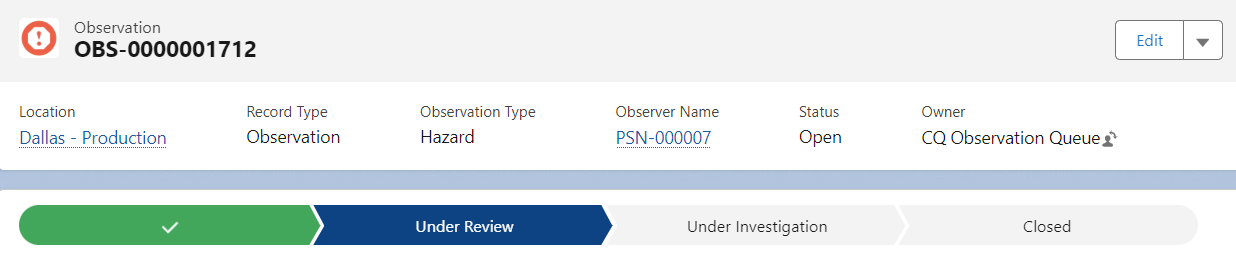
The Observation moves to an Open Status and Under Review Stage.
-
By default, submitting an Observation record transfers its ownership to the CQ Observation Queue. However, if a User or Queue is assigned the Role Name of Observation Manager for Observations in the Location Safety Event Roles section of the CQ Location, ownership transfers to that User or Queue upon submission.
-
The Submitting the Record activity is displayed on the History tab.
-
An email notification is sent to the Observation submitter.
-
The Send For Investigation and Close buttons are available in the Next Best Actions section.
Location Safety Event Role is not defined for the selected Location
-
The Owner of the Observation record is set to the CQ Observation Queue.
-
An email notification is sent to the CQ Observation Queue Members.
Location Safety Event Role is defined for the selected Location
-
The Owner of the Observation record is set to the User or Queue defined as the Observation Manager under Location Safety Event Roles for the selected Location.
-
An email notification is sent to the User or Queue Members defined as the Observation Manager.
Optional Configurations
-
Queues
Additional Resources
ComplianceQuest
-
Accessing Observations from Queue
We Value Your Feedback
To provide feedback or suggestions to improve the help content on this page click here.