
Purpose
As a Record Owner, you report a CQ Nonconformance to document a product or process issue identified during manufacturing, testing, or inspection. You enter the essential details so the nonconformance can move into the evaluation and resolution workflow.
Prerequisites
Installation Package: CQ Core, myCQ Extension, CQ Supplier Central, CQ Supplier Performance, CQ Ratings Framework, CQ Embedded Analytics, and CQ AI Extension
Product: QualityQuest and Platform Apps
Function: CQ NC Reporting
User Profile: Standard User
For Permission Set: CQSS Similarity User, CQSS AI Assistant User
For Permission Set Groups: CQ Base User PSG, CQ NC Owner PSG
Steps
The steps below contain guidance on how to Report NCs using the Report NC button. This button leverages CQ AI capabilities for reporting issues in CQ. While Users can also click the New button, it is recommended that only frequent Users of CQ Nonconformance use this method to create NCs from the Nonconformance tab.
See CQ End User Guide - CQ.AI Agents (Intelligent Assistant) for more information on how to report Nonconformances using CQ AI.
-
From the Nonconformance tab (or from myCQ), click the Report NC button.
-
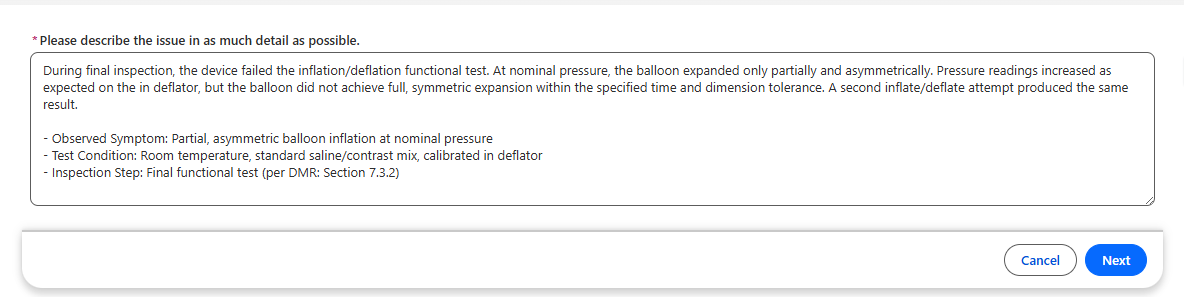
Enter What did not fulfill requirement?. This entry populates to the Description field of the Nonconformance.
-
Click the Next button.
-
Enter When did this issue occur? (i.e., yesterday). This entry populates to the Occurrence Date and the Aware Date of the Nonconformance.
-
Click the Save and Next button.
-
Enter Where did this issue occur? (i.e., enter the Location). This entry populates to the Location field of the Nonconformance.
-
Click the Save and Next button.
-
Enter Who identified the issue? (i.e., User Name, me). This entry populates to the Owner field of the Nonconformance.
-
Click the Save and Next button.
-
Select Is there a potential Product Impact?
-
If No or Unknown, click the Save and Next button and skip to Step 11.
-
If Yes, enter Which items are affected? (i.e., Part, Lot 123) and click the Save and Next button. Lot Number field of the Nonconformance depending on what is entered.
-
Enter How was the issue discovered? (i.e., Issue was discovered during Incoming Inspection of each lot).
-
Click the Save and Next button. A Nonconformance record is now created and assigned a number. Upon saving the information above, CQ AI will process information to present for next steps to Report the NC.
-
Optionally, enter the Title (i.e., Device failed the inflation/deflation functional test).
-
Optionally, update the Occurrence Date indicating when the Nonconformance occurred. This field can be backdated.
-
Update the Description as needed.
-
If known, update the Aware Date indicating when the nonconforming issue was detected. The Aware Date may be on the date of the actual occurrence; or, the date the organization was made aware of the incident (i.e., external type of NC coming from Supplier or Customer). This field can be backdated.
-
If known, select an NC Type (Internal, Supplier, or Customer).
-
If NC Type Supplier is selected, select Supplier . Account field is auto populated if Supplier has an Account associated to it or else it is an read only field and select the External Contact associated with the Supplier.
-
If NC Type Customer is selected, optionally select an Account and External Contact to indicate who reported the event externally. See your CQ Administrator to create Accounts.
-
If known, update the Location responsible for the NC.
-
Select an Issue Type (Product or Process).
-
If Product is selected, select a Product. See Step 7 below.
-
If Process is selected, select a Process.
-
Verify if Yes is indicated for Is Part Impacted? If so, see Step 3 - Enter Impacted Parts/Lots below.
-
Verify if No is indicated for Is Part Impacted? If so, click the Save button. See Submitting NCs for Triage.
Example:

Expected Outcome
-
You record a CQ nonconformance so the issue enters the nonconformance workflow with the required initial details.
Additional Resources
ComplianceQuest
We Value Your Feedback
To provide feedback or suggestions to improve the help content on this page click here.