
Purpose
As a CAPA Owner, submit a CAPA Implementation to send completed information for review and approval.
Prerequisites
Installation Package: CQ Core
Product: QualityQuest
Function: Change Requests
User Profile: Standard User
Permissions: CQ Base User PSG, CQ CAPA Owner PSG
Record Status: Draft
Steps
-
Open the CAPA record.
-
Click Submit Implementation in Next Best Actions section.
-
Provide a Comment and specify a Password, if applicable.
-
Click Save.
Expected Outcome
-
If Effectiveness Review is Required, a task is created to Verify Effectiveness Review and is assigned to the CAPA Owner.
-
If Effectiveness Review is not Required, a task is created to Perform Closure and assigned to the CAPA Owner.
-
An Email Notification is sent to Approvers, if applicable.
-
The Submitting Implementation activity appears in the CAPA Record Activities section on the History tab.
Additional Resources
ComplianceQuest
-
Completing Approval for CAPA Effectiveness
We Value Your Feedback
To provide feedback or suggestions to improve the help content on this page click here.
Verifying Effectiveness Reviews
For Permission Set Groups: CQ Base User PSG, CQ CAPA Owner PSG
The CAPA Implementation has been completed and approved. If Effectiveness Review Required? policy was checked, then the Verify Effectiveness Review must be completed.
-
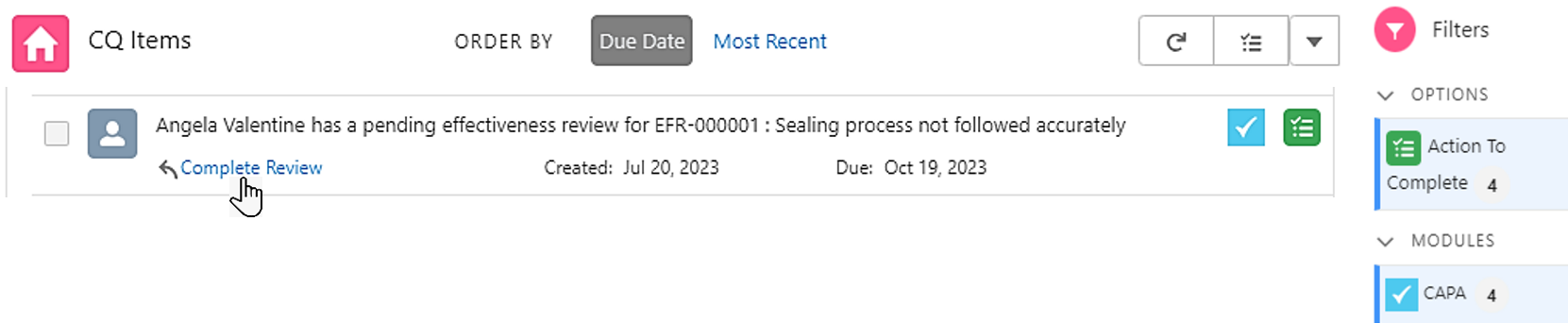
From the Home tab select the Complete Review link for the CAPA to review.
-
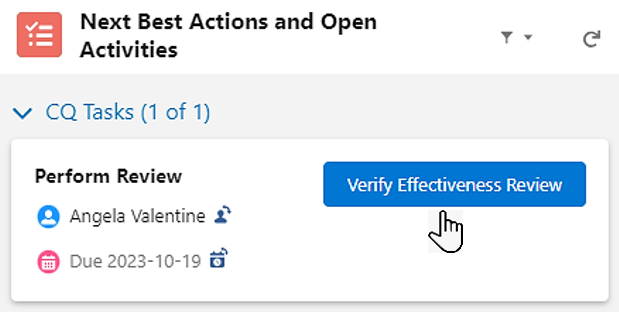
Under Next Best Actions, click the Verify Effectiveness Review button.
-
The Effectiveness Review record opens showing the list of Pending Verification Plans to review.
The Delete option for Effectiveness Review (EFR) records is disabled when the CAPA is in Complete or Verification stage and the EFR is in Pending status.
-
Follow the steps below to complete the Effectiveness Review.
-
Assign a Review Result: Effective, Ineffective, Schedule New Review, Request Extension, or Void Review.
Results
Effective CAPA (Effectiveness Approval Required is checked)
-
The Effectiveness Review record moves to a Pending Approval Status and a Ready Status.
-
Resolution displays as Closed-Effective.
-
Approve Effectiveness Review task is created and assigned to the CAPA Approver.
-
In the CAPA record, under Next Best Actions and Open Activities, in the Approve Effectiveness Review section, the Review button is enabled. See Approving Effectiveness Review.
-
Effective Effectiveness Review activity is logged in the CAPA Record Activities section under the History tab.
Effective CAPA (Effectiveness Approval Required is not checked)
-
The CAPA record moves to a Closed Status and Closed Stage if no other Effectiveness Reviews were scheduled.
-
Effective Effectiveness Review and Closing CAPA activity is logged in the CAPA Record Activities section in the History tab.
Ineffective CAPA (Effectiveness Approval Required is checked)
-
The Effectiveness Review record moves to a Pending Approval Status and a Ready Status.
-
Resolution displays as Ineffective.
-
Approve Effectiveness Review task is created and assigned to the CAPA Approver.
-
In the CAPA record, under Next Best Actions and Open Activities, in the Approve Effectiveness Review section, the Review button is enabled. See Approving Effectiveness Review.
-
Ineffective Effectiveness Review activity is logged in the CAPA Record Activities section under the History tab.
Ineffective CAPA (Effectiveness Approval Required is not checked)
-
The CAPA record moves to a Closed Status and Closed Stage if no other Effectiveness Reviews were scheduled.
-
Ineffective Effectiveness Review and Closing CAPA activity is logged in the CAPA Record Activities section in the History tab.
Schedule New Review (Effectiveness Approval Required is checked)
-
The Effectiveness Review record moves to a Pending Approval Status and a Ready Status.
-
Resolution displays as Schedule another review.
-
Approve Effectiveness Review task is created and assigned to the CAPA Approver.
-
In the CAPA record, under Next Best Actions and Open Activities, in the Approve Effectiveness Review section, the Review button is enabled. See Approving Effectiveness Review.
-
Once this Effectiveness Review is approved, a new Effectiveness Review record will be created with a Pending Status.
-
New Review Effectiveness Review activity is logged in the CAPA Record Activities section under the History tab.
Schedule New Review (Effectiveness Approval Required is not checked)
-
Effectiveness Review record moves to a Complete Status.
-
Resolution displays as Schedule another review.
-
Perform Review task is created and assigned to the CAPA Owner.
-
In the CAPA record, under Next Best Actions and Open Activities, in the Perform Review section, the Review button is enabled.
-
A new Effectiveness Review record is created with a Pending Status.
-
New Review Effectiveness Review activity is logged in the CAPA Record Activities section under the History tab.
Request Extension
-
The Extension Request record is created and Status is In Approval.
-
The Effectiveness Review record Status moves to Extension Request.
-
The Effectiveness Review record displays Number of Extensions Requested as 1.
-
An email is sent to the CAPA Approver notifying that an Extension Request has been submitted for approval and a link is provided to access the record.
-
In the CAPA record, under Next Best Actions and Open Activities, in the Approve Effectiveness Review Extension section, the Review Extension button is enabled.
Void Effectiveness Review (Effectiveness Approval Required is checked)
-
The Effectiveness Review record moves to a Void Status.
-
The CAPA record moves to a Closed Status and a Closed Stage.
-
Voiding Effectiveness Review and Closing CAPA activity is logged in the CAPA Record Activities section under the History tab.
-
If Create New CAPA is checked, a new CAPA record is created and the CAPA record link is populated in the CAPA Details Revised CAPA field.
Void Effectiveness Review (Effectiveness Approval Required is not checked)
-
The Effectiveness Review record moves to a Void Status.
-
The CAPA record moves to a Closed Status and a Closed Stage.
-
Voiding Effectiveness Review and Closing CAPA activity is logged in the CAPA Record Activities section under the History tab.
-
If Create New CAPA toggle is checked, a new CAPA record is created and a CAPA record link is populated in the CAPA Details Revised CAPA field.