
Overview
A Design History File (DHF) is a compilation of records that describes the design history of a finished device. In a DHF, documents linked to the Project record and Design File record are automatically added along with the subsequent revisions. Documents can be manually added and removed from subfolders. ‘As of’ date is used to search the documents that were linked to the DHF on a specific date. Using Search functions, Documents can be searched in a folder or subfolder.
A Device Master Record (DMR) is a compilation of records containing the procedures and specifications for a finished device. In a DMR, only the current revision of the Documents linked to Design Outputs is automatically added. ‘As of’ date is not supported. The User can see the documents that were linked to Design Outputs on a specific date by clicking the Design Outputs subfolder in DHF. Using Search functions, Documents can be searched in a folder or subfolder.
Prerequisites
Available in: CQ Design
Installed Package(s): CQ Core, CQ Design Extension & CQ Process Extension - Winter 2025
Optional Extension Packages: myCQ & CQ PLM- Winter 2025
User Profile: Standard User
Permissions: CQ Base User PSG, CQ Design Owner PSG, and CQ Design Team Member PSG
Instructions
Adding Document to a DHF Folder
-
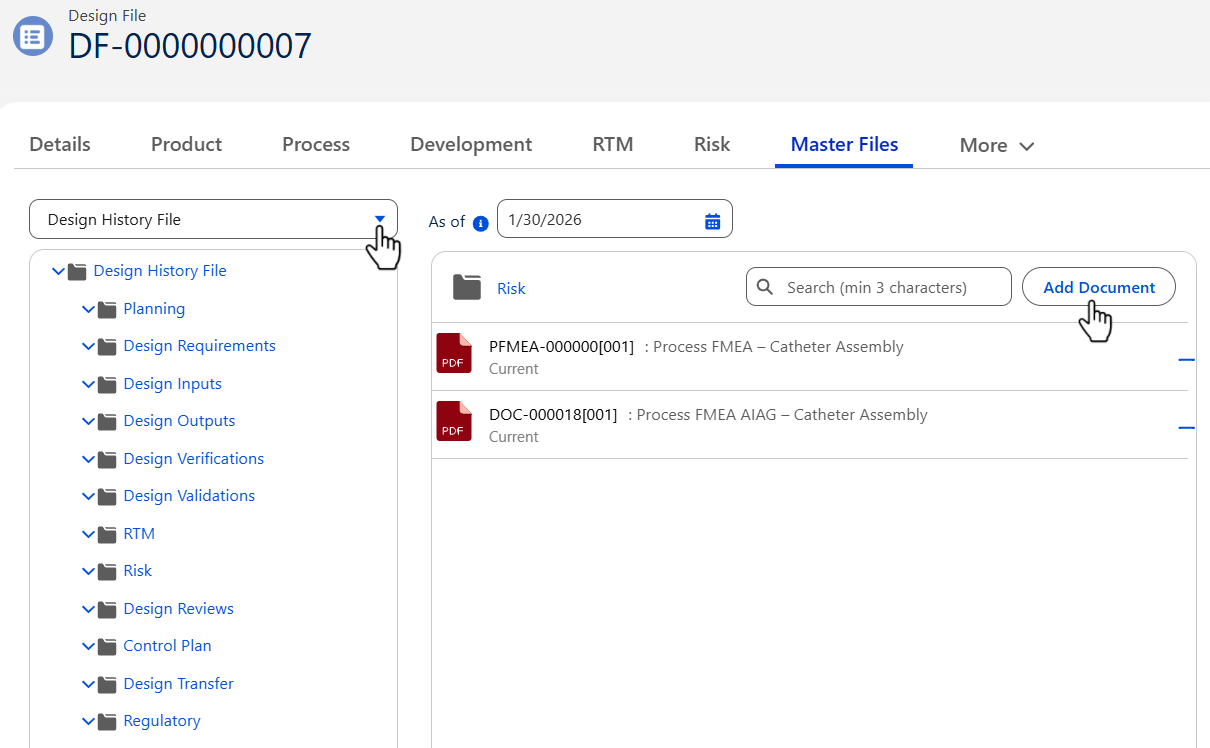
From the Design File record, click on the More drop-down, choose Master Files, choose Design History File from the drop-down arrow menu.
-
Click on a subfolder to view available Documents in that folder.
-
See Design History Files (DHF) section for more information on Adding a Document to a DHF Folder.
Removing Document from a DHF Folder
-
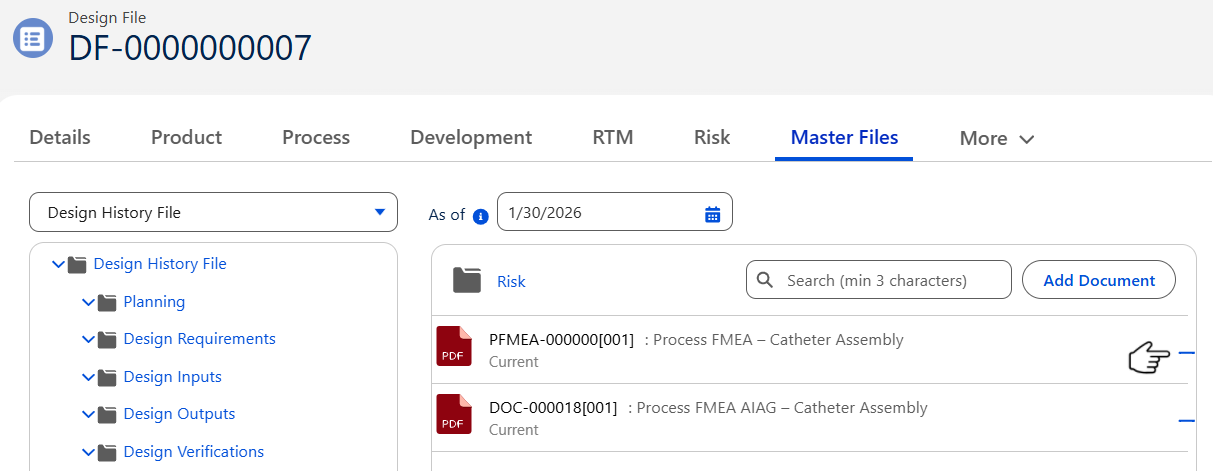
From the Design File record, click on the More drop-down, choose Master Files, choose Design History File from the drop-down arrow menu.
-
Click on a subfolder to view available Documents in that folder.
-
See Design History Files (DHF) section for more information on Removing a Document from a DHF Folder.
Adding Document to a DMR Folder
-
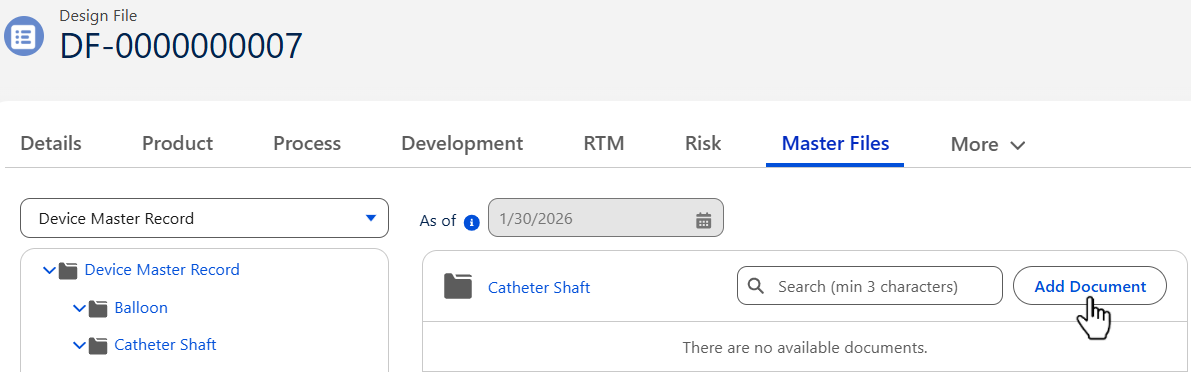
From the Design File record, click on the More drop-down, choose Master Files, select Device Master Record from the drop-down arrow menu.
-
Click on a subfolder to view available Documents in that folder.
-
See Device Master Record (DMR) section for more information on Adding Document to a DMR Folder.
Removing Document from a DMR Folder
-
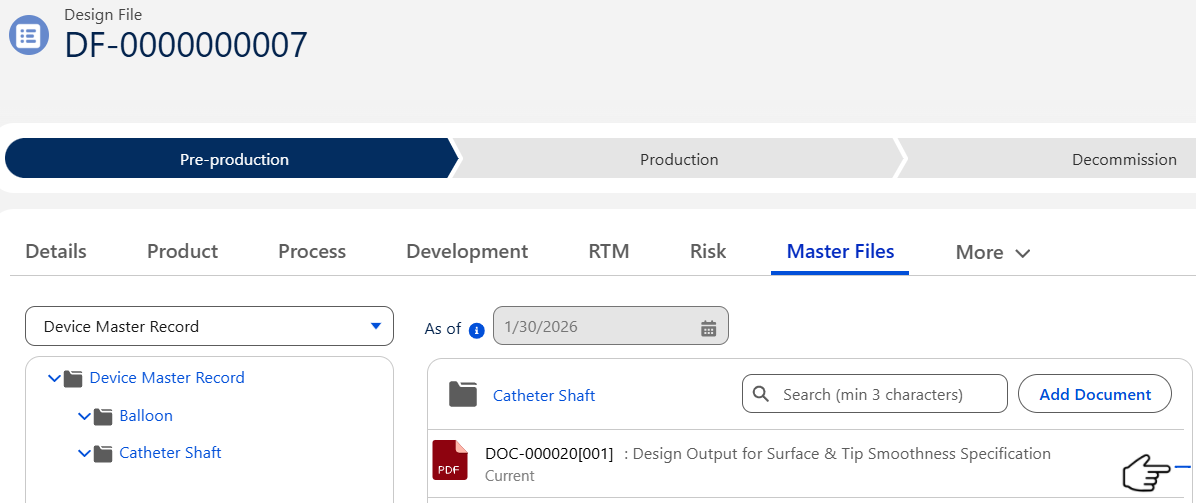
From the Design File record, click on the More drop-down, choose Master Files, choose Master Files, select Device Master Record from the drop-down arrow menu.
-
Click on a subfolder to view available Documents in that folder.
-
See Device Master Record (DMR) section for more information on Removing Document from a DMR Folder.
Results
-
Documents are added in the Design History File/Device Master Record subfolders.
-
Design History File/Device Master Record folders, subfolders, and the Documents within them can be viewed from the Master File.
-
Documents within Design History File/Device Master Record folders and subfolders is previewed within the same window.
-
Controlled Document record is opened in another tab in the browser.
-
Documents are removed from the Design History File/Device Master Record subfolders.
Troubleshooting
-
Check back for new articles