
Adding Product Defects/Failures
For Permission Set Groups: CQ Base User PSG and CQ NC Owner PSG
The NC Owner needs to add Part Defects to the Nonconformance record.
-
From the Nonconformance record, Details tab, Defect/Failure section, click the New button.
-
Failure Type defaults to Product or Process depending on the Issue Type.
-
Enter or select the Part (Required if Failure Type selected is Product).
-
Enter the Lot Number and Defective Quantity .
-
Optionally, enter the No. of Defects / Failure.
-
Optionally, enter the Cost of Defect / Failure.
-
Either select the Failure Code or, enter the Defect / Failure and Failure Category.
-
Optionally, select the Defect / Failure Severity and Defect / Failure Description.
-
Optionally, select the Cause Code.
-
Optionally, enter the Cause Description.
-
Enter Assignable Causes. See Adding Assignable Causes for more information.
-
Optionally, select the Controlled Document for reference.
-
Optionally, select the Equipment for reference.
-
Optionally, Drop/Upload Files associated with the Defect / Failure.
-
Click the Save button or Save & New for additional Defects / Failures.
Results
-
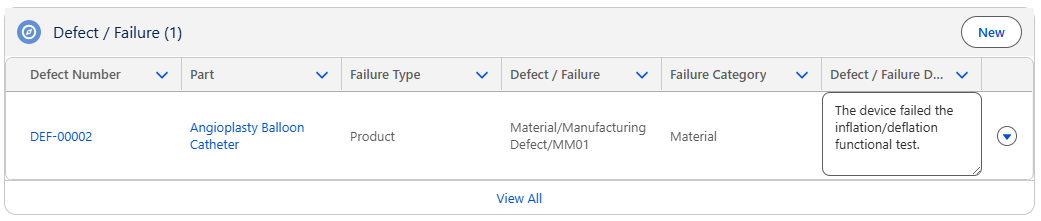
The Defect record is created and assigned a unique number.
-
Click View All to see all Defects / Failures.
-
Edit and Delete options are available from the drop-down arrow at the end of each Defect / Failure row.
-
The Defect / Failure link under the Related List Quick Links section displays the total count of defected Parts.