
Symptoms (Use this as a Sample)
-
The Initiate action is not available
Possible Causes
-
The Meeting has not been started
Resolution Steps
-
Click Start on the Meeting record.
-
Mark attendees as Present.
-
Click Initiate in the Next Best Actions section.
-
Provide the eSignature, if applicable.
Additional Resources
ComplianceQuest
-
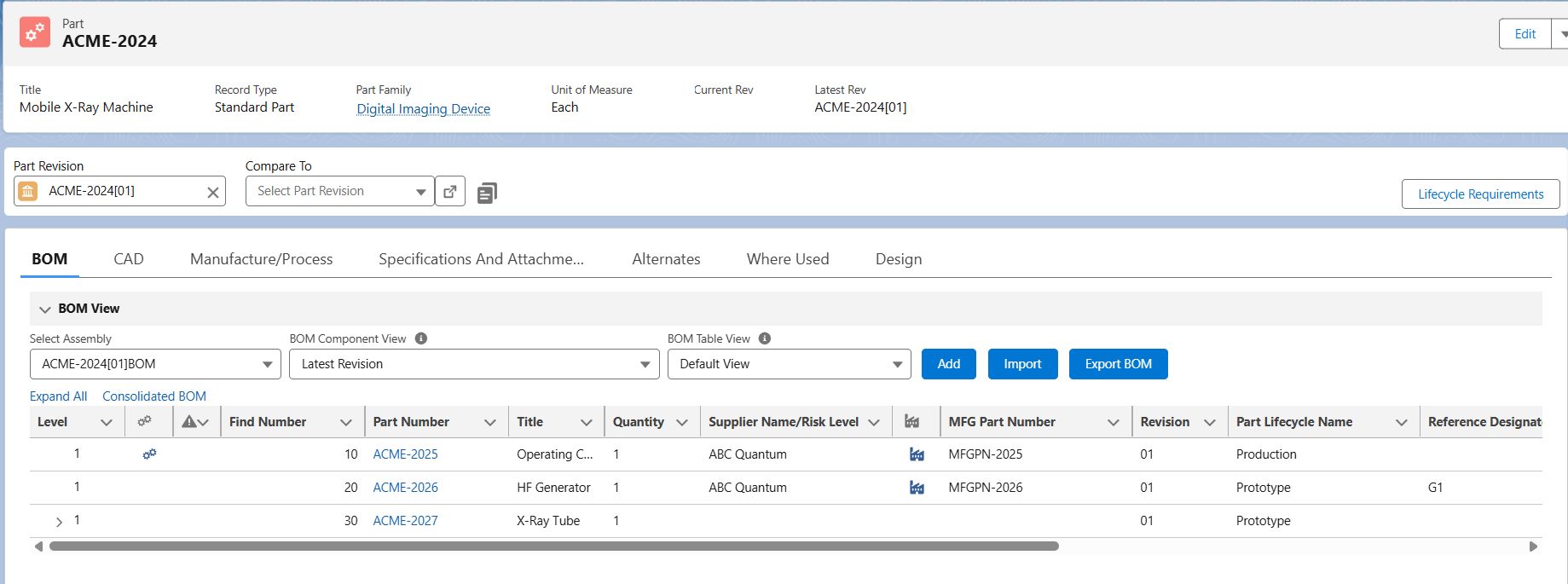
Click the Close button.
-
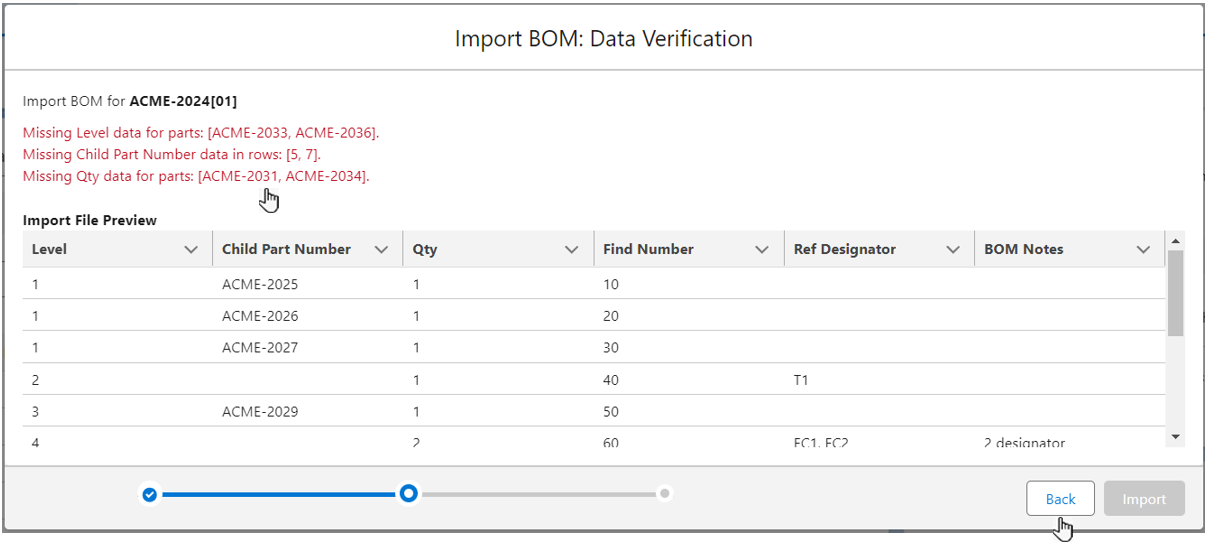
During Import, if any missing data is found, then in the Import BOM: Data Verification page error messages in Red text are displayed. This includes:
-
Missing Level data for Parts, and/or
-
Missing Child Part Number data in rows, and/or
-
Missing Qty data for Parts.
-
-
In such a case the Import button is disabled.
-
Click the Back button in order to update the
-
Missing Level data for Parts, and/or
-
Missing Child Part Number data in rows, and/or
-
Missing Qty data for Parts.
-
and then Drop/Upload the updated BOM Import Template.csv.
-
For instance, if a CSV file contains a required field ‘Level’, ‘Child Part Number’, and 'Quantity' that is empty in a certain row, then error is displayed for those specific row when the BOM Import Template.csv is uploaded, as shown below.
-
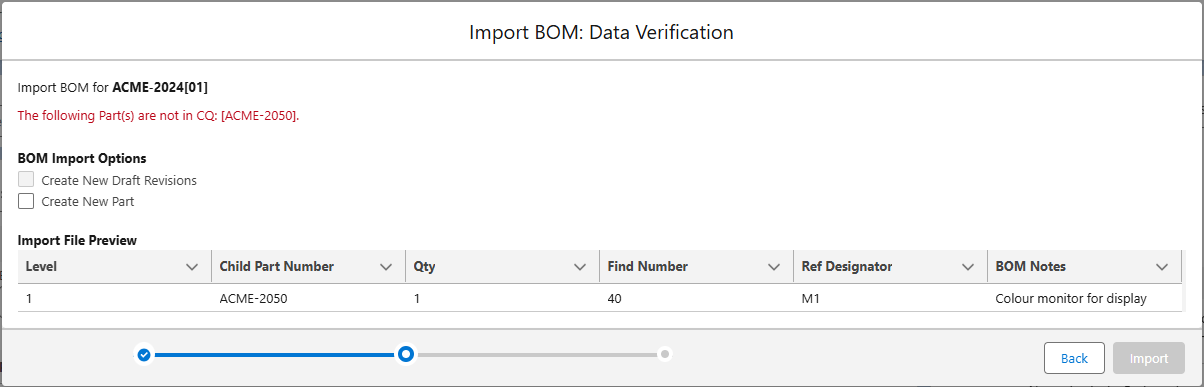
During Import, if any Part is not found in CQ database, then in the Import BOM: Data Verification page an error message “The following Part(s) are not in CQ: [XXXXXXXX]“ is displayed in Red text.
-
In such a case the Import button is disabled.
-
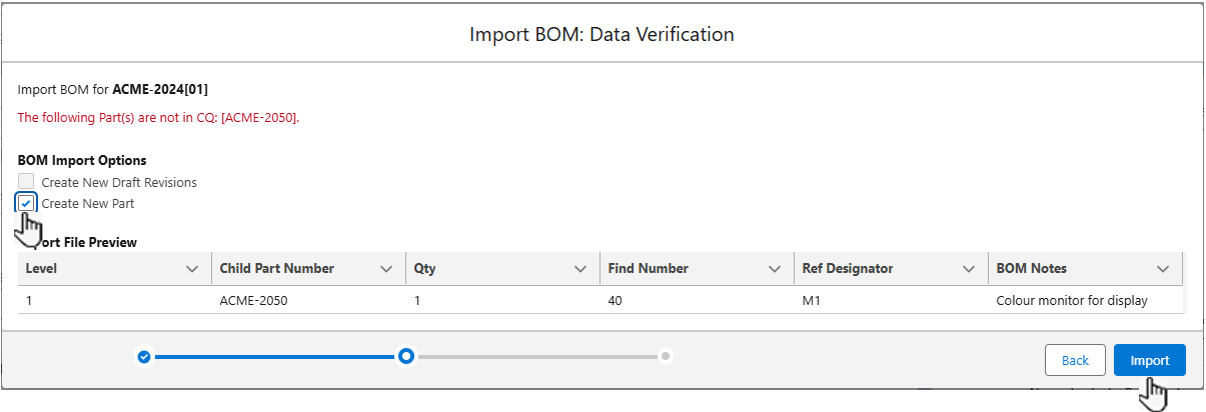
To resolve this error, check the Create New Part checkbox. As a result the Import button is enabled again. Then, click the Import button.
-
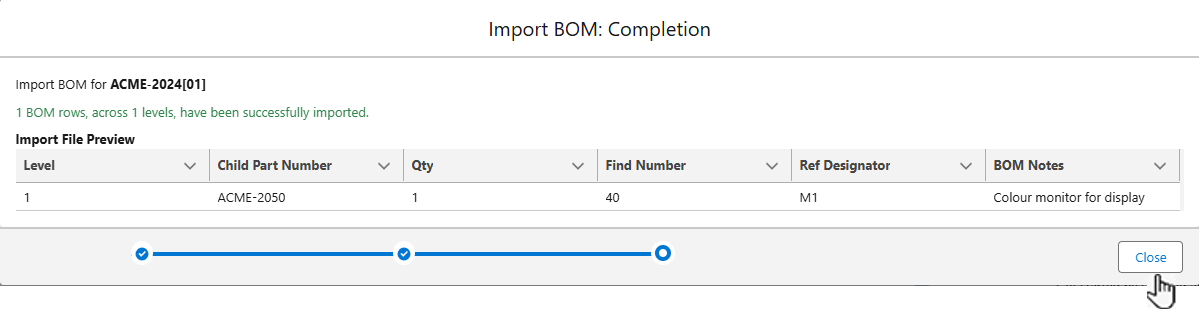
An Import BOM: Completion page opens that displays the following:
-
A Part Number for which BOM is imported.
-
Total number of imported BOM rows with Levels.
-
Preview of the imported file.
-
A blue color visual step bar with a check mark at the bottom that displays which step of the import process is complete.
-
-
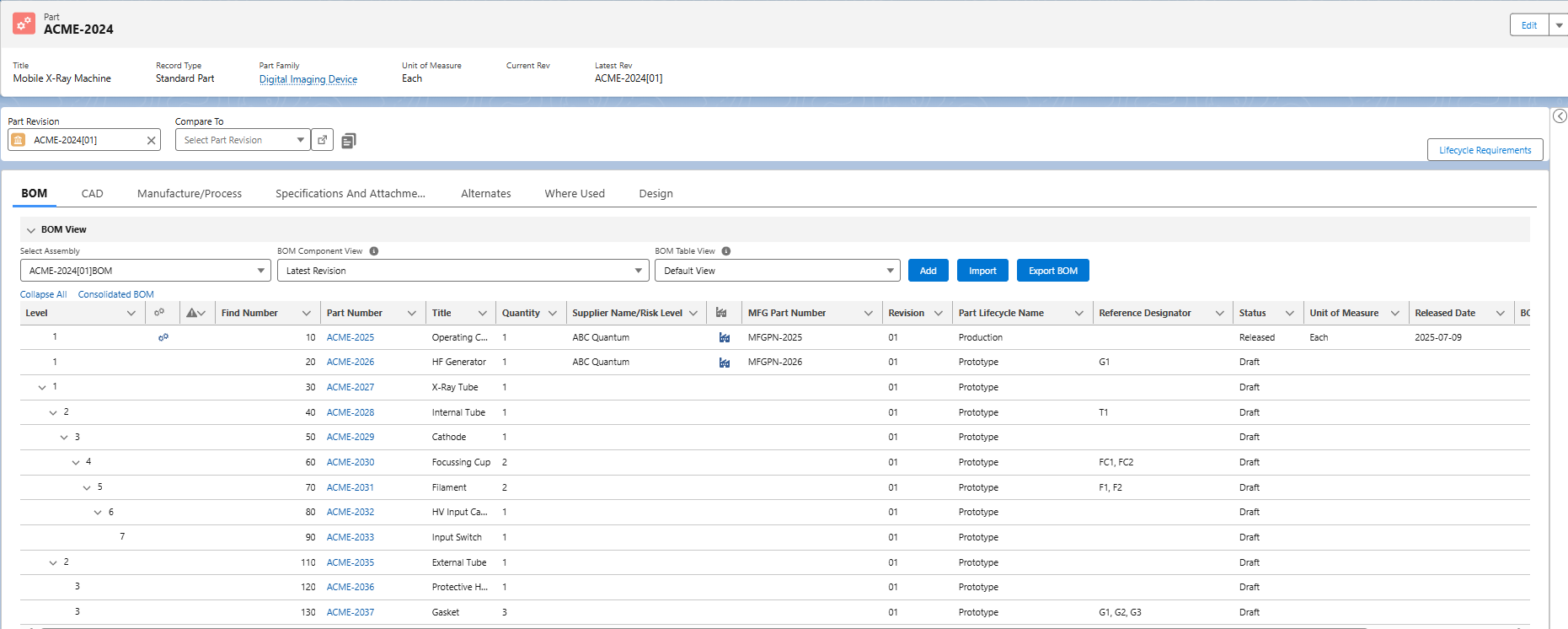
Click the Close button to complete the BOM import process.

-
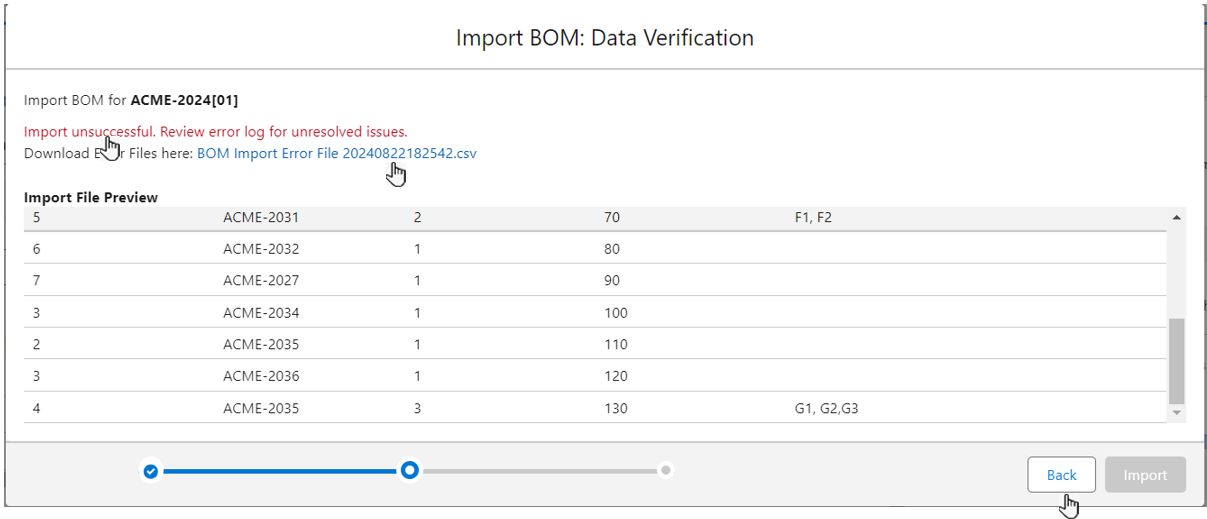
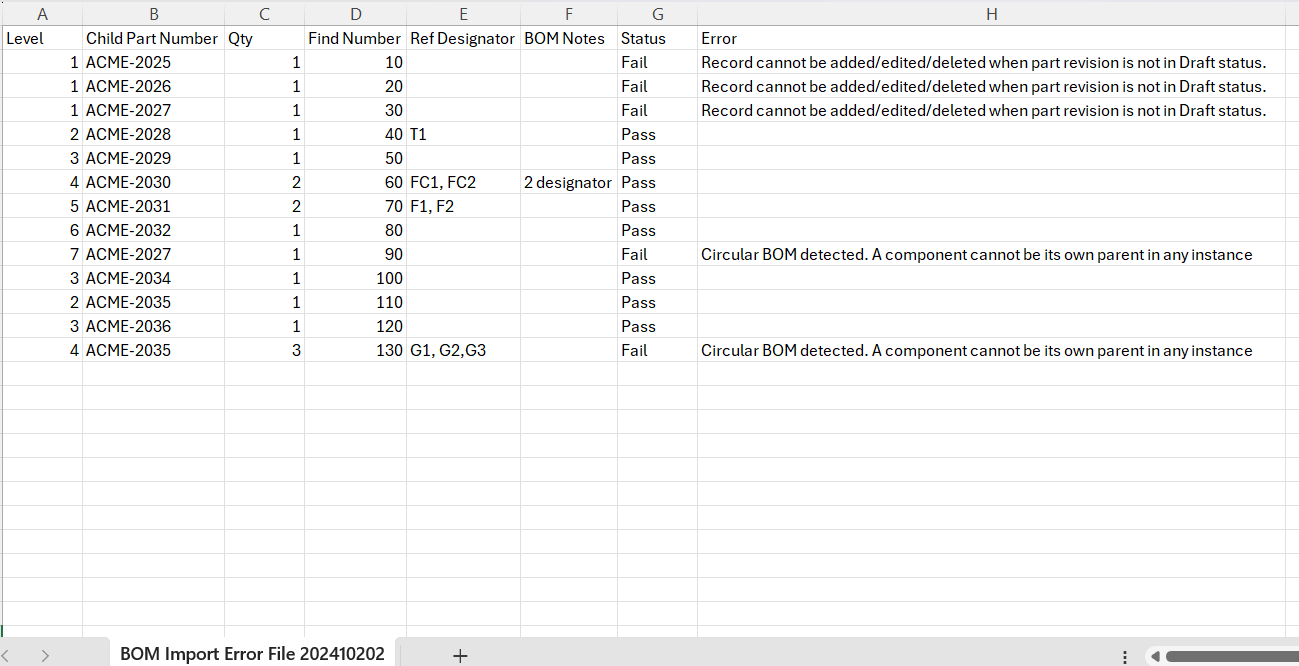
During Import, if any invalid data related to Circular BOM is detected, then in such a case an error message about unsuccessful Import is displayed.
-
In such a case the Import button is disabled.
-
To resolve this error, the BOM Import Error Files.csv is downloaded to view the errors encountered during the import process.
-
To resolve error log, click the Back button. Then, Drop/Upload the updated BOM Import Template.csv.
Expected Outcome
-
The BOM is successfully uploaded/imported in the form of a CSV (comma separated value) file.
-
Successfully imported data displays in Green color text indicating number of BOM rows, across number of Levels.
-
If the Import is not valid, then error messages will display in Red text.