
Purpose
As a Document Owner, check in a document to save your updates and make the document available for approval and release.
Prerequisites
Installation Package: CQ Core
Product: QualityQuest
Function: Controlled Documents, Template Documents
User Profile: Standard User
Permissions: CQ Base User PSG, CQ Document Owner PSG
Content Status: Checked Out
Steps
-
Open the Controlled Document record.
-
In the Content section, click Check In.
-
Provide a Comment and specify the Password, if applicable.
-
Click Save.
Note: For Office 365 files, you can also use the built-in Check In option.
Example
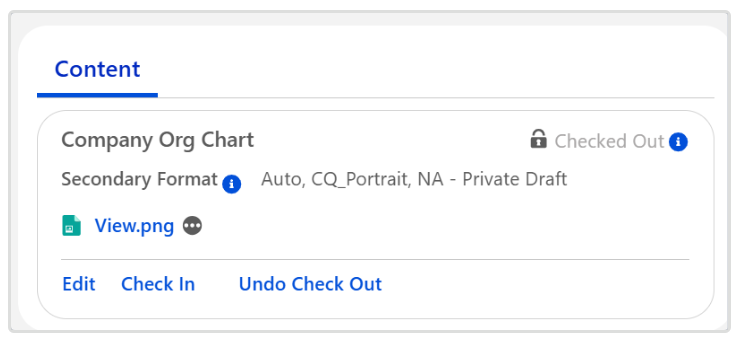
Expected Outcome
-
The Content is checked in.
-
The Content Status is set to Checked In.
Additional Resources
ComplianceQuest
We Value Your Feedback
To provide feedback or suggestions to improve the help content on this page click here.