
Purpose
Prerequisites
Installation Package: CQ Core
User Profile: Standard User
Product: QualityQuest
Function: Immediate Change
Permissions: CQ Base User PSG and CQ Change Order Owner PSG
Record Status: Open
Steps
-
Open the Immediate Change record.
-
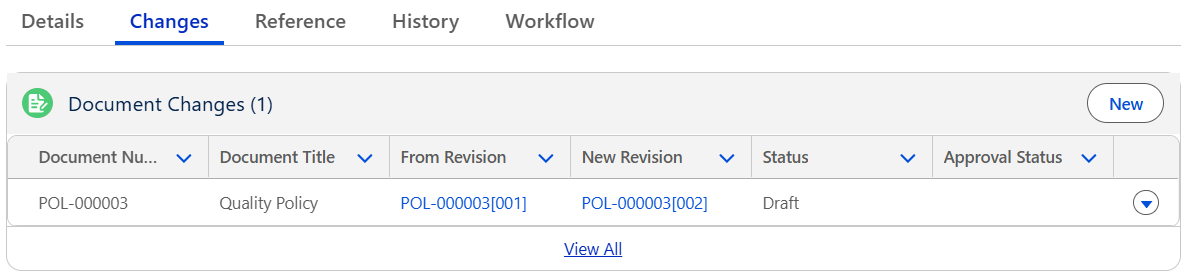
Open the Changes tab. Then open the Document Changes section and click New.
-
Select Document Revisions.
Only Draft documents that have not previously been linked to another Change Order will display.
-
Select one or more Document Revisions.
-
Click Save. To create a new Document Changes, click Save & New.
The system supports up to 199 Document Changes.
Example
Expected Outcome
-
The Document Changes are now added to the Immediate Change record and will now be approved via the Immediate Change once Complete.
-
All Document Changes tasks appear in the Document Changes section.
-
The Document Changes display in Draft status.
Troubleshooting
-
Check back for new articles
Additional Resources
ComplianceQuest
We Value Your Feedback
To provide feedback or suggestions to improve the help content on this page click here.