
Overview
Prerequisites
Available in: Audit Findings, CAPAs, Complaints, Nonconformances, Safety Incidents, Safety Observations, Meetings, FMEAs, Laboratory Errors, and Suspect Results.
Installed Package: CQ Core, Lab OOS, EHS - Winter 2025
User Profile: Standard User
Permissions: CQ Base User PSG, CQ Record Owner PSG and/or Task Assignee PSG
Next Best Action: Complete
Instructions
-
From the Home tab, click the View link for the Action to Complete.

-
From the Action record, click the Complete button under Next Best Actions or from the Action menu.
Action menu
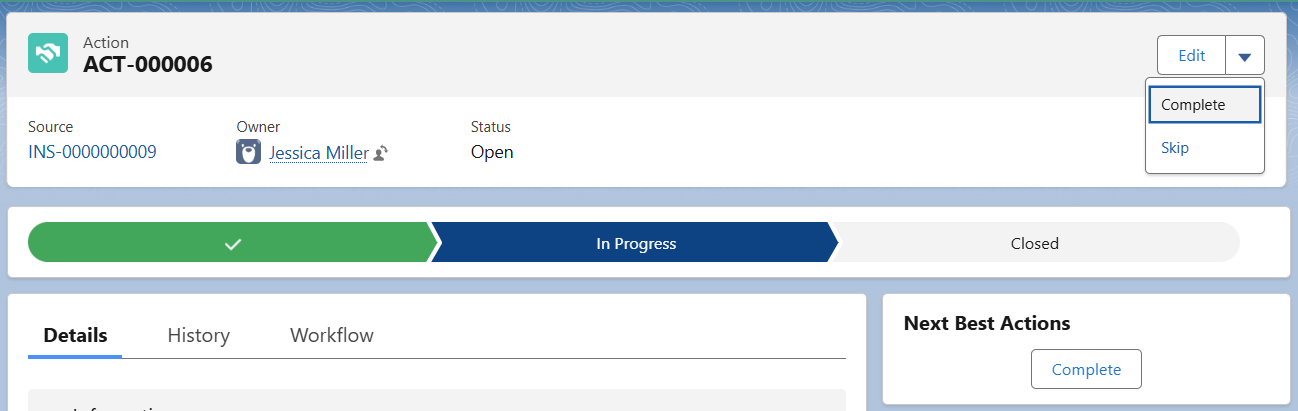
Next Best Actions

-
Enter or select the Completion Date.
-
Optionally, enter a Sign-off Comment.
-
Verification Required By (displayed only if Verification Required is selected as Yes when Action was created) is a read-only field that defaults to the User selected to verify the Action once it is completed.
-
Verified Date (displayed only if Verification Required is selected as Yes when Action was created) is a read-only field that will be autopopulated once the Action is verified.
-
Verified Comments (displayed only if Verification Required is selected as Yes when Action created) is a read-only field that will be autopopulated once the Action is verified.
-
Optionally, Drop/Upload Files related to the completion of the Action (photos, documents supporting the actions taken, etc.).
-
Enter Comment and Password if required for eSignature Policies.
-
Click the Save button.
Results
No Verification Required
-
The Action moves to the Complete Status and Closed Stage.
-
The Action Assignee remains the Owner of the record.
-
In the Action record, Completion Date and Sign-off Comment autopopulates in the Implementation section of the Details tab.
Verification Required
-
The Action moves to the Ready Status and remains In Progress Stage.
-
The User selected in Verification Required By field for the Action is now the Owner of the record.
-
The Verify and Reject buttons are available in the Next Best Actions section for the Verification Required By User.
-
In the Action record, Completion Date and Sign-off Comment autopopulates in the Implementation section of the Details tab.
Troubleshooting
-
Check back for new articles
Additional Resources
CQ Resources
-
Adding Action Plans
Summer 2026