
Purpose
As a Record Owner, you run a Decision Tree to answer the guided questions assigned to the complaint. You follow each question in sequence and record the responses so the evaluation reflects the information gathered during the review.
Prerequisites
Installation Package: CQ Core, CQ Regulatory Reports Extension, CQ AS2 Gateway Extension, myCQ Extension, and CQ AI Extension
Product: QualityQuest and Platform Apps
Function: CQ Decision Tree Execution
User Profile: Standard User
Permissions: CQ Base User PSG, CQ Complaint Regulatory Owner PSG
Steps
-
From the Complaint record, under Next Best Actions and Open Activities, in the CQ Task section, click the Run Decision Tree button.
-
Enter or select the Responses and click Next until complete.
-
Enter Comments and Password if needed, and click the Finish button.
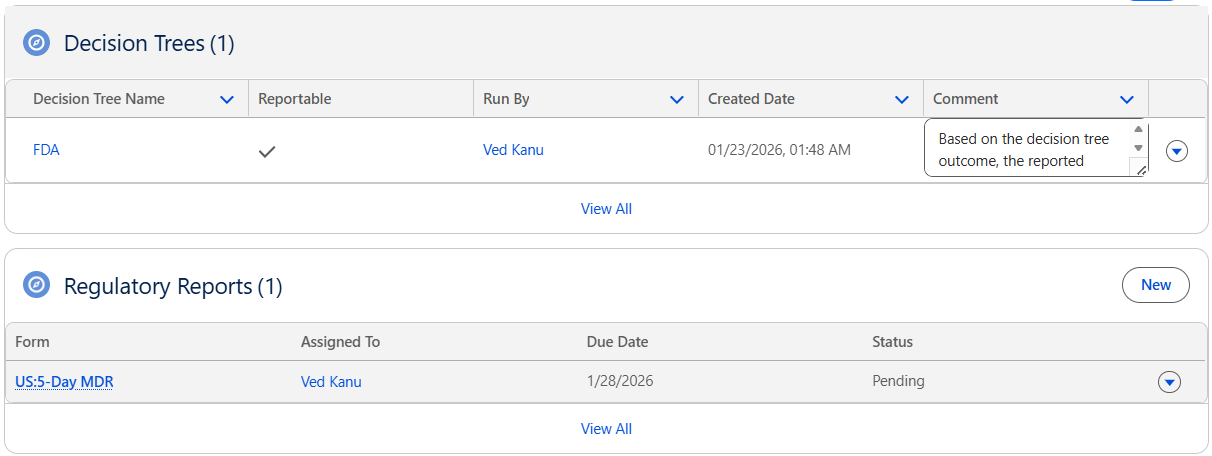
Example:
Expected Outcome
-
All completed Decision Trees are displayed in the Decision Trees section of the Regulatory tab.
-
The Decision Trees link under the Related List Quick Links section displays the total count of run Decision Trees.
Non-Reportable
-
The Task listed in the Complaint Steps displays in Complete Status, and a Completion Date is populated in the Complaint Step.
-
The Decision Tree task moves to past activities in the Activity section.
-
No Regulatory Report is generated.
Reportable
-
A new Regulatory Report Step - 0 is created in Draft status if the Complaint record is in Draft or Triage status, and in Open status if the Complaint record is in Open status for MedWatch, MIR, and Health Canada when Decision Tree is Reportable, with pre-filled fields such as Due Date and Assignee/Queue, and is linked to the corresponding Regulatory Report record.
-
A new Workflow Step is created for General Reports, enabling assignees to complete and submit it under the Workflow tab in the Complaint Steps section when the Decision Tree is Reportable, with pre-filled fields such as Due Date and Assignee/Queue. At the same time, Regulatory Review does not apply to these reports.
-
Based on the Decision Tree, the system generates the appropriate Regulatory Report(s) for completion and displays them in the Regulatory Reports section under the Regulatory tab.
-
Under Next Best Actions and Open Activities, a Regulatory Reporting task is generated for each Report needing completion.
Additional Resources
ComplianceQuest
We Value Your Feedback
To provide feedback or suggestions to improve the help content on this page click here.