
Overview
Document Owners can revise a Controlled Document directly from the document record in CQ without creating a formal Change Order. This method is ideal for quick updates when a formal change process is not required, such as minor edits or administrative corrections.
By using this approach, Document Owners can efficiently create a new revision while maintaining version control and compliance with organizational standards.
Prerequisites
Available in: Controlled Documents
Installed Package: CQ Core - Winter 2025
Optional Extension Packages: CQ Forms, CQ Laboratory Issues, CQ Process, and CQ EHS - Winter 2025
User Profile: Standard User
Permissions: CQ Base User PSG and CQ Document Owner PSG
Document Status: Draft, Pre-release, or Current
Instructions
-
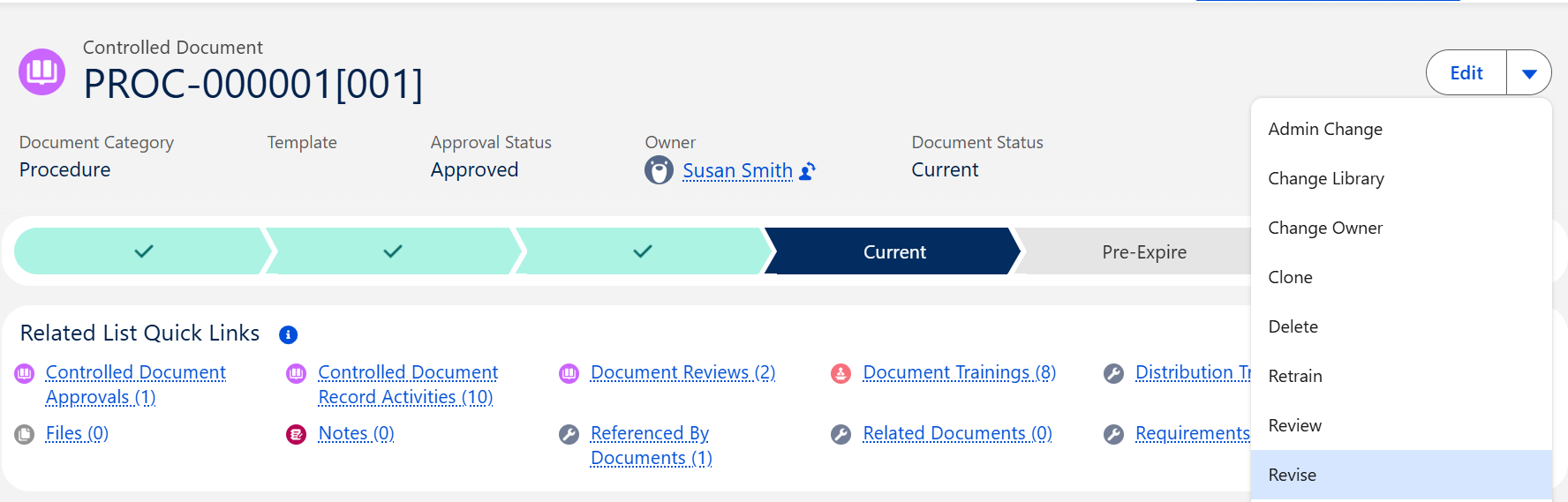
From the Controlled Document record, select the Revise option from the Action Menu.
-
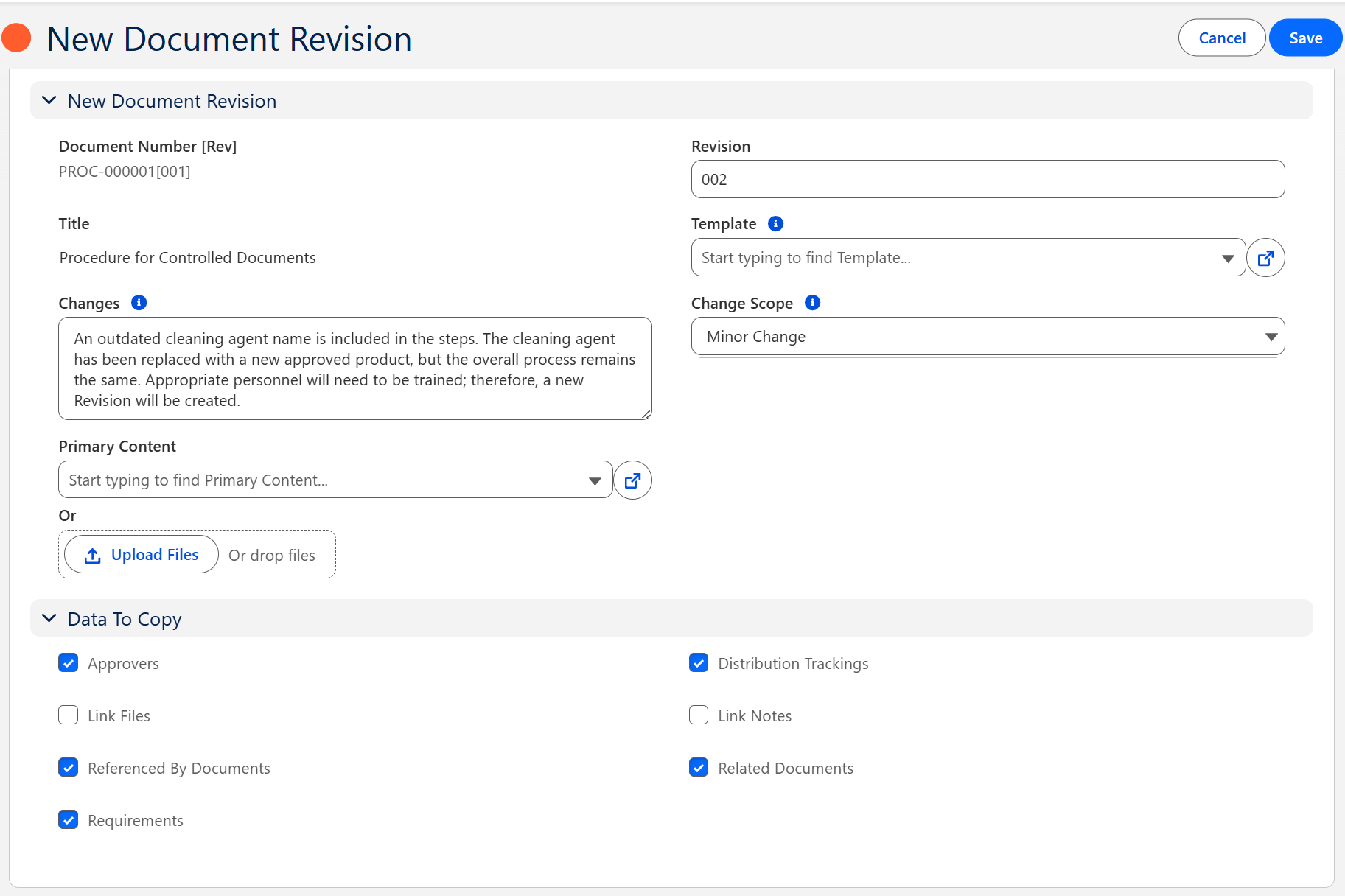
The Revision number defaults to the next sequential revision number; leave as is.
-
Select a new Template to use if the previous Template will not be applied. This field is usually left as is.
-
Enter the description of Changes (recommended) for the New Revision. These Changes will display under the Detail tab of the New Revision.
-
The Change Scope defaults to Major Change. If applicable, enter or select an alternate Change Scope option. These Changes will display under the Detail tab of the New Revision.
-
Drop/Upload Files for the revised Controlled Document Primary Content (only applies to Controlled Documents that will be used for Record Types Controlled Documents, and Courses).
-
Select appropriate Data to Copy to the new Revision.
-
Click the Save button.
Results
-
The new Revision of the Controlled Document record has been created and assigned a unique number.
-
A new revision of the Controlled Document record has been created and is in a Draft Document Status and Draft Stage.
-
In the new Revision of the Controlled Document record, History tab, Revision History section, Revision number link of the Reviewed Controlled Document record displays.
-
The previous revision of the Controlled Document remains in the Current Status and Current Stage until the new revision has been approved and released.
Troubleshooting
-
Check back for new articles
Additional Resources
CQ Resources
-
Document Content & Collaboration
-
Revising Document via Change Order
-
Completing Admin Changes for Documents
Summer 2026