
Overview
Document Approvers can complete the approval process for the obsolescence of a Controlled Document in CQ. Obsoleting a document ensures that outdated or unnecessary content is formally retired and removed from active use, maintaining compliance and preventing the use of invalid information.
By following the steps outlined in this guide, approvers will review the obsolescence request, confirm that the document is no longer required, and provide final approval to retire the document in accordance with organizational and regulatory requirements.
Prerequisites
Available in: Controlled Documents
Installed Package: CQ Core and CQ Approval - Winter 2025
User Profile: Standard User
Permissions: CQ Base User PSG and CQ Document Approver PSG (Document Owners can also Approve)
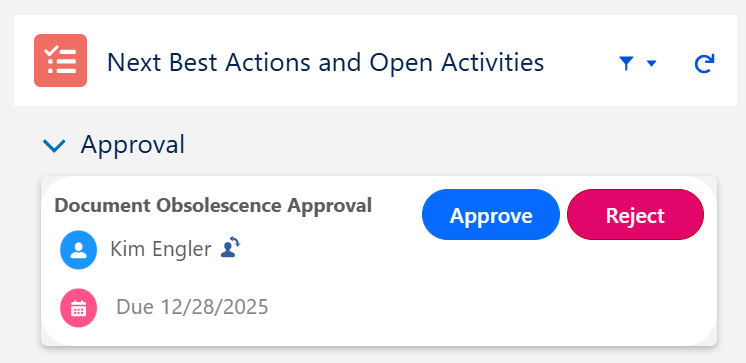
Next Best Action: Review, Approve, Reject buttons are displayed for appropriate record Stage/Status
Email Notification: Approval notification is available in Approver’s Inbox
Instructions
-
From the Home tab select the Approve/Reject link for the CQ Record to review for Approval.

-
Review the information needing Approval from the record.
-
From Next Best Actions, click the Approve or Reject button as needed.
-
Enter Comment and Password if required for eSignature Policies.
-
Complete the transaction.

Results
-
Record Approved
-
The CQ Record moves to the Pre- Expire Stage and Obsolescence Approved Status.
-
The Status of the document moves to Pre-Expire and will change automatically to Obsolete once the Expiration Date is met in the document.
-
Once all Approvers have completed the approval process, the Record Owner should receive an email notification confirming that the Record has been approved.
-
The CQ Approval History section will display as Approved under the Approval Overall Status.
-
The Approving Record activity is logged in the Record Activities section under the History tab.
Record Rejected
-
Approval tasks are removed from ALL Approver's CQ Items under the Home tab.
-
The Record displays with an Approval Status of Rejected.
-
CQ Approval History displays with an Overall Status of Rejected.
-
An email is sent to the Record Owner notifying them that the record has been Rejected.
-
The Rejecting Record activity is logged in the Record Activities section under the History tab.
-
The Submit for Approval button is enabled once again in the record.
-
Troubleshooting
-
Check back for new articles
Additional Resources
CQ Resources
-
Reassigning Approvers
-
Viewing Obsolete Documents
Summer 2026