
Purpose
As an Audit Owner, you can review similar Findings to confirm the Finding Type and identify reoccurring issues.
Prerequisites
Installed Package: CQ Core, CQ.AI Extension
Product: QualityQuest, Platform & Technology
Function: CQ.AI Agent
User Profile: Standard User
Permissions: CQ Base User PSG, CQ Auditor PSG, and CQSS Similarity User PS
Steps
-
Open the Finding record.
-
Expand the CQ.AI section.
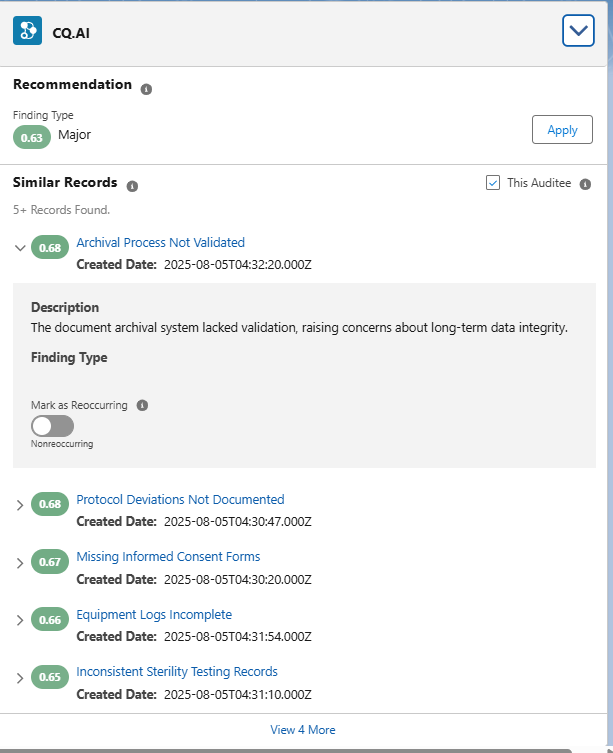
Example:
Expected Outcome
-
A Finding Type Recommendation appears when the similarity threshold is met.
Recommendation
-
A Finding Type recommendation appears when the similarity score exceeds 60%.
-
The recommendation uses the first previously reported Finding that meets the threshold.
-
Select Apply to use the recommended Finding Type.
-
The recommendation appears automatically once the similarity condition is met.
Similarity / Similar Records
-
Similar Records display based on the similarity score between Finding descriptions.
-
This Auditee filter limits results to:
-
The same location for Internal Audits.
-
The same Account for Customer or Supplier Audits.
-
-
Clear the filter to view all similar Findings.
-
Each record shows a Similarity Score.
-
Select Mark Reoccurring to flag the Finding as recurring.
-
The related Finding appears as a linked record in:
-
The References tab
-
The compact header
-
We Value Your Feedback
To provide feedback or suggestions to improve the help content on this page click here.