
Purpose
As a Part Ceator, you can review the JSON structure to confirm field values, configuration details, and data relationships.
Prerequisites
Installation Package: CQ Core, CQ PLM Extension
Product: ProductQuest
Function: Parts
User Profile: Standard User
Permissions: CQ Base User PSG and CQ PLM Creator PSG
Steps
-
Open the Part record.
-
Click Configure BOM View in the Action Menu.
-
Specify this information:
-
BOM Table View Name
Specify the name in the BOM Table View Name. -
Enter BOM Table View Name
Enter BOM Table View Name is set to BOM Table View Name.
-
-
Click Cancel to return back to BOM View.
Example
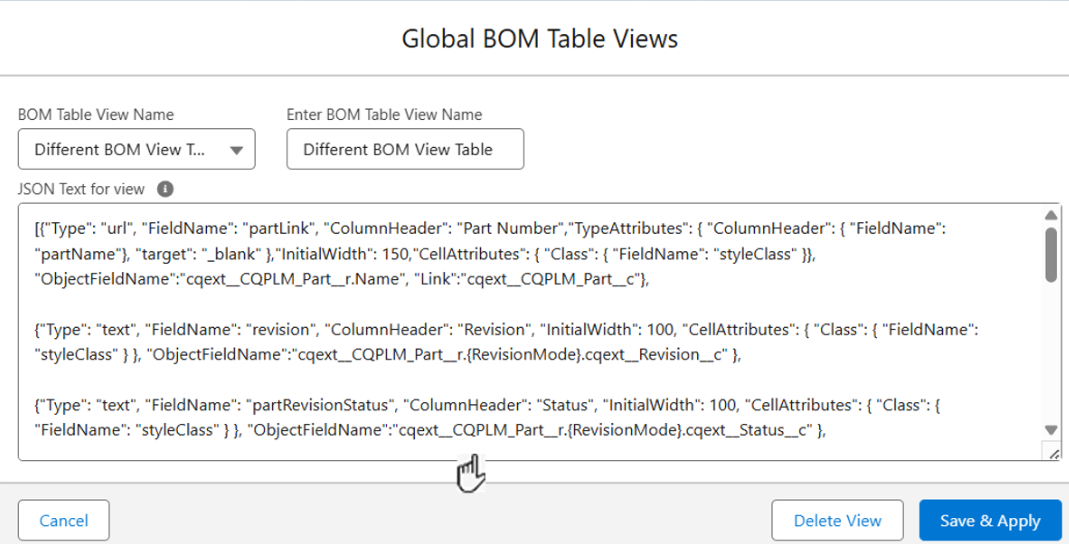
Expected Outcome
-
JSON Code is displayed in the JSON Text for view.
Additional Resources
ComplianceQuest
-
Configuring BOM View
-
Replacing BOM Item
We Value Your Feedback
To provide feedback or suggestions to improve the help content on this page click here.