
Purpose
As a CAPA Owner or CAPA Coordinator, you add Verification Plans to define how you will confirm that the implemented actions resolved the issue. This step establishes the criteria and activities you will use during effectiveness verification.
Prerequisites
Installation Package: CQ Core
Product: QualityQuest
Function: CAPA
User Profile: Standard User
Permissions: CQ Base User PSG, CQ CAPA Owner PSG, CQ CAPA Coordinator PSG,
Record Stage: Investigate, Implement
Steps
-
Open the CAPA record.
-
Open the Investigation tab.
-
Click New in the Verification Plans section.
-
Specify this information:
-
Title
Specify the change title. -
Priority
Specify the Priority.
-
Click Save. To create a new Verification Plan, click Save & New.
Expected Outcome
-
Added Verification Plans are in a Skipped Status.
Additional Resources
ComplianceQuest
We Value Your Feedback
To provide feedback or suggestions to improve the help content on this page click here.
Adding Verification Plans
For Permission Set Groups: CQ Base User PSG, CQ CAPA Owner PSG
The CAPA Effectiveness Review can be set at any time the CAPA record is open to determine if, after Investigation, the Action Plans implemented need to be verified for effectiveness prior to feeling confident enough to close the CAPA record. The Verification Plans can be set up from the Investigation tab of the CAPA record.
The Verification Plans section is displayed only when Effectiveness Review Required? policy is checked under the Workflow tab.
-
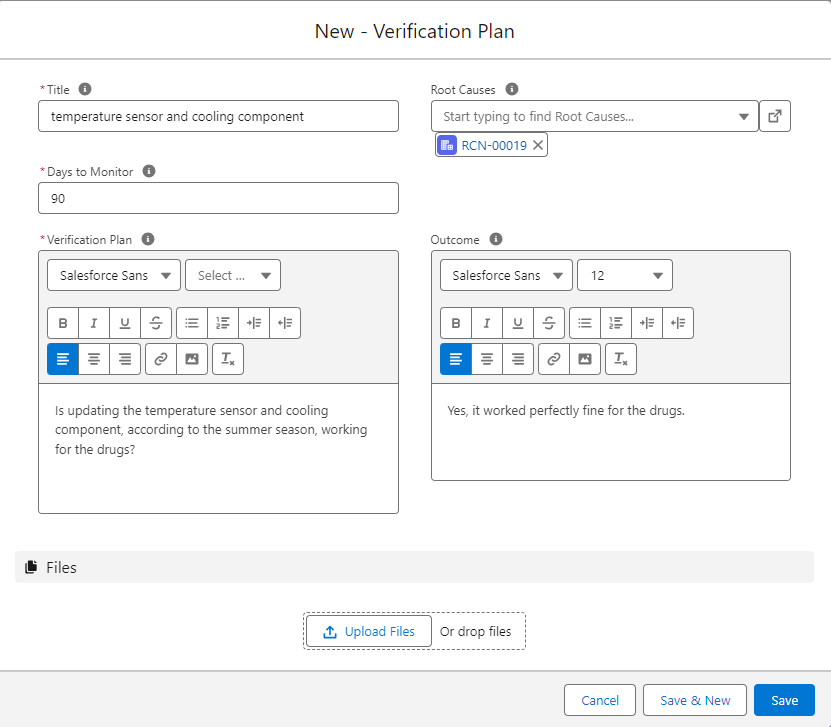
From the CAPA record, Investigation tab, Verification Plans section, click the New button.


-
Enter the Title.
-
Optionally, enter the Root Causes.
-
Enter the Days to Monitor (defaults to 90 days).
-
Enter the Verification Plan detailing what needs to take place to verify the effectiveness of the implemented Action Plans.
-
Optionally, enter the Outcome of the Verification Plan.
-
Optionally, Drop/Upload Files associated with the Verification Plan.
-
Click the Save button or Save & New for additional Verification Plans.
Results
-
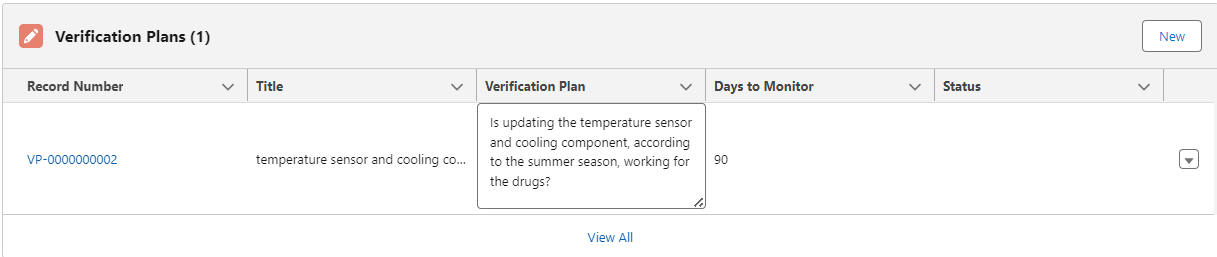
The Verification Plan has been added to the CAPA record under the Investigation tab.
-
Click View All to see all Verification Plans.
-
Edit and Delete Options are available from the drop-down arrow at the end of each Verification Plan row.