
Purpose
As a Record Owner, you enter impacted parts or lots to document which items were affected by the nonconformance. You record the part or lot details so reviewers can assess scope, trace impact, and determine required follow‑up actions.
Prerequisites
Installation Package: CQ Core, myCQ Extension, CQ Supplier Central, CQ Supplier Performance, CQ Ratings Framework, CQ Embedded Analytics, and CQ AI Extension
Product: QualityQuest and Platform Apps
Function: CQ Impacted Part/Lot Entry
User Profile: Standard User
For Permission Set: CQSS Similarity User, CQSS AI Assistant User
For Permission Set Groups: CQ Base User PSG, CQ NC Owner PSG
Steps
-
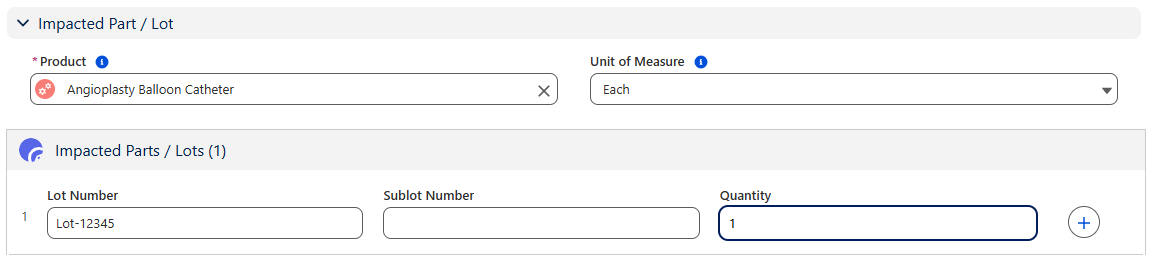
Update the Impacted Part. CQ AI will automatically search in CQ for Lot Info entered by User Reporting the NC and will automatically populate Part Number in the NC if Part is associated with this Lot Number.
-
Update the Lot Number.
-
Optionally, enter the Sublot Number.
-
Update the defective Quantity. This field defaults to 1.00 after the User initially Saved the entry for Reporting the NC above.
-
Click the + button to add additional Lots, Sublots, and/or Quantities.
-
Click the Save button.
Example:
Expected Outcome
-
The NC record is in a Draft Status and Draft Stage off-the-shelf if the NC will need to be submitted later by the User who saved the NC for triage to the NC Queue.
-
The Owner of the NC record defaults to the User creating it.
-
The Next Best Actions section is now populated with Submit for Triage activities and CQ Tasks related to Containment if Containment activities were assigned upon creation of the NC and if Containment is required.
-
After saving the record, new fields are available under the Details tab: Suggested Investigation Level, a Reoccurring checkbox, and Primary Finding. These fields will be filled out later during the NC Investigation.
Additional Resources
ComplianceQuest
We Value Your Feedback
To provide feedback or suggestions to improve the help content on this page click here.