
Overview
The Change Owner feature allows the current owner of a record to initiate a request to transfer ownership to another user. This process ensures that ownership transitions are handled securely and transparently, with clear notifications and approvals.
Prerequisites
Available in: All Records
Installed Package: All - Winter 2025
User Profile: Standard User
Permissions: CQ Base User PSG and CQ Record Owner PSG
Queues: Optional, see Queues
Job Functions: Optional, see Job Functions
Instructions
-
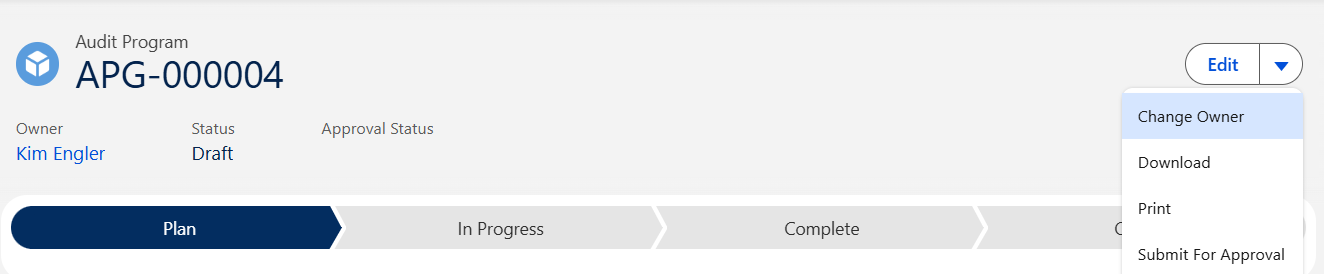
From the CQ record, select Change Owner from the Action menu.
-
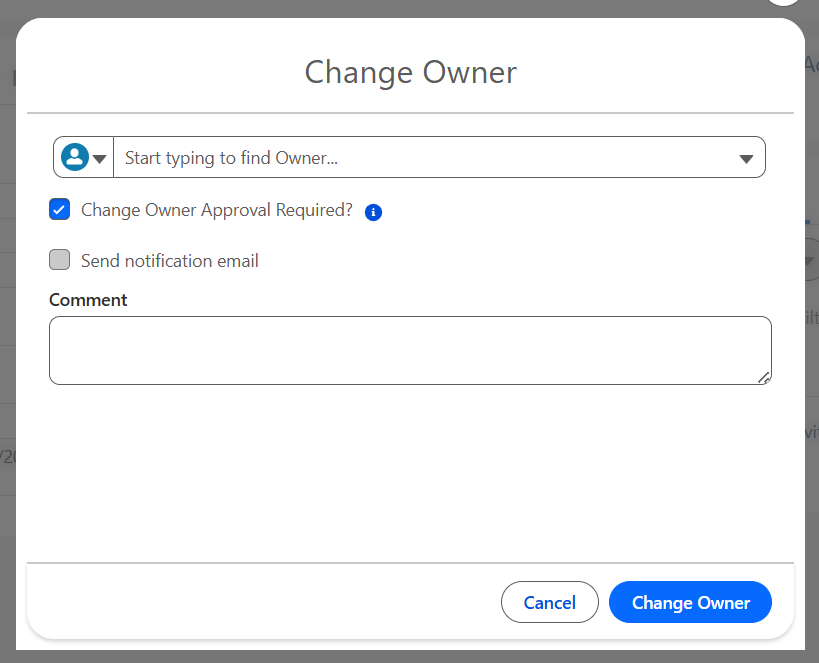
Select User or Queue, then search and select the User or Queue name for the new Owner. Only associated Users/Queues will display for selection if the Qualified User/Owner option is enabled for the CQ Record; otherwise, any Active User/Queue can be selected.
The Change Owner Approval Required option is displayed only if the Qualified User/Owner option is enabled for the CQ Record.
Users assigned the Override Change Owner Approval Required Permission Set can be granted access to uncheck this option.
Unchecking this option will enable the Send notification email option.
-
Optionally, select the Send notification email option to notify the new Owner.
-
Optionally, enter a Comment for the Change Owner transaction.
-
Click the Change Owner button.
Results
-
The Ownership is reassigned to the new Owner for the CQ Record if Qualified User/Owner is not enabled.
-
Emails for the Change Ownership transactions are sent if the option was checked.
-
If Approval is Required for the Change Ownership, the new Owner will now need to Approve the Change Ownership Request.
Troubleshooting
-
Check back for new articles
Additional Resources
CQ Resources
-
Approving Change Owner Requests
Summer 2026