
Purpose
As a Record Owner, you perform an NC investigation to document the work done to understand the cause and impact of the nonconformance. You review the recorded details, examine contributing factors, and update the investigation findings so the record reflects the current evaluation.
Prerequisites
Installation Package: CQ Core, myCQ Extension, CQ Supplier Central, CQ Supplier Performance, CQ Ratings Framework, CQ Embedded Analytics, and CQ AI Extension
Product: QualityQuest and Platform Apps
Function: CQ NC Investigation
User Profile: Standard User
For Permission Set Groups: CQ Base User PSG, CQ NC Task Assignee PSG
Steps
CQ Qualified User can be enabled by CQ Administrators in order to ensure that only Qualified Users can Perform Investigations of the Nonconformance. See your CQ Administrator for how to set Qualified Users for NC Investigations.
-
From the Home tab select the View link for the Investigation Task.
-
From the Nonconformance record, under Next Best Actions click the Perform Investigation button.
-
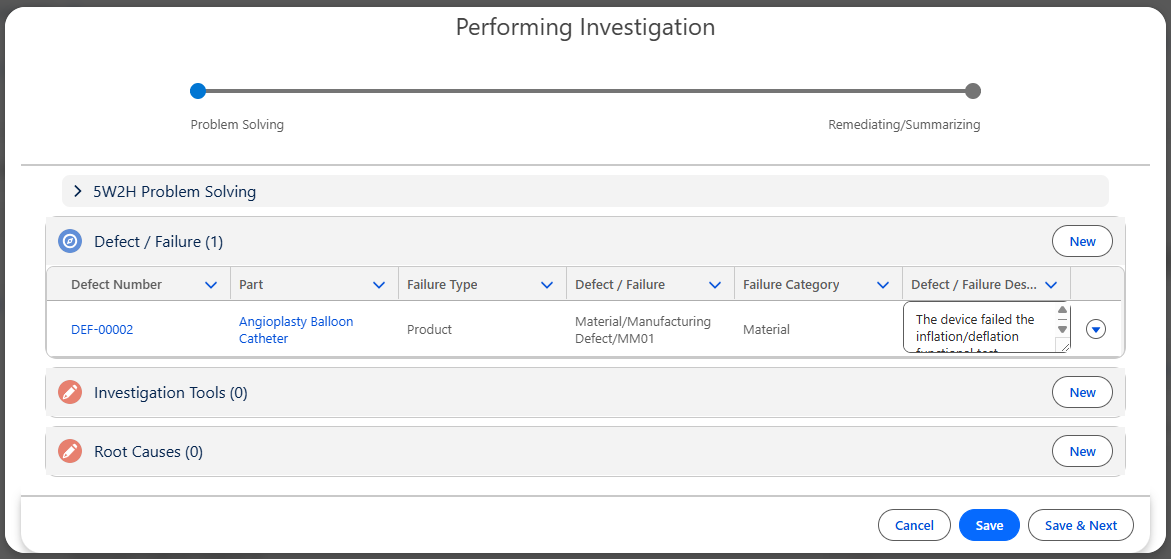
Complete 5W2H Problem Solving as needed.
5W2H can be generated using CQ.AI. See CQ End User Guide - CQ.AI Agents (Intelligent Assistant) for more information.
-
Add Defect/Failures as needed. See Adding Defects/Failures for more information.
-
Add Investigation Tools to be used to conduct the Investigation. See Linking Investigation Tools for more information.
-
Add Root Cause(s). See Adding Root Causes to Investigations for more information.
Root Cause will not initially display for NC Investigation off-the-shelf. See your CQ Administrator to enable Root Cause for Nonconformances.
-
Click the Save & Next button.
-
From the Performing Investigation window, Actions Plans section, click the New button.
-
Add Action Plan(s). See Adding Action Plans to Investigations for more information.
A Correction Action is the action taken to perform an immediate fix of the most obvious problem to remove the nonconformity and make the product or service acceptable to use. This will take very little investigation to find and is a quick fix for this one-time problem; however, it does not take action to preclude the problem from reoccurring. Escalating the NC to a CAPA; or, if CAPA is not needed, Corrective and/or Preventive Actions can also be added to the NC to help eliminate the causes of nonconformity.
-
Enter Investigation Summary.
-
Select the Conclusion of the NC Investigation.
-
Click the Save button.
Example:
Expected Outcome
-
The Investigation Summary and Actions have been added to the NC record and can now be viewed under the Investigation tab.
-
Updates can be made to the Investigation Summary and/or Actions either under the Investigation tab, or by once again clicking on the Perform Investigation button under Next Best Actions.
-
Once the Investigation Summary has been saved for the first time, a Submit Investigation button will display under Next Best Actions in the NC.
-
Investigation Summary is the minimum entry that must be made in order to complete an NC Investigation.
Additional Resources
ComplianceQuest
We Value Your Feedback
To provide feedback or suggestions to improve the help content on this page click here.