
Purpose
Alternate Parts are those parts that can be used to replace original parts in the whole assembly of product structure. Alternate Parts have same fit, form, and function as that of the original part. Alternate Parts are generally purchased from different vendors. Parts having the same fit, form, and function can be manufactured by different manufacturers.
For instance, nuts and bolts designed in accordance with ASME (The American Society of Mechanical Engineers) standards/NAS (National Aerospace Standards)/MIL-STD (Military Standards) etc. are manufactured by different manufacturers and can be used as Alternate Parts. Likewise, we equip our vehicles with rubber tyres from various brands, such as Goodyear and Bridgestone, based on their price and quality. However, rubber tyres from different manufacturers share the same design, compatibility, and purpose, although their quality and cost may vary. These rubber tyres serve as alternative parts.
Prerequisites
Installation Package: CQ Core, CQ PLM Extension
Product: ProductQuest
Function: Standard Parts
User Profile: Standard User
Permissions: CQ Base User PSG and CQ PLM Creator PSG and CQ Design Owner PSG
Steps
-
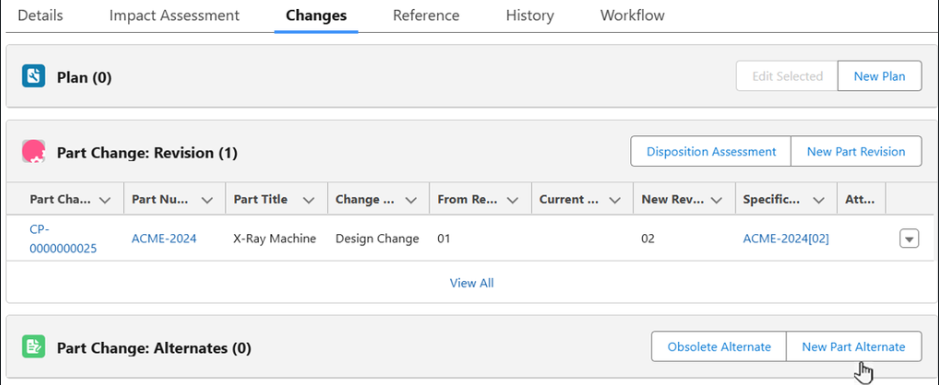
From the Planned Change Order record, Changes tab, Part Change: Alternates section, click the New Part Alternate button. A New Part Alternate modal window appears. Alternatively, from the Immediate Change Order record, Changes tab, Part Change: Alternates section, click the New Part Alternate button. A New Part Alternate modal window appears.
-
The Part Change functionality included in Change Order is displayed only if the CQ PLM extension is installed.
-
An Alternate Part number can be created/modified only through the Change Order (Planned Change/Immediate Change).
-
An Alternate Part number cannot be created/modified from the Part record or the related list objects.
-
Alternate Part numbers can be added to the Part Change: Alternate section only when the Planned Change Order is in the following Stages:
-
Draft
-
Triage
-
Impact Assessment
-
Plan
-
Implementation (not in approval)
-
-
Alternate Part numbers cannot be added to Part Change: Alternate section when the Planned Change Order is in the Approval process (i.e. when the Workflow Status of Planned Change Order is Impact Assessment Approval, Plan Approval, or Implementation Approval).
-
Alternate Part numbers can be edited in Part Change: Alternate section only when the Planned Change Order is in the Draft Stage.
-
Alternate Part numbers can be deleted from Part Change: Alternate section only when the Planned Change Order is in the Draft Stage.
-
Alternate Part numbers can be added to Part Change: Alternate section only when the Immediate Change Order is in the Stage:
-
In Progress
-
-
Alternate Part numbers can be edited in Part Change: Alternate section only when the Immediate Change Order is in the In Progress Stage.
-
Alternate Part numbers can be deleted in Part Change: Alternate section only when the Immediate Change Order is in the In Progress Stage.
-
After the Change Order is Released, the Alternate Part record gets locked (non-editable).
-
Superseded status is not used for Alternate Part record.
-
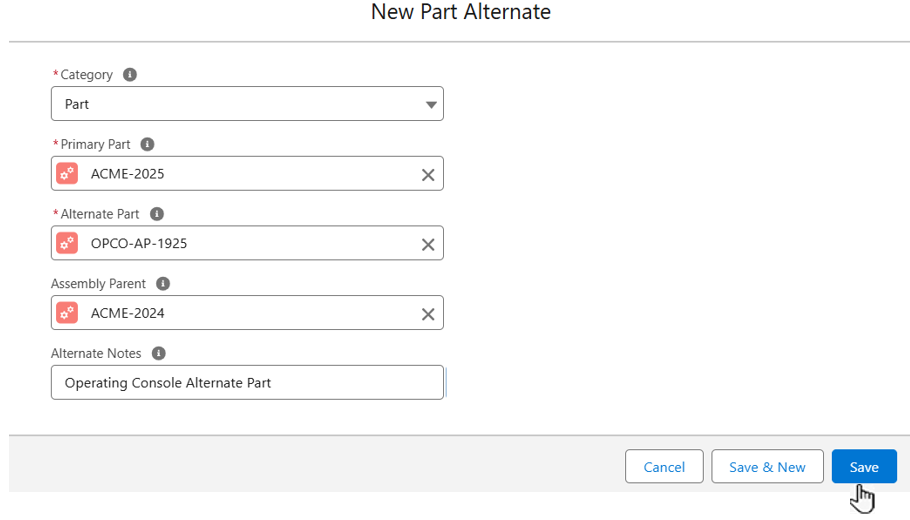
Enter the Category: Part, Assembly, or Replacement. (It indicates the classification of the Alternate Part. Determines required fields and how the Part is displayed in the Assembly.)
-
Enter the Primary Part. (Specifies the Part that is being replaced.)
-
Enter the Alternate Part. (Identifies the Alternate Part that is replacing the Primary Part.)
-
Optionally, enter the Assembly Parent (Note: if Category selected is Assembly, then selecting and entering the Assembly Parent is required).
-
Optionally, enter the Alternate Notes.
-
Click the Save button or Save & New for additional Alternate Parts.
-
In BOM, BOM View, Alternate Part number of a given Part number can be visualized by clicking the gear icon on the right hand side of the Level column.
-
A gear icon against a Part number indicates that the Part has an Alternate Part. Gear icon appears only when the Alternate Part is in Released Status.
-
If a gear icon does not appear against a Part number, then this means that the Part number does not have any Alternate Part number.
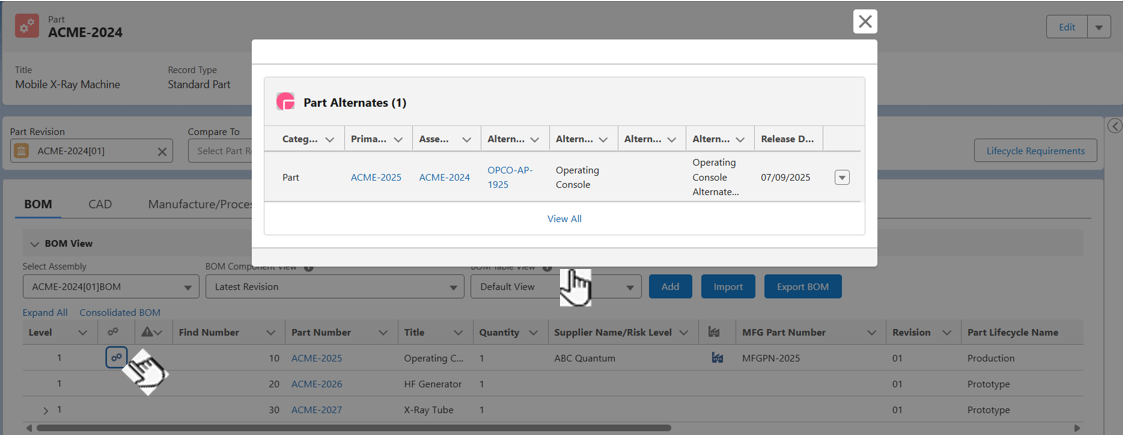
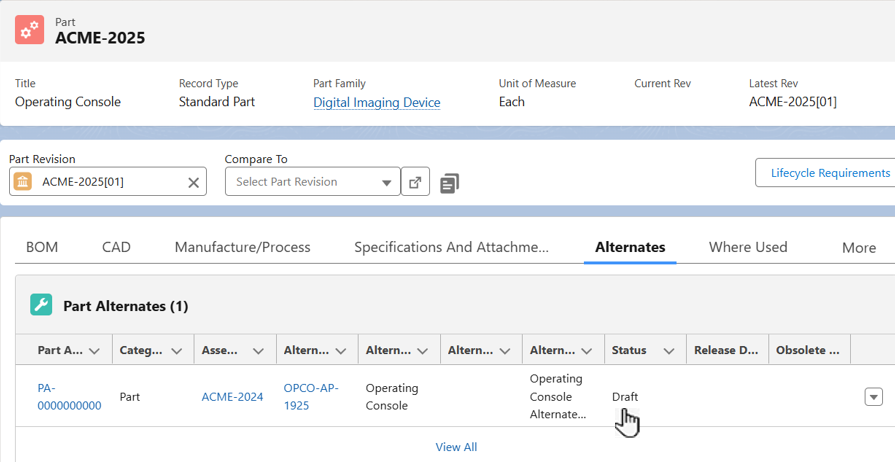
Once an Alternate Part is added to a Change Order, then it gets linked to the Part record and is displayed in the Draft Status under the Alternates tab.
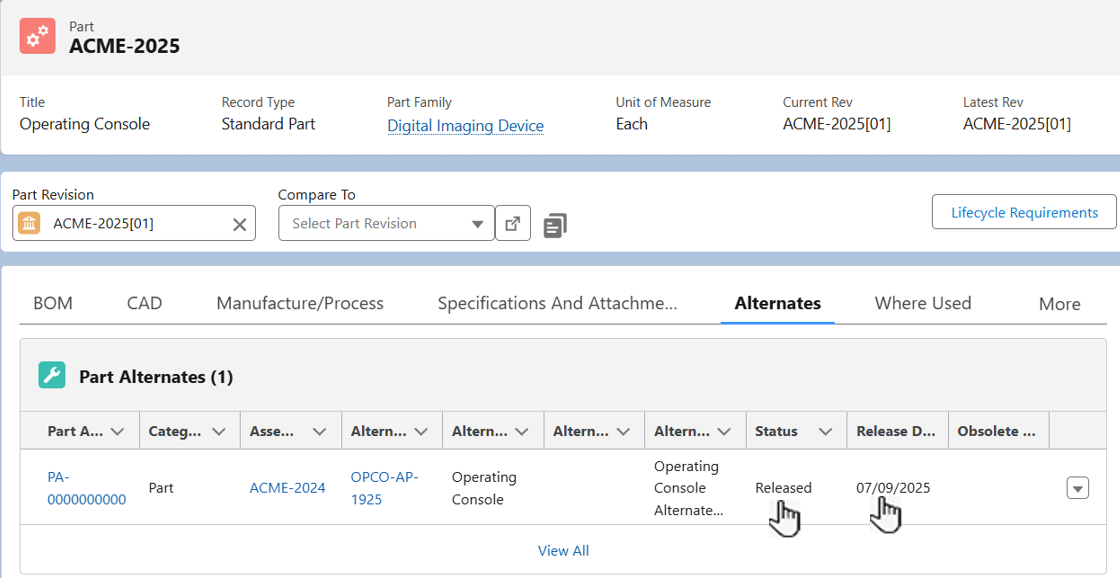
When the Change Order is Rleased, then in Part record, Alternates tab, Part Alternates section, the Status of the Alternate Part is dispalyed as Released. Also the Released Date gets populated.
Expected Outcome
-
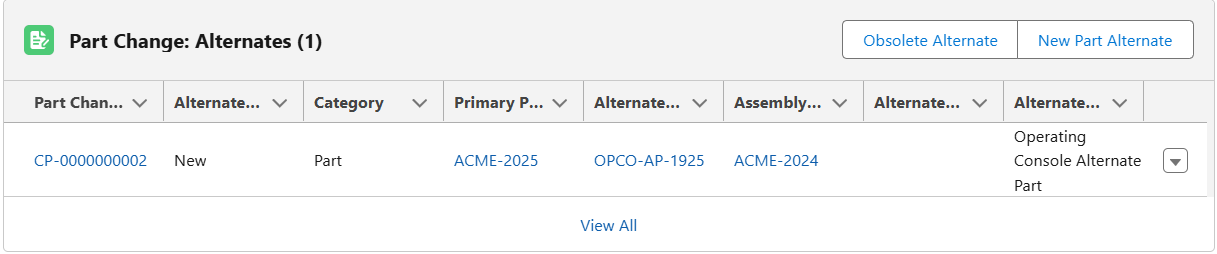
The Part Change: Alternate is added to the Change Order.
-
Click View All to see all Part Change: Alternates.
Troubleshooting
-
Check back for new articles
Optional Configurations
-
NA
Additional Resources
ComplianceQuest
-
Obsoleting Alternate Part
We Value Your Feedback
To provide feedback or suggestions to improve the help content on this page click here.