
Audience
Standard User
Purpose
Establish role‑based, controlled participation throughout the Design File workflow so that collaboration, accountability, and compliance are consistently maintained. Design leaders add users once per project role (e.g., Independent Reviewer, Observer, Participant, Project Manager, Sponsor, Stakeholder), assign and track deliverable‑based actions, and collaborate in real time using tools like Chatter.
Prerequisites
Installed Package(s): CQ Core, CQ Design Extension & CQ Process Extension - Summer 2026
Optional Extension Packages: myCQ & CQ PLM- Summer 2026
Product: CQ Design
User Profile: Standard User
Function: Collaboration
Permissions: CQ Base User PSG, CQ Design Owner PSG, and CQ Design Team Member PSG
Instructions
-
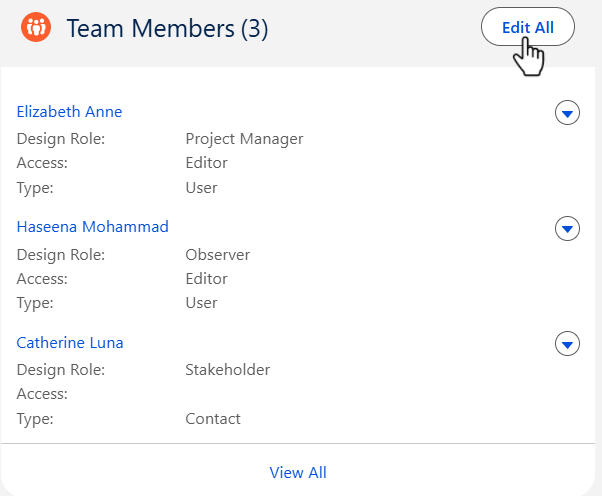
From the Design File record, Team Members section, click the Edit All button.
-
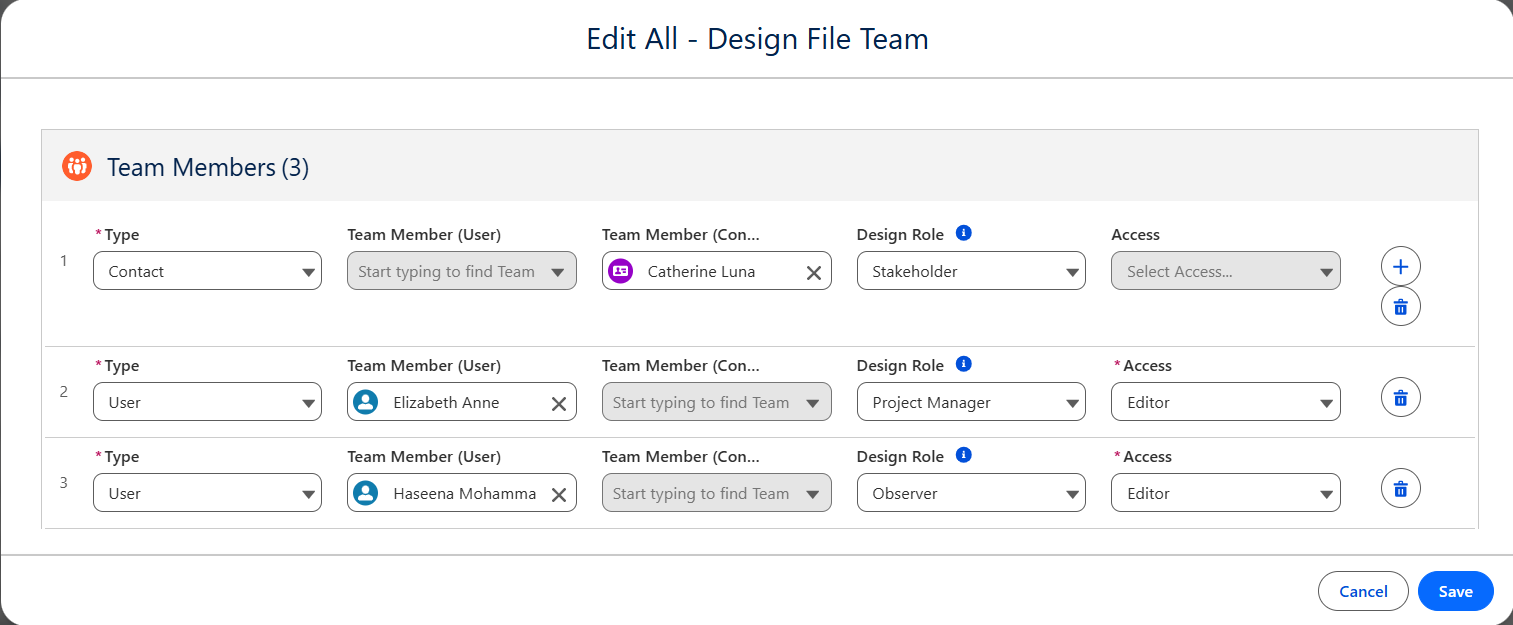
If Team Member’s Type is selected as Contact, then Access field does not display.
-
Same User cannot be added for multiple project roles. Each User can only be added once for a Design Role.
-
If Team Member (User) is selected Team Member (Contact) field is read-only field and vice versa.
-
From the Design File record, Team Members section, click the Edit All button.
-
Team Member’s Type defaults to User, if applicable select Contact.
-
Team Member(User) defaults to the Owner of the Design File record, if applicable select alternate User. (Note: Team Member(User) must be selected if Type is User.)
-
Alternatively, select the Team Member(Contact). (Note: Team Member(Contact) must be selected if Type is Contact.)
-
Team Member’s Design Role defaults to Project Manager, if applicable select alternate Design Role: Independent Reviewer, Observer, Participant, Project Manager, Sponsor, or Stakeholder.
-
If the Type selected was User, select the Team Member's Access: Editor or Viewer.
-
Click on “+” icon to add additional Team Members
-
Click the Save button.
Expected Outcome
-
The Users are added in the Team Members section.
-
Edit and Delete options are available from the drop-down arrow at the end of each Team Member row.
-
Click View All to see all Team Members.
Troubleshooting
Common Errors while managing the team members.
-
Duplicate team member role assignment: A user cannot hold multiple design roles within the same Design File. Assigning the same user to multiple roles will cause an error, as each user must have a unique role per Design File.
Additional Resources
Refer the below links for more information on Configuring the necessary Users or Contacts to add as a Team Member.
ComplianceQuest
-
Contacts