
Purpose
As a Record Owner, you rerun a Decision Tree when updated information requires the guided questions to be completed again. You review the new details, repeat the questions, and record revised responses so the evaluation reflects the most current information.
Prerequisites
Installation Package: CQ Core, CQ Regulatory Reports Extension, CQ AS2 Gateway Extension, myCQ Extension, and CQ AI Extension
Product: QualityQuest and Platform Apps
Function: CQ Decision Tree Rerun
User Profile: Standard User
Permissions: CQ Base User PSG, CQ Complaint Regulatory Owner PSG
Steps
-
From the Complaint record, click the Run Decision Tree option from the Action Menu.
-
Select the Decision Tree Task to re-run and click Run Decision Tree.
-
Click the Continue button.
-
Enter or select the Responses and click Next until complete.
-
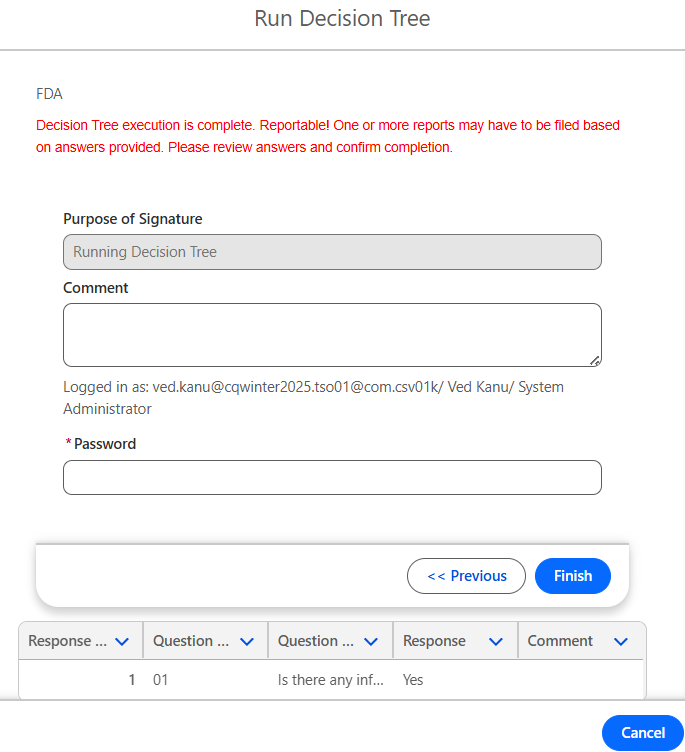
Purpose of Signature defaults to Running Decision Tree; leave as is.
-
Optionally, enter a Comment.
-
Enter your Password.
-
Click the Finish button.
Example:
Expected Outcome
If the Decision Tree is re-run and the result is still Reportable:
-
A new Workflow Step is created for the updated report.
-
The old Workflow Step is moved to Draft, marked as Not Applicable, and archived.
-
The old Report is marked as Void.
-
The new Workflow Step will generate a new report when it transitions to the Open Status.
If the Decision Tree is re-run and the result is Not Reportable:
-
The previous Workflow Step is moved to Draft, marked as Not Applicable, and archived.
-
Any existing Reports are marked as Void.
-
No new Reports will be created.
Additional Resources
ComplianceQuest
We Value Your Feedback
To provide feedback or suggestions to improve the help content on this page click here.